shadcn.io is an independent project built on shadcn/ui
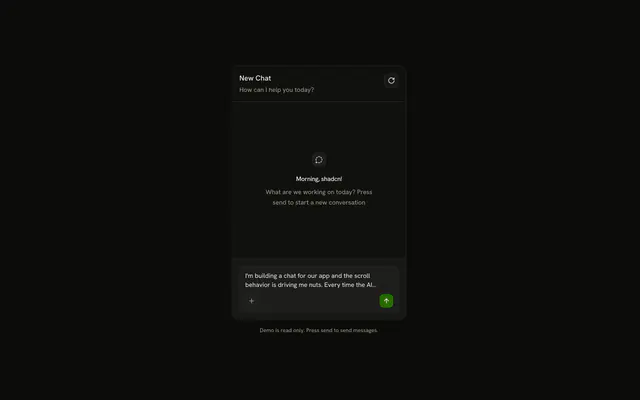
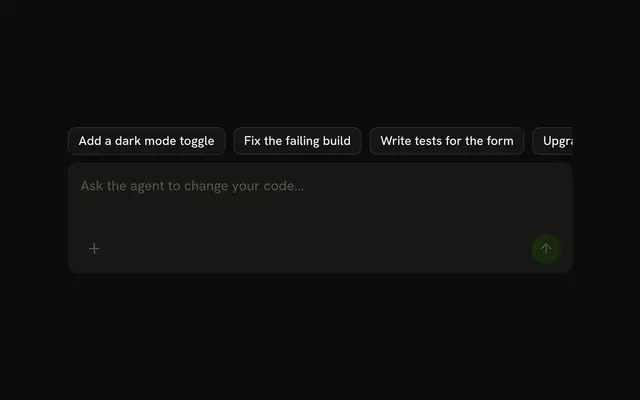
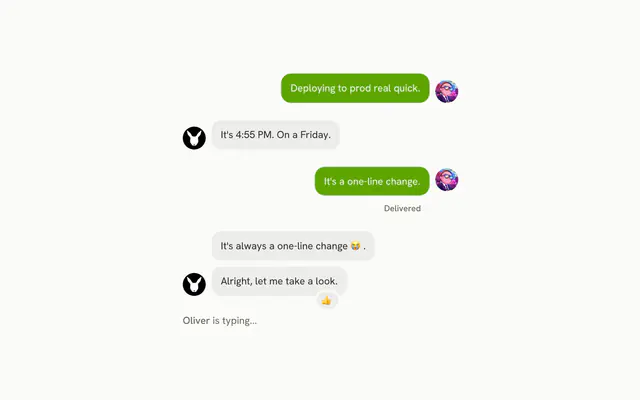
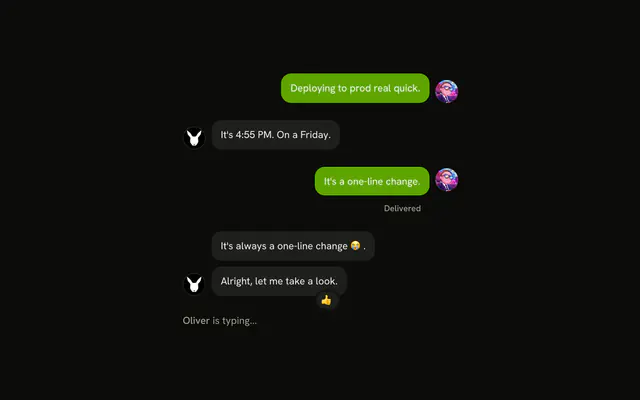
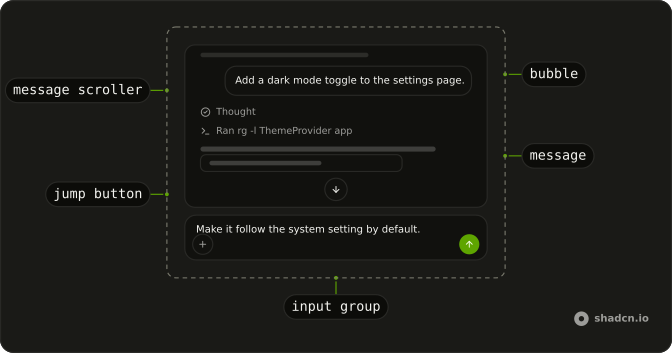
Chat is the thread of a conversation with an agent: the person's messages in bubbles on one side, the agent's steps and reply laid straight on the page, and a field at the bottom. Each question settles near the top when it's sent, and the reply streams into the space below it.
It's a pattern, so you copy the demo and own the thread. For a transcript with no field, use Message Scroller on its own. For a composer with attachments and a model menu, use Prompt Input.
Installation
Chat is a pattern, so no chat file lands in your project. The command adds the four parts the thread is built from, Message Scroller, Message, Bubble and Input Group, and the code to copy is the demo's. The demo also uses Trace, Code Block, Dropdown Menu, Empty and Tooltip: add the ones your thread shows.
Anatomy
Usage
import { Bubble, BubbleContent } from "@/components/ui/bubble";
import { Message, MessageContent } from "@/components/ui/message";
import {
  MessageScroller, MessageScrollerButton, MessageScrollerContent,
  MessageScrollerItem, MessageScrollerProvider, MessageScrollerViewport,
} from "@/components/ui/message-scroller";
type Turn = { id: string; role: "assistant" | "user"; text: string };
export function Thread(props: { messages: Turn[] }) {
return (
<MessageScrollerProvider autoScroll>
<MessageScroller>
<MessageScrollerViewport>
<MessageScrollerContent>
{props.messages.map((message) => (
<MessageScrollerItem
key={message.id}
messageId={message.id}
scrollAnchor={message.role === "user"}
>
{message.role === "user" ? (
<Message align="end">
<MessageContent>
<Bubble align="end" variant="muted">
<BubbleContent>{message.text}</BubbleContent>
</Bubble>
</MessageContent>
</Message>
) : (
<Message>
<MessageContent>{message.text}</MessageContent>
</Message>
)}
</MessageScrollerItem>
))}
</MessageScrollerContent>
</MessageScrollerViewport>
<MessageScrollerButton />
</MessageScroller>
</MessageScrollerProvider>
);
}Put scrollAnchor on the person's turns. A new question then scrolls to the top of the thread with a strip of the previous turn above it, and the reply streams into the space below. autoScroll makes the thread follow the reply once it outgrows that space, until the reader scrolls up. MessageScroller fills its parent, so give the parent a height.
Accessibility
The transcript is a focusable region named Messages, so a keyboard user can Tab to it and scroll it without a mouse. The column of turns inside has the log role, which screen readers treat as a polite live region for new turns. The button that jumps to the end goes inert and leaves the tab order while nothing is below. Three things are left to you, and the demo does all of them: a label on the field, a name on every icon-only button, and aria-busy on MessageScrollerContent while a reply streams.
- Enter
- In the field, sends the message. The demo's key handler on the textarea does this.
- Shift+Enter
- In the field, starts a new line.
- Tab
- Moves focus to the next focusable element: Reset, the transcript, a step or copy button inside it, the jump button while it shows, then the field and its buttons.
- Arrow Down
- When the transcript has focus, scrolls it down.
- Arrow Up
- When the transcript has focus, scrolls it up.
- Page Down
- When the transcript has focus, scrolls it down by about a screen.
- Page Up
- When the transcript has focus, scrolls it up by about a screen.
- Home
- When the transcript has focus, scrolls to its top.
- End
- When the transcript has focus, scrolls to its bottom.
The demo, turn by turn
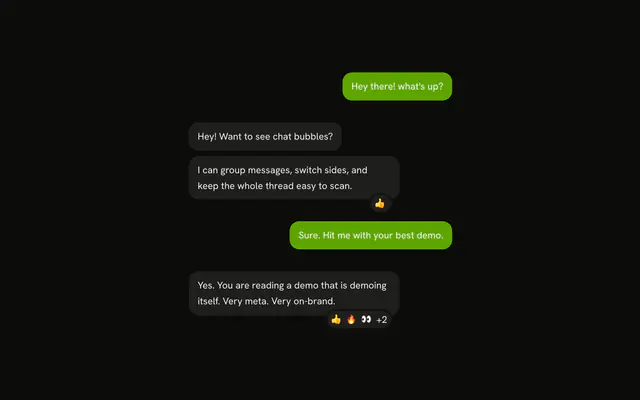
The person's turn is a Message with align="end" around a muted Bubble, and it fades and rises into place as it's sent, unless the reader asked for reduced motion. The field already holds the next message of the demo's script, so pressing send plays the conversation. Anything else you type gets the next scripted reply all the same, and a fallback line once the three turns are used up.
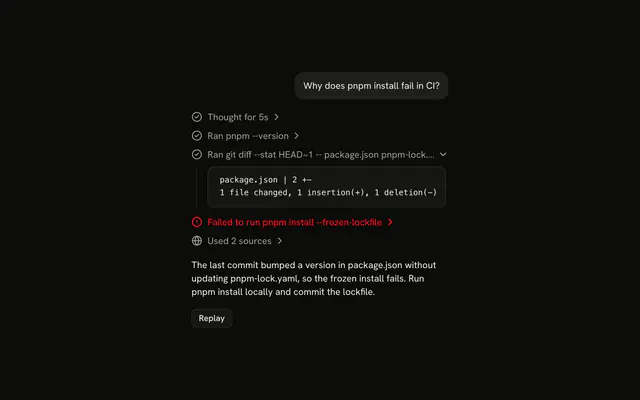
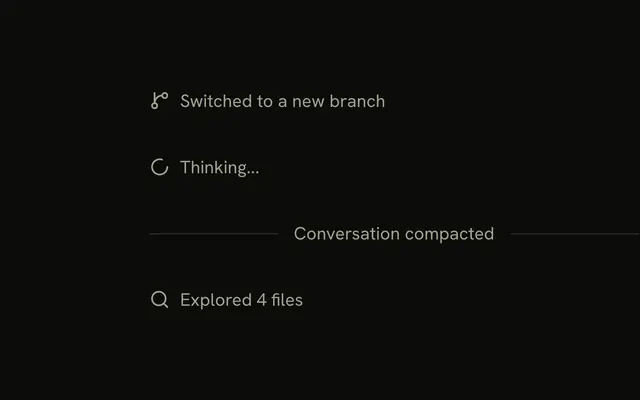
The agent's turn has no bubble, as in Message's Pattern demo. Its steps come first as a Trace: Thinking stays open while the reasoning streams and folds to Thought when it ends, and a command reads Running until its output arrives, then Ran, with the output in a small Code Block behind it. The reply follows as markdown, its fenced code in a Code Block whose copy button stays off until the fence closes.
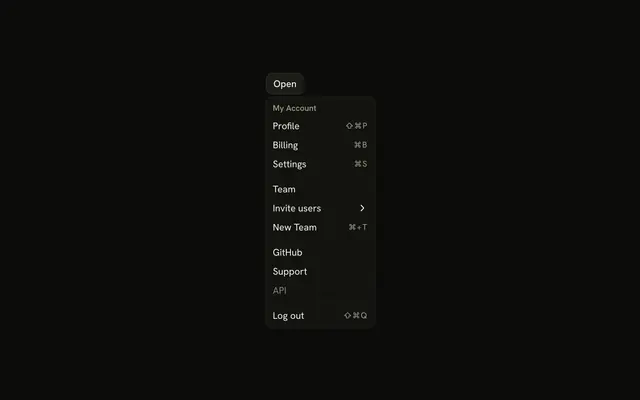
While a reply streams, send and Reset are off and the content is aria-busy. The plus button's menu is there for the layout, and its items do nothing in the demo.
AI SDK
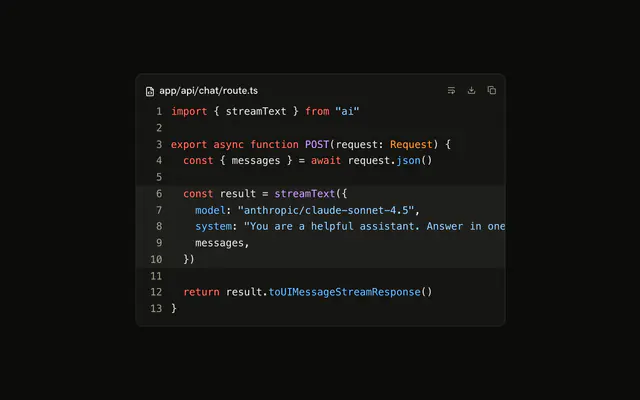
The demo plays a script on timers, with parts shaped like the AI SDK's: reasoning, a tool call, then text. With a model, useChat from @ai-sdk/react gives you the same messages and a status. Anchor the person's messages, mark the content busy while the status is submitted or streaming, and draw each part of the agent's message the way the demo does.
"use client";

import { useChat } from "@ai-sdk/react";

export function Thread() {
  const { messages, status } = useChat();
  const busy = status === "submitted" || status === "streaming";

  return (
    <MessageScrollerProvider>
      <MessageScroller>
        <MessageScrollerViewport>
          <MessageScrollerContent aria-busy={busy}>
            {messages.map((message) => (
              <MessageScrollerItem
                key={message.id}
                messageId={message.id}
                scrollAnchor={message.role === "user"}
              >
                {/* the person's Bubble, or the agent's steps and reply */}
              </MessageScrollerItem>
            ))}
          </MessageScrollerContent>
        </MessageScrollerViewport>
        <MessageScrollerButton />
      </MessageScroller>
    </MessageScrollerProvider>
  );
}
Send from the field with sendMessage({ text }), and keep send off while busy is true. The AI SDK guide builds this thread end to end: the route, a tool, every kind of part, and a version that runs with no model at all.
Migrating from AI SDK Elements
If you added Conversation from AI SDK Elements (opens in a new tab), your project has a components/ai-elements/conversation.tsx wrapper. Paste this prompt into your coding agent to rebuild it on Message Scroller. Every export keeps its name and props, so the code that uses it keeps working.
Migrate components/ai-elements/conversation.tsx from AI SDK Elements to the shadcn.io Message Scroller component.

Keep every export, with the same name and props, so the code that imports it keeps working. Only change how each part renders.

1. Read https://www.shadcn.io/ui/chat.md and build Chat the same way. If the project hasn't got Message Scroller, run the command in its Installation section.
2. Rebuild each part:
   - Conversation renders a MessageScrollerProvider with autoScroll and a MessageScroller, instead of StickToBottom.
   - ConversationContent renders a MessageScrollerViewport and a MessageScrollerContent.
   - ConversationScrollButton renders a MessageScrollerButton.
   - Keep ConversationEmptyState, ConversationDownload and messagesToMarkdown as they are.
3. In the code that renders the thread, wrap each message in a MessageScrollerItem with its messageId, and set scrollAnchor on the person's messages. This is the only change outside the file.
4. Remove use-stick-to-bottom from the dependencies.
5. Remove the imports the file no longer uses.
6. Run the type checker and fix any errors.
FAQ
Why does my question jump to the top of the chat when I send it?
The person's turn is a scroll anchor. When a MessageScrollerItem with scrollAnchor is added, the scroller brings it to the top of the thread, 64 pixels down so the end of the previous turn still shows, and pads the bottom so there is room for the reply before it arrives. The reader starts the answer at its first line instead of chasing the bottom of the page.
To pin the thread to the bottom like a messaging app instead, leave scrollAnchor off and add autoScroll to MessageScrollerProvider. To keep the anchor but show more or less of the previous turn, set scrollPreviousItemPeek on the same provider.
How do I make the chat follow a long reply as it streams?
Add autoScroll to MessageScrollerProvider. The question still settles at the top, and once the reply outgrows the space under it, the thread scrolls along with each new line. It stops the moment the reader scrolls with the wheel, a finger or the keyboard, and picks up again when they return to the bottom or press the jump button.
Without it, as in the demo, a long reply runs on below the fold and the jump button appears. The Usage snippet turns it on, and Message Scroller's Streaming demo shows it with a reply that outgrows the view.
How do I open a saved chat at its latest message?
You get that by default: defaultScrollPosition on MessageScrollerProvider is end, so a thread that mounts with its history already rendered opens at the bottom. Set it to last-anchor to open with the person's last question in view and its reply below it, or to start for the top.
With end or last-anchor, the viewport stays invisible until that first scroll has run in the browser, so the reader never sees the thread jump. On a server-rendered page, the transcript appears once the page hydrates.
How do I stop people from sending while the agent is still replying?
Derive a busy flag from the chat's status, true while it is submitted or streaming, and disable the send button with it. The demo also turns Reset off and returns early from its submit handler, so Enter does nothing mid-reply, and it sets aria-busy on MessageScrollerContent for the same stretch.
The field stays editable, and the demo fills it with the next message so it's ready the moment the reply ends. To let people cancel instead of wait, show a stop button while busy and call stop from useChat.
How do I send a chat message with Enter and add a new line with Shift+Enter?
Handle onKeyDown on the textarea: when the key is Enter without Shift, call preventDefault and then requestSubmit on the form. Shift+Enter falls through to the textarea's own new line. Because requestSubmit runs the form's submit handler, Enter and the send button share one path.
Also leave Enter alone while isComposing is true on the native event or keyCode is 229, as the demo does. Otherwise the Enter that confirms a word typed with a Japanese, Chinese or Korean input method sends the message half written. Safari ends the composition before that keydown, so there only 229 gives it away.
How do I render markdown in the agent's reply?
Use a markdown renderer that copes with text arriving a few words at a time, and send fenced code to a Code Block. The Markdown guide builds that renderer on TanStack Markdown, with the copy button held off until the closing fence arrives.
The demo has a small parser of its own instead, covering only what its script uses: paragraphs, lists, bold, inline code and fenced code. Don't ship it for a real model, whose replies bring headings, links and tables it can't draw.
How does a screen reader read a streaming chat reply?
MessageScrollerContent has the log role, a polite live region with aria-relevant set to additions, so a screen reader reads each new turn when it lands without cutting off what it was saying. While the reply streams, the demo sets aria-busy on that element, which tells assistive technology the region is still changing so it can wait for the finished turn.
Set aria-busy from your own chat status the same way, and clear it when the reply ends. The Accessibility section covers the keyboard.
Is Chat the same as AI SDK Elements' Conversation?
It does the same job on a different scroller. Conversation wraps StickToBottom, which keeps the thread pinned to the bottom while a reply streams. Here the person's message anchors each turn, and following the reply is something you turn on with autoScroll.
The Migrating from AI SDK Elements section has a prompt for your coding agent that rebuilds the old conversation.tsx on Message Scroller and keeps its exports.
API Reference
Chat has no props of its own. The thread is a Message Scroller, each turn a Message, the person's words a Bubble and the field an Input Group. The agent's steps are a Trace, and the code in a reply a Code Block.