shadcn.io is an independent project built on shadcn/ui
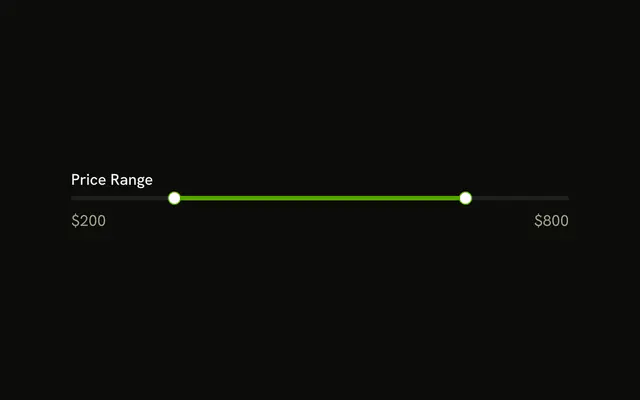
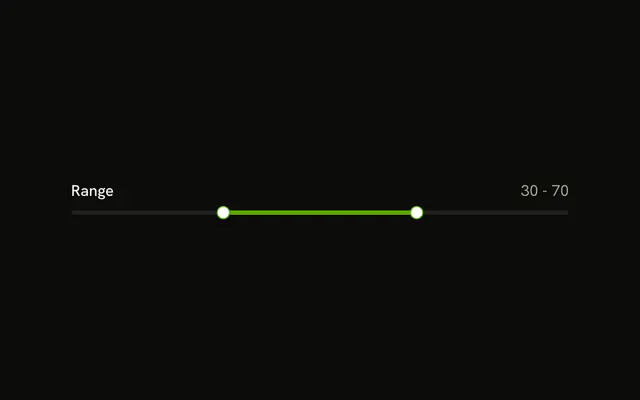
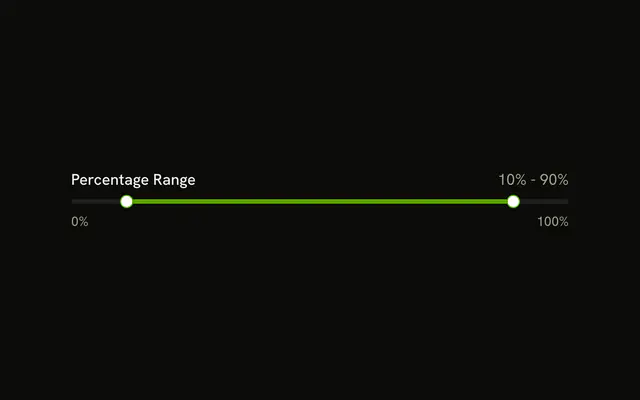
Select Range sits above one track with two thumbs. They start at 25 and 75, and the stretch between them is filled.
Use it for a price, age, or time span where both ends are the choice. A single figure is clearer in a Number Input. In React, Ark UI keeps the thumbs in order.
Installation
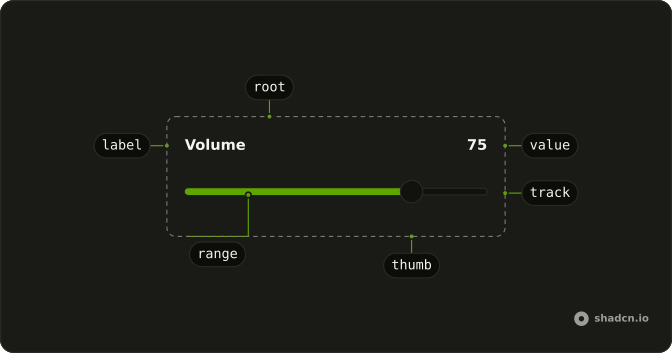
Anatomy
Usage
<div className="flex w-full max-w-md flex-col gap-2">
  <Label>Select Range</Label>
  <Slider
    aria-label={["Range start", "Range end"]}
    defaultValue={[25, 75]}
    max={100}
    min={0}
  />
</div>
FAQ
How does this demo get two thumbs?
The default value is [25, 75], two numbers, so the slider draws one thumb for each. The thumbs keep their order as they move.
Can the thumbs meet?
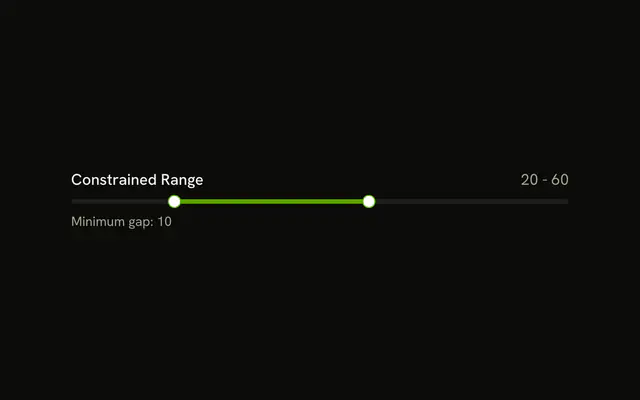
Yes. No minimum gap is set, so both thumbs can sit on the same value.
minStepsBetweenThumbs keeps them apart.
How are the thumbs named?
The Select Range text is a visible Label, and aria-label names the slider.
On Ark UI, aria-label is a list, so each thumb gets its own name: Range start and Range end.
API Reference
Label
No extra props in this demo. The rest is on the Label page.
Slider
Sets aria-label={["Range start", "Range end"]}, defaultValue={[25, 75]}, max={100} and min={0}. The rest is on the Slider page.