Image compressor.
Drop images, set a quality and a maximum size, and watch the files shrink. Everything happens in your browser: no upload, no account, no limit on how many you do.
Image compressor.
Need the UI around it? With Pro, your AI agent builds the form, the result card and the rest of the page from a prompt.
Get ProHow it works
4 steps, no account. It runs in your browser and nothing is uploaded.
Add an image
Drop one or more JPG, PNG, WebP, GIF or AVIF files; each one's size and dimensions show at once.
Set quality, size and format
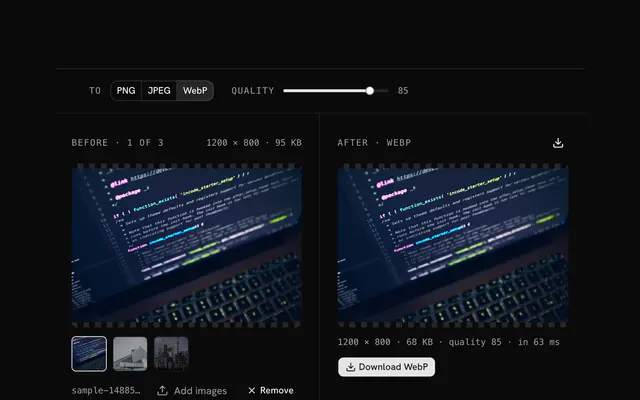
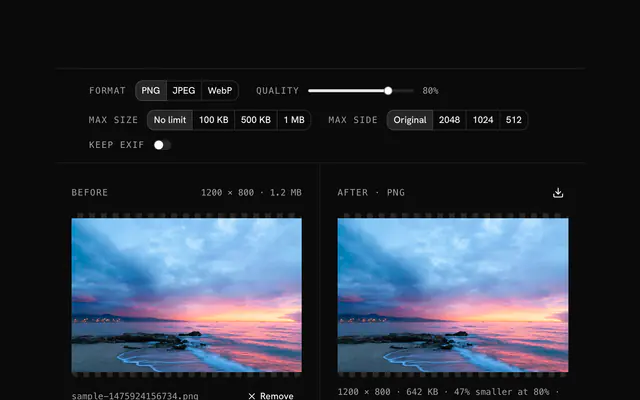
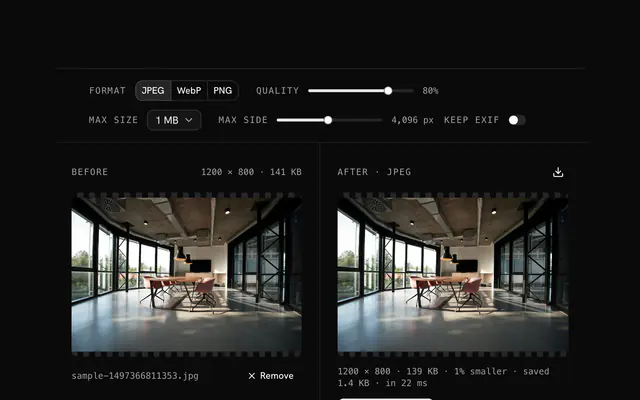
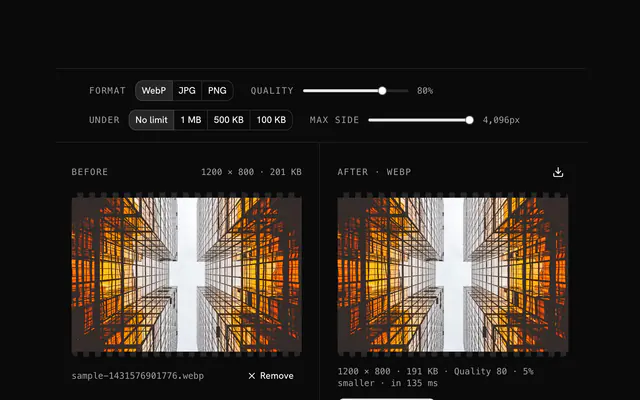
Move the quality slider, cap the longest side, and keep the format or switch to JPEG, WebP or PNG.
Compare
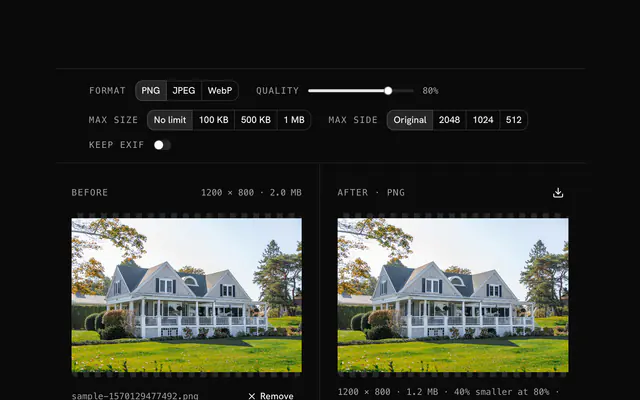
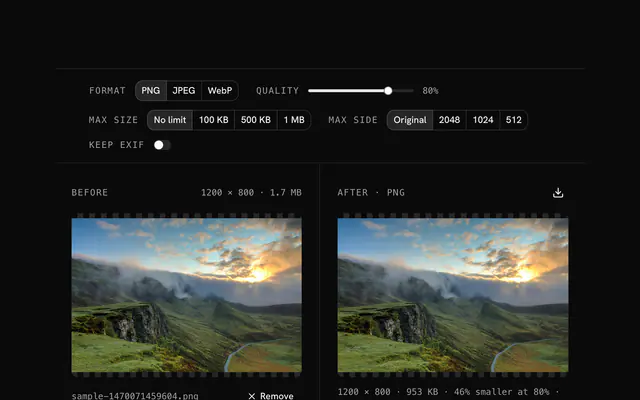
The result updates as you change the controls, with its new size and the percentage saved.
Download
Save one file under the original's name, or every file in one ZIP.
Related tools
More image tools. Every one free, in the browser.
Pricing
Build it with Pro
The tool is free. Pro adds 6,000+ blocks, premium templates and the MCP server, so your AI editor builds the product around it.
4.9/5 out of 5 · 150+ reviewsfrom 150+ founders and developers.
- Secure checkout via Stripe
- Code lives in your repo
- Keep what you've shipped if you cancel
- License terms
Questions and answers
Before you trust the result: what to know about the format, the limits, your data and the tools next to it.
Two things do the work. Lossy encoders (JPEG, WebP) throw away detail the eye is unlikely to miss, and the quality slider sets how much; and shrinking the pixel dimensions removes pixels outright. A 4000-pixel photo shown at 1200 pixels carries ten times the data it needs, so capping the longest side is often the bigger saving.
For photos, JPEG at 70 to 85 or WebP at 70 to 80 is hard to tell from the original and a fraction of the size. Below 50 blocking and smearing show up in smooth areas. For screenshots, flat graphics and anything with text, PNG stays sharp; a lossy format blurs edges.
WebP is usually 25 to 35% smaller than a JPEG that looks the same, and it keeps transparency where JPEG can't. Every current browser opens it. Pick JPEG when the file must open in older software, email clients or print workflows that don't know WebP.
PNG is lossless, so the quality slider doesn't apply: the browser's encoder writes the pixels as they are, and the only lever is size. A PNG that comes out bigger than the original was already well compressed by a better optimizer; try WebP for it, or keep the original.
No. The image is decoded, resized and re-encoded by your browser's canvas; the page makes no request with it. It works offline once loaded.
Same keeps the input's format where the browser can write it (PNG, JPEG, WebP); other inputs such as GIF or AVIF come out as JPEG. The status under the result says how much smaller the file is, and warns when it got larger.
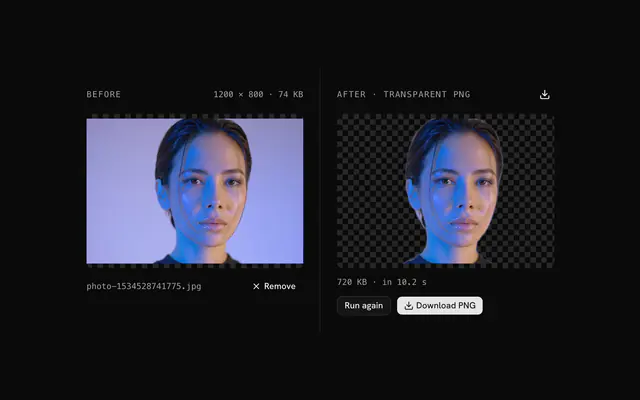
JPEG has no alpha channel, so transparent areas are filled with white when you pick it, as image editors do. Keep PNG or choose WebP, which keeps transparency and compresses well.
Yes. Drop several images at once, or add more with Add images; the preview shows the one selected in the strip, and Download all as ZIP writes every file with the same settings, one after another.
No. The Image compressor is free and opens without a sign-in, an account or an install.
Nothing. The Image compressor holds your input in the page's memory, so closing or reloading the tab clears it, and it saves nothing in this browser.
The Longest side choice caps the larger dimension at 2048, 1280 or 800 pixels, or keeps the original size. The picture is scaled to fit and keeps its proportions; for any other size, use the image resizer.
Your file's name with -compressed added and the new extension, such as photo-compressed.webp. The status line under the result says how much smaller it is, or how much larger when the original was already well compressed.
Yes. Drop several files at once or add more with Add images; the strip under the preview picks which one is shown, and Download all as ZIP compresses every file with the same settings, one after another.
No metadata is copied across. The picture is redrawn on a canvas and encoded fresh, so the output holds pixels only, without the original's EXIF block or its location.
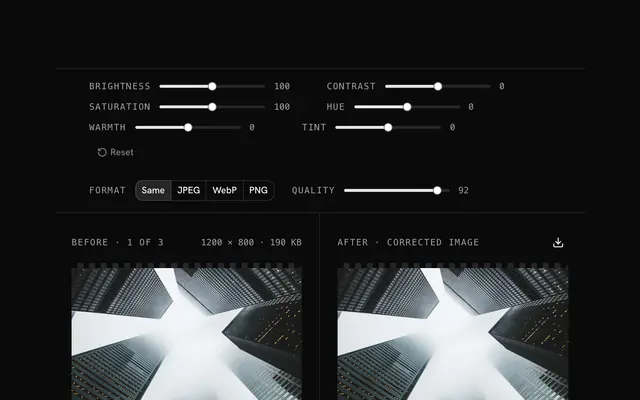
Closest to the Image compressor: Image converter, Background remover, Color correction, PNG compressor. Each opens on its own page, free and in the browser.
The Image compressor is one of 18 in its group. The group's page, /tools/image, lists them all.
The tool is free. Its interface is built from shadcn.io's own components (Button, Input, Slider and the rest of the registry under /ui), which come in React, Vue, Svelte and Solid. Pro adds the blocks and templates for the product around it.
4.9 out of 5 from 150+ developers


Build the product around it
Every block, template and icon, installed by your AI agent in your theme. The tools stay free.
Get Pro