shadcn.io is an independent project built on shadcn/ui
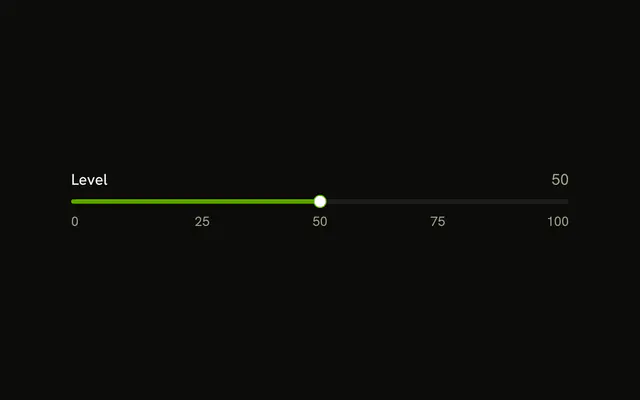
100, 75, 50, 25, and 0 run down the left of a vertical track. Level and the number 50 sit on the right.
Use it like a mixer scale, where the marks matter as much as the thumb. A Label and the number are enough if the scale is obvious. In React, Base UI does not draw those marks.
Installation
Anatomy
Usage
<div className="flex items-center gap-4">
  <div className="flex h-48 flex-col items-end justify-between text-muted-foreground text-xs tabular-nums">
    {marks.map((mark) => (
      <span key={mark}>{mark}</span>
    ))}
  </div>
  <div className="h-48">
    <Slider
      aria-label="Level"
      onValueChange={handleValueChange}
      orientation="vertical"
      value={value}
    />
  </div>
  <div className="flex flex-col gap-2">
    <Label>Level</Label>
    <span className="text-muted-foreground text-sm tabular-nums">
      {value[0]}
    </span>
  </div>
</div>
FAQ
How is the scale placed?
A marks array mapped into a h-48 column with justify-between, the same height as the slider, so 100 is at the top and 0 at the bottom.
How does the readout follow the thumb?
The value lives in state, starting at 50, and goes back to the slider as value. The number under the Level label prints it.
onValueChange receives the new value, and the handler stores it as an array.
How is the slider named?
The Level text is a visible Label, and the slider gets the same name with aria-label, so screen readers announce what it sets.
On Base UI, aria-label is one string on the slider.
API Reference
Slider
Sets aria-label="Level", onValueChange={handleValueChange}, orientation="vertical" and value={value}. The rest is on the Slider page.
Label
No extra props in this demo. The rest is on the Label page.