shadcn.io is an independent project built on shadcn/ui
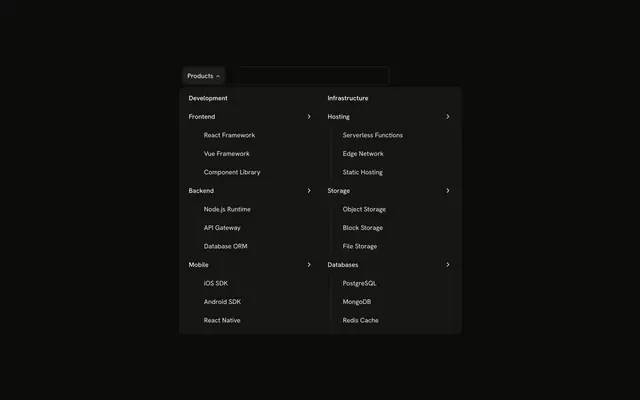
The bar shows Analytics. The panel leads with four stat cards, Active Users, Revenue, Conversions, and Bounce Rate, each with a trend badge, then two columns of report links.
Show the numbers in the menu when people pick a report from the headline stats. A Card on the dashboard can carry the chart itself. In Solid, Ark UI closes the open panel when you press Escape.
Installation
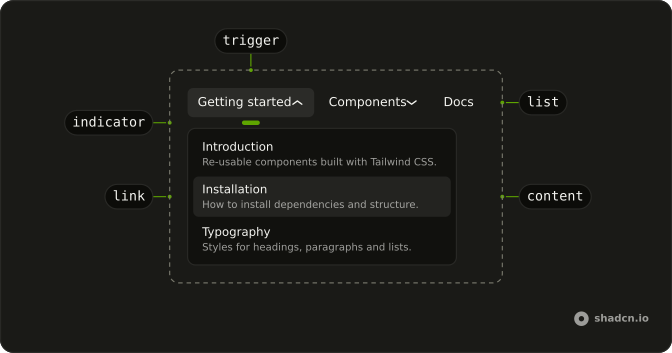
Anatomy
Usage
<div class="w-full max-w-md rounded-md border bg-background p-px">
    <NavigationMenu>
      <NavigationMenuList>
        <NavigationMenuItem>
          <NavigationMenuTrigger>Analytics</NavigationMenuTrigger>
          <NavigationMenuContent>
            <div class="flex w-[700px] max-w-full flex-col gap-6 p-4">
              <div class="grid grid-cols-4 gap-4">
                {stats.map(stat => <div class="rounded-lg border bg-card p-4">
                    <div class="flex items-center justify-between">
                      <Dynamic component={stat.icon} aria-hidden="true" class="size-4 text-muted-foreground" />
                      <Badge variant={stat.trendVariant}>
                        <Dynamic component={stat.trendIcon} aria-hidden="true" data-icon="inline-start" />
                        {stat.trend}
                      </Badge>
                    </div>
                    <div class="mt-3">
                      <div class="font-bold text-2xl">{stat.value}</div>
                      <p class="text-muted-foreground text-xs">
                        {stat.label}
                      </p>
                    </div>
                  </div>)}
              </div>
              <div class="grid grid-cols-2 gap-4">
                <div class="flex flex-col gap-1">
                  <h4 class="mb-2 px-2 font-semibold text-sm">Reports</h4>
                  {reports.map(report => <NavigationMenuLink asChild={props => <a {...props()} href="#">
                        {report.icon ? <Dynamic component={report.icon} aria-hidden="true" class="mt-0.5 size-4" /> : null}
                        <div class="flex flex-col gap-0.5">
                          <span class="font-medium">{report.title}</span>
{/* The rest of the file is under Installation. */}
FAQ
How are the trends shown?
Each stat has a trend value, an arrow icon and a Badge variant in the data: secondary with an up arrow for gains, destructive with a down arrow for the bounce rate.
Are the stat cards links?
No, only the reports below are NavigationMenuLinks. The figures are written in the file; in an app, load them when the panel opens.
How do the links use my router?
Each link is your router's link rendered through NavigationMenuLink, so it keeps the menu's styles and focus handling.
NavigationMenuLink takes asChild, a function that renders your router's A with the props it gets.
API Reference
Navigation Menu
Sets asChild and props. The rest is on the Navigation Menu page.
Badge
Sets variant={stat.trendVariant}. The rest is on the Badge page.