shadcn.io is an independent project built on shadcn/ui
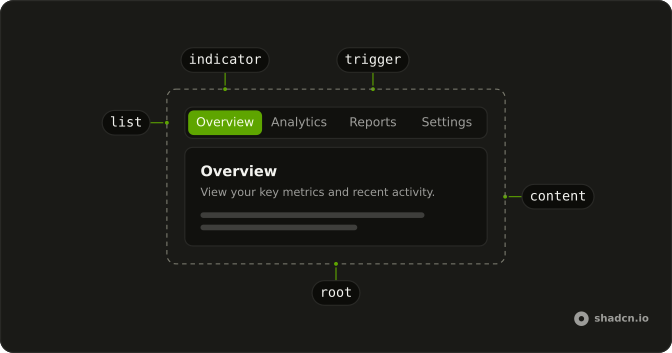
Four tabs in a row: Overview, Analytics, Reports and Notifications. Overview is selected. Its panel is a heading and a short paragraph, and the other panels follow the same shape.
Use a row of tabs when several views share one spot on the page. An Accordion fits the same sections stacked open and closed. In Svelte, Ark UI shows one of these panels at a time.
Installation
Anatomy
Usage
<Tabs class="w-full max-w-md" defaultValue="overview"><TabsList><TabsTrigger value="overview">Overview</TabsTrigger><TabsTrigger value="analytics">Analytics</TabsTrigger><TabsTrigger value="reports">Reports</TabsTrigger><TabsTrigger value="notifications">Notifications</TabsTrigger></TabsList><TabsContent value="overview"><div class="rounded-lg border bg-card p-6 text-card-foreground shadow-sm"><h3 class="mb-2 font-semibold text-lg">Overview</h3><p class="text-muted-foreground text-sm">View a comprehensive summary of your account activity, recent updates, and key metrics at a glance.</p></div></TabsContent><TabsContent value="analytics"><div class="rounded-lg border bg-card p-6 text-card-foreground shadow-sm"><h3 class="mb-2 font-semibold text-lg">Analytics</h3><p class="text-muted-foreground text-sm">Dive deep into your data with detailed analytics, trends, and insights to help you make informed decisions.</p></div></TabsContent><TabsContent value="reports"><div class="rounded-lg border bg-card p-6 text-card-foreground shadow-sm"><h3 class="mb-2 font-semibold text-lg">Reports</h3><p class="text-muted-foreground text-sm">Generate and view comprehensive reports on various aspects of your account performance and activity.</p></div></TabsContent><TabsContent value="notifications"><div class="rounded-lg border bg-card p-6 text-card-foreground shadow-sm"><h3 class="mb-2 font-semibold text-lg">Notifications</h3><p class="text-muted-foreground text-sm">Manage your notification preferences and view recent alerts and updates from your account.</p></div></TabsContent></Tabs>FAQ
Which parts does this demo use?
Tabs, a TabsList with four TabsTriggers (Overview, Analytics, Reports and Notifications) and four TabsContent panels. Each panel matches its trigger by the same value.
What selects Overview on first render?
The default value on Tabs is overview, which matches the first trigger. The tabs keep the choice themselves after that.
Pass value instead of defaultValue when something outside the list has to set the tab.
How do keyboard users move between these tabs?
Tab moves focus into the list, the arrow keys move between triggers, and Home and End jump to the first and last.
Focusing a tab selects it. Set activationMode="manual" to select only with Enter or Space.
Do inactive panels stay mounted?
No. Inactive panels unmount, so state inside them resets when the reader comes back. These four panels are static text, so the reset does not show.
Set lazyMount and unmountOnExit to false on Tabs to keep a panel mounted.
API Reference
Tabs
Sets defaultValue="overview", value="overview", value="analytics", value="reports" and value="notifications". The rest is on the Tabs page.