shadcn.io is an independent project built on shadcn/ui
The outline button shows the current level, starting at H1. Heading 1 through Heading 6 are radio items, each drawn at its own size, and only one stays checked.
Use it in a document editor when the level should be obvious before the click. The rows are not real headings. For a form field, use a Select. In Vue, Ark UI stores the level and does not change the document.
Installation
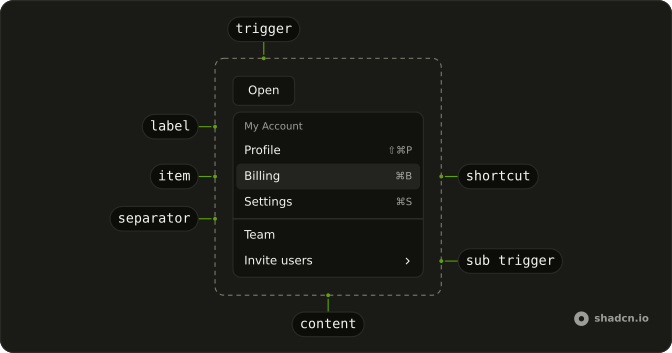
Anatomy
Usage
<DropdownMenu>
  <DropdownMenuTrigger :asChild="true">
    <Button variant="outline">
      <HeadingIcon aria-hidden="true" data-icon="inline-start" />{{ heading.toUpperCase() }}
    </Button>
  </DropdownMenuTrigger>
  <DropdownMenuContent class="w-48">
    <DropdownMenuRadioGroup @value-change="handleHeadingChange" :value="heading">
      <DropdownMenuRadioItem value="h1">
        <span class="font-bold text-2xl">Heading 1</span>
      </DropdownMenuRadioItem>
      <DropdownMenuRadioItem value="h2">
        <span class="font-bold text-xl">Heading 2</span>
      </DropdownMenuRadioItem>
      <DropdownMenuRadioItem value="h3">
        <span class="font-bold text-lg">Heading 3</span>
      </DropdownMenuRadioItem>
      <DropdownMenuRadioItem value="h4">
        <span class="font-bold text-base">Heading 4</span>
      </DropdownMenuRadioItem>
      <DropdownMenuRadioItem value="h5">
        <span class="font-bold text-sm">Heading 5</span>
      </DropdownMenuRadioItem>
      <DropdownMenuRadioItem value="h6">
        <span class="font-bold text-xs">Heading 6</span>
      </DropdownMenuRadioItem>
    </DropdownMenuRadioGroup>
  </DropdownMenuContent>
</DropdownMenu>
FAQ
How does the current heading show on the button?
The value starts at h1, and the button prints it in uppercase, H1, after a heading icon. Picking another row updates the value and the button.
DropdownMenuRadioGroup takes :value, and @value-change receives details.value.
How are the rows sized?
Each row wraps its label in a bold span: Heading 1 is text-2xl, then text-xl, text-lg, text-base and text-sm, down to text-xs for Heading 6.
Can two heading levels be selected?
No. The radio group keeps one value. Choosing Heading 3 stores h3, moves the check to that row and changes the button to H3.
API Reference
Dropdown Menu
Sets asChild, value-change="handleHeadingChange", value="heading", value="h1", value="h2" and value="h3". The rest is on the Dropdown Menu page.
Button
Sets variant="outline". The rest is on the Button page.