shadcn.io is an independent project built on shadcn/ui
The button shows Option 1 in the dimmed disabled style. It does not open, so the value can be read and cannot be changed.
Use it for a field that waits on another choice, or a setting this person cannot edit. Hide it instead with nothing in place of the Combobox. In React, Ark UI leaves a disabled combobox closed.
Installation
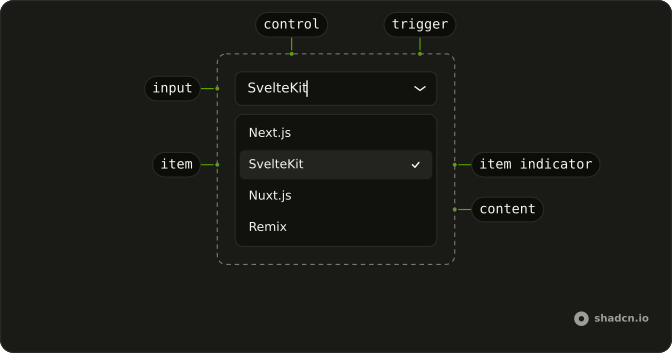
Anatomy
Usage
<Combobox
  collection={collection}
  disabled
  onInputValueChange={handleInputValueChange}
  onValueChange={handleValueChange}
  positioning={{ getAnchorElement: () => triggerRef.current }}
  selectionBehavior="clear"
  value={value}
>
  <ComboboxTrigger
    className={cn(
      buttonVariants({ variant: "outline" }),
      "w-[200px] justify-between"
    )}
    ref={triggerRef}
  >
    {selected ? selected.label : "Select option..."}
  </ComboboxTrigger>
  <ComboboxContent>
    <ComboboxInput
      className="w-full"
      placeholder="Search option..."
      showTrigger={false}
    />
    <ComboboxEmpty>No option found.</ComboboxEmpty>
    <ComboboxList>
      {collection.items.map((item) => (
        <ComboboxItem item={item} key={item.value}>
          {item.label}
        </ComboboxItem>
      ))}
{/* The rest of the file is under Installation. */}
FAQ
What disables this combobox?
disabled on Combobox.
The trigger picks it up from the root, so the button needs no prop of its own.
Can someone still open the list?
No. A click or a key press on the disabled button leaves the list closed, and the button is skipped when tabbing.
Why does it still show a value?
The combobox starts with Option 1 selected, and disabling it doesn't clear the value.
The demo holds ["option1"] as its value.
What would the list contain?
Option 1, Option 2 and Option 3, with a Search option... box and No option found. when a search matches nothing. It's all there for when the combobox is turned back on.
Should I use disabled or read-only?
Disabled says the field doesn't apply right now and is usually left out of a form submission. When the value matters but can't be changed, show it as text instead, as in the read-only view.
API Reference
Combobox
Sets collection={collection}, disabled, onInputValueChange={handleInputValueChange}, onValueChange={handleValueChange}, positioning and getAnchorElement. The rest is on the Combobox page.