shadcn.io is an independent project built on shadcn/ui
Three equal tabs labeled Step 1, Step 2 and Step 3. Step 1 is selected and shows Basic Information, with Project Name and Description as labeled hints. Previous is disabled. Next sits beside it.
Use stepped tabs for a setup people can also jump by clicking a step. If steps must not be skipped, a Dialog with one step at a time is stricter. Ark UI in React does not move Previous and Next.
Installation
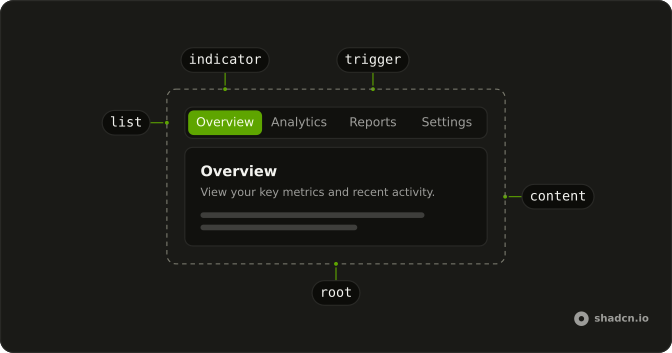
Anatomy
Usage
<div className="flex w-full max-w-2xl flex-col gap-4">
  <Tabs onValueChange={handleValueChange} value={activeTab}>
    <TabsList className="grid w-full grid-cols-3">
      {steps.map((step) => (
        <TabsTrigger key={step.value} value={step.value}>
          {step.label}
        </TabsTrigger>
      ))}
    </TabsList>
    {steps.map((step) => (
      <TabsContent key={step.value} value={step.value}>
        <div className="rounded-lg border bg-card p-6 text-card-foreground shadow-sm">
          <h3 className="mb-2 font-semibold text-lg">{step.title}</h3>
          <p className="mb-4 text-muted-foreground text-sm">
            {step.description}
          </p>
          <div className="flex flex-col gap-4">
            {step.fields.map((field) => (
              <div className="rounded-md border p-4" key={field.label}>
                <p className="font-medium text-sm">{field.label}</p>
                <p className="mt-1 text-muted-foreground text-sm">
                  {field.hint}
                </p>
              </div>
            ))}
          </div>
        </div>
      </TabsContent>
    ))}
  </Tabs>
  <div className="flex justify-between">
{/* The rest of the file is under Installation. */}
FAQ
How does this demo control the selected tab?
The selected value is kept in state, starting at step1, and passed back to Tabs. Clicking a trigger or a button writes the same state.
Tabs gets value, and onValueChange stores details.value.
Can the reader still click a step?
Yes. The three triggers are not disabled. Clicking one updates the same state the buttons write, so the buttons stay in sync.
Why are the three steps equal width?
TabsList has grid w-full grid-cols-3, so each of Step 1, Step 2 and Step 3 fills a column. The group is w-full max-w-2xl.
API Reference
Tabs
Sets onValueChange={handleValueChange}, value={activeTab} and value={step.value}. The rest is on the Tabs page.
Button
Sets disabled={index === 0}, onClick={handlePrevious}, variant="outline", disabled={index === steps.length - 1} and onClick={handleNext}. The rest is on the Button page.