shadcn.io is an independent project built on shadcn/ui
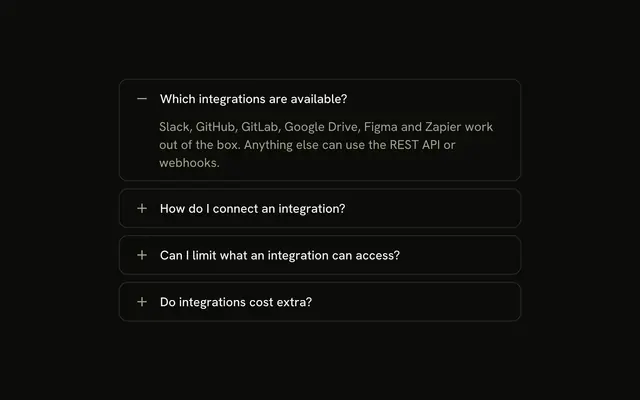
Personal Information, Contact Information, and Address Information, each with an icon and a plus that turns into a minus. Typed values stay when you switch sections.
Use it when the toggle should be obvious on a long form. If every section must stay visible, stack them in a Card. In React, Ark UI does not submit the form.
Installation
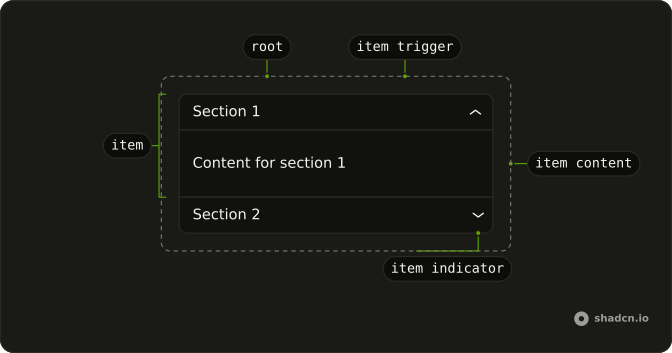
Anatomy
Usage
<Accordion className="w-full max-w-md -space-y-px" unmountOnExit={false}>
  {sections.map((section) => (
    <AccordionItem
      className="overflow-hidden border bg-background px-4 first:rounded-t-lg last:rounded-b-lg"
      key={section.value}
      value={section.value}
    >
      <AccordionTrigger className="hover:no-underline **:data-[slot=accordion-trigger-icon]:hidden">
        <span className="flex w-full items-center justify-between gap-3">
          <span className="flex items-center gap-2">
            <section.icon
              aria-hidden="true"
              className="size-4 shrink-0 text-muted-foreground"
            />
            {section.title}
          </span>
          <span className="relative size-4 shrink-0">
            <PlusIcon
              aria-hidden="true"
              className="absolute inset-0 size-4 text-muted-foreground transition-opacity duration-200 group-aria-expanded/accordion-trigger:opacity-0"
            />
            <MinusIcon
              aria-hidden="true"
              className="absolute inset-0 size-4 text-muted-foreground opacity-0 transition-opacity duration-200 group-aria-expanded/accordion-trigger:opacity-100"
            />
          </span>
        </span>
      </AccordionTrigger>
      <AccordionContent className="flex flex-col gap-2 pt-1">
        {section.fields.map((field) => (
          <Input
{/* The rest of the file is under Installation. */}
FAQ
Do the fields keep what I typed after I close a section?
Yes. This demo passes unmountOnExit={false} on Accordion, so a closed section stays in the DOM and the uncontrolled inputs keep their text.
How does the plus turn into a minus?
**:data-[slot=accordion-trigger-icon]:hidden on AccordionTrigger hides the built-in chevron. PlusIcon and MinusIcon share one relative size-4 box, and group-aria-expanded/accordion-trigger fades the plus out and the minus in over duration-200. Both icons are aria-hidden and text-muted-foreground.
Are the section icons separate from the plus and minus?
UserIcon, MailIcon or MapPinIcon sits in a gap-2 row before the title, at size-4 with aria-hidden. The plus and minus are a second icon box, pushed to the end of the trigger with justify-between.
How are the inputs labeled?
Each Input gets type, placeholder and aria-label from its field. Name and address fields use type="text", email uses type="email", and phone uses type="tel". There is no visible label, so the aria-label is the field name.
API Reference
Accordion
Sets unmountOnExit={false} and value={section.value}. The rest is on the Accordion page.
Input
Sets aria-label={field.label}, placeholder={field.label} and type={field.type}. The rest is on the Input page.