shadcn.io is an independent project built on shadcn/ui
UI library: Ark UI
The title says the project was created. The list is invite the team, set configuration, then create a task. Continue does not open any step. No project was created.
List a few next steps when success would otherwise dead-end. Real work belongs on the next page, not in the dialog. A longer flow fits a Dialog. In Solid, Ark UI does not create the project.
Installation
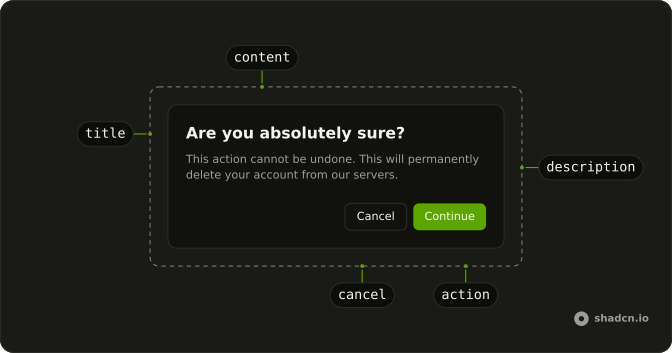
Anatomy
Usage
<AlertDialog>
    <AlertDialogTrigger asChild={props => <Button {...props()}>Complete Action</Button>} />
    <AlertDialogContent>
      <AlertDialogHeader>
        <div class="flex items-center gap-2">
          <CircleCheckIcon aria-hidden="true" class="size-5 text-success" />
          <AlertDialogTitle>Project Created Successfully</AlertDialogTitle>
        </div>
        <AlertDialogDescription>
          Your project has been created. Here&apos
FAQ
How is the list built?
An ol with list-decimal and marker:text-muted-foreground, mapped from a static array at module scope.
API Reference
Alert Dialog
Sets asChild and props. The rest is on the Alert Dialog page.
Button
Sets props. The rest is on the Button page.