shadcn.io is an independent project built on shadcn/ui
Insert Block lists nine types under Basic Blocks, Lists, and Media. Those headings are not choices.
Use it in a block editor when the insert list is too long for the canvas. A longer catalog is faster to filter with Command. In Svelte, Ark UI does not insert the block.
Installation
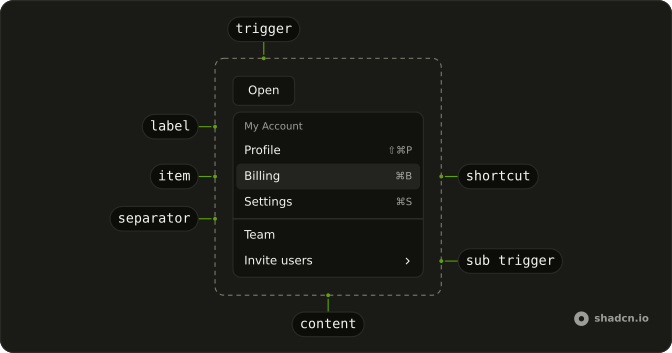
Anatomy
Usage
<DropdownMenu><DropdownMenuTrigger>{#snippet asChild(props)}<Button {...props()} variant="outline"><PlusIcon aria-hidden="true" data-icon="inline-start" />Insert Block</Button>{/snippet}</DropdownMenuTrigger><DropdownMenuContent class="w-56"><DropdownMenuGroup><DropdownMenuLabel>Basic Blocks</DropdownMenuLabel><DropdownMenuItem value="text"><TypeIcon aria-hidden="true" />Text</DropdownMenuItem><DropdownMenuItem value="quote"><QuoteIcon aria-hidden="true" />Quote</DropdownMenuItem><DropdownMenuItem value="divider"><MinusIcon aria-hidden="true" />Divider</DropdownMenuItem></DropdownMenuGroup><DropdownMenuSeparator /><DropdownMenuGroup><DropdownMenuLabel>Lists</DropdownMenuLabel><DropdownMenuItem value="bulleted-list"><ListIcon aria-hidden="true" />Bulleted List</DropdownMenuItem><DropdownMenuItem value="numbered-list"><ListOrderedIcon aria-hidden="true" />Numbered List</DropdownMenuItem><DropdownMenuItem value="to-do-list"><SquareCheckIcon aria-hidden="true" />To-do List</DropdownMenuItem></DropdownMenuGroup><DropdownMenuSeparator /><DropdownMenuGroup><DropdownMenuLabel>Media</DropdownMenuLabel><DropdownMenuItem value="image"><ImageIcon aria-hidden="true" />Image</DropdownMenuItem><DropdownMenuItem value="embed"><LinkIcon aria-hidden="true" />Embed</DropdownMenuItem><DropdownMenuItem value="code-block"><CodeIcon aria-hidden="true" />Code Block</DropdownMenuItem></DropdownMenuGroup></DropdownMenuContent></DropdownMenu>FAQ
How are the block types grouped?
Three DropdownMenuGroups, each starting with a DropdownMenuLabel: Basic Blocks, Lists and Media, with a DropdownMenuSeparator between groups. The label inside the group names it for screen readers too.
Which icon leads each row?
Type, quote, minus, list, ordered list, checked square, image, link and code icons, one per row and aria-hidden, before the label. The menu is w-56.
Is Basic Blocks a choice?
No. A DropdownMenuLabel is a heading: it can't be focused or picked, and the arrow keys skip it.
API Reference
Dropdown Menu
Sets value="text", value="quote", value="divider", value="bulleted-list", value="numbered-list" and value="to-do-list". The rest is on the Dropdown Menu page.
Button
Sets props and variant="outline". The rest is on the Button page.