shadcn.io is an independent project built on shadcn/ui
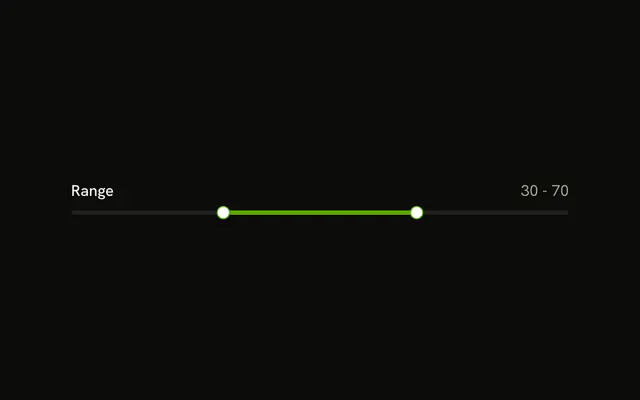
Range sits above a vertical track with two thumbs. Under it, 70 is written above a hyphen and 30 is written below.
Use it beside a tall chart or preview. A horizontal track is easier on a short page, and typed ends belong in a Number Input. In Svelte, Ark UI does not stack those two numbers.
Installation
Anatomy
Usage
<div class="flex flex-col items-center gap-4"><Label>Range</Label><div class="h-56"><Slider aria-label={["Range start", "Range end"]} onValueChange={handleValueChange} orientation="vertical" value={value} /></div><div class="flex flex-col items-center gap-1 text-muted-foreground text-sm tabular-nums"><span>{value[1]}</span><span>-</span><span>{value[0]}</span></div></div>FAQ
How does the readout follow the thumb?
The value lives in state, starting at [30, 70], and goes back to the slider as value. The reading prints the higher value above the lower one.
onValueChange receives details.value, the new array.
Which thumb is which?
The first value is the lower thumb, near the bottom, and the second the upper one.
API Reference
Label
No extra props in this demo. The rest is on the Label page.
Slider
Sets aria-label={["Range start", "Range end"]}, onValueChange={handleValueChange}, orientation="vertical" and value={value}. The rest is on the Slider page.