shadcn.io is an independent project built on shadcn/ui
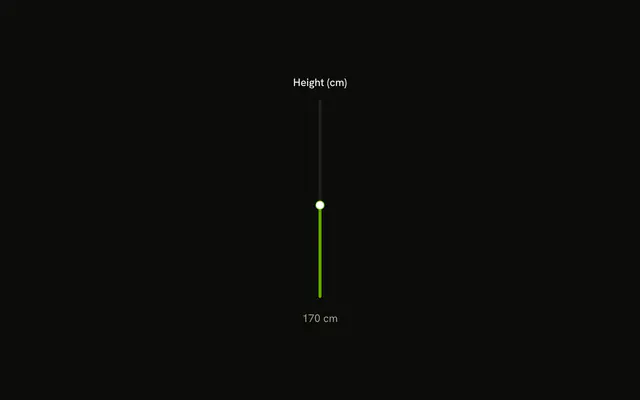
Volume, a vertical track, and 60% are stacked and centered. There is no icon and no scale beside the track.
Use it in a mixer, with several faders in a row. A Switch covers mute when there is no level to set. In Svelte, Ark UI does not center that column.
Installation
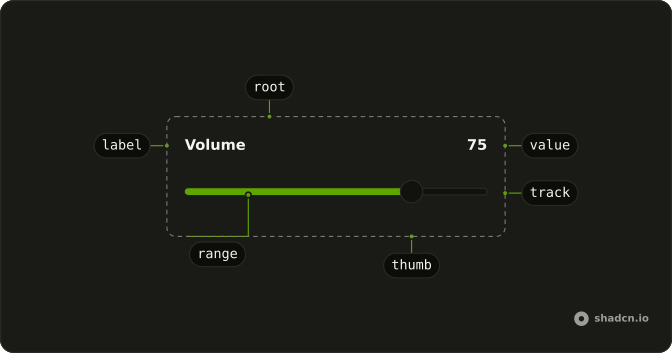
Anatomy
Usage
<div class="flex flex-col items-center gap-4"><Label>Volume</Label><div class="h-48"><Slider aria-label={["Volume"]} onValueChange={handleValueChange} orientation="vertical" value={value} /></div><span class="text-muted-foreground text-sm tabular-nums">{value[0]}%</span></div>FAQ
How does the readout follow the thumb?
The value lives in state, starting at 60, and goes back to the slider as value. The percentage under it prints it.
onValueChange receives details.value, the new array.
How do I put several side by side?
Repeat the column in a flex gap-6 row, one per channel, each with its own state.
API Reference
Label
No extra props in this demo. The rest is on the Label page.
Slider
Sets aria-label={["Volume"]}, onValueChange={handleValueChange}, orientation="vertical" and value={value}. The rest is on the Slider page.