shadcn.io is an independent project built on shadcn/ui
A muted speaker, a switch, and a speaker icon sit in a row. The switch starts on. The icons stay where they are. Its accessible name is Sound.
Use it for notification sounds or a player mute, where the icons suggest the setting. They are hidden from assistive tech, so the name has to say Sound. A choice saved with a form fits a Checkbox. In React, Base UI does not change the volume.
Installation
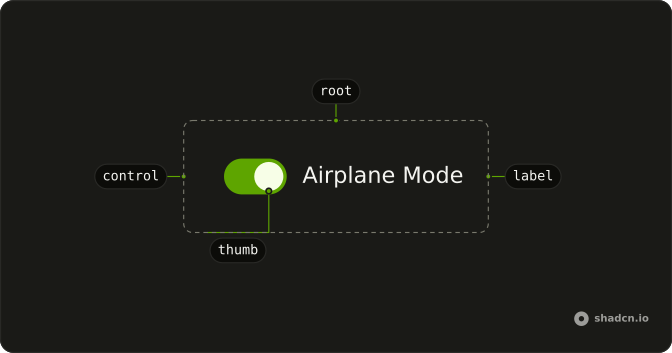
Anatomy
Usage
<div className="flex items-center gap-2">
  <VolumeXIcon aria-hidden="true" className="size-4 text-muted-foreground" />
  <Switch aria-label="Sound" defaultChecked />
  <Volume2Icon aria-hidden="true" className="size-4" />
</div>
FAQ
What do the two icons show?
VolumeXIcon, a muted speaker, comes before the switch with size-4 text-muted-foreground. Volume2Icon comes after it with size-4. Both have aria-hidden, and the row is flex items-center gap-2.
What do screen readers call this switch?
The icons are hidden from screen readers, so the switch has aria-label (Sound). On means sound plays.
How do I control this switch in React?
The switch starts on through its default prop, which only sets the starting state; after that it keeps its own state. To control it, keep the on or off state in your own state and pass it back.
The prop is defaultChecked.
Pass checked; onCheckedChange receives the new boolean.
How do I add a visible label to this switch?
Put the Switch in a horizontal Field next to a FieldLabel. Clicking the label toggles the switch, and screen readers read the label with it.
Give the Switch an id and set the same value as htmlFor on the FieldLabel.
API Reference
Switch
Sets aria-label="Sound" and defaultChecked. The rest is on the Switch page.