shadcn.io is an independent project built on shadcn/ui
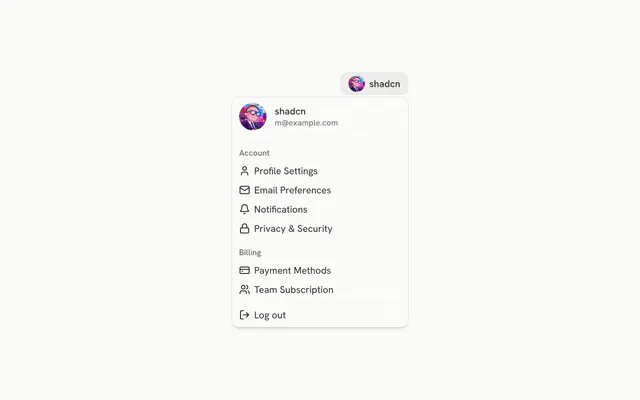
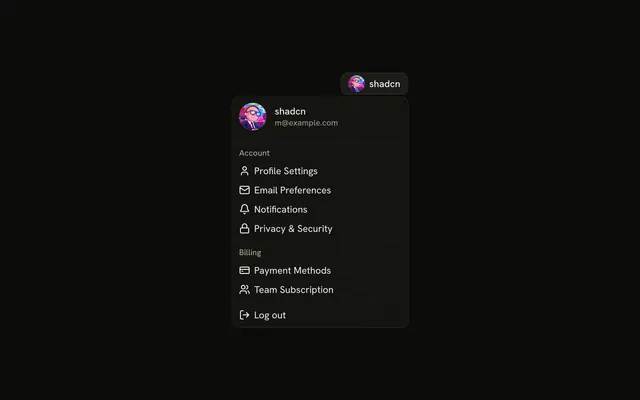
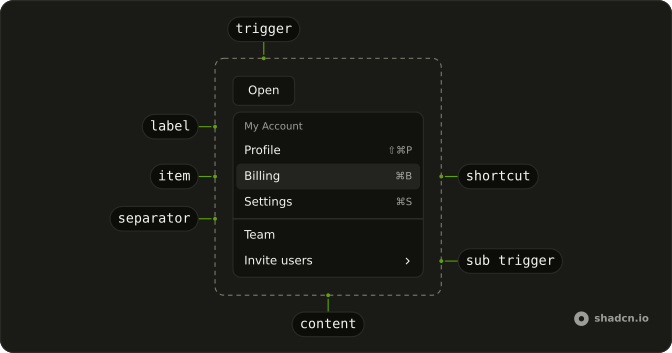
The avatar button draws an online dot. The menu header shows a larger avatar, the name, the email, and a Pro badge, then View Profile, Billing, Account Settings, and Log out.
Use it when presence should show before the menu opens. The dot is drawn, not a live status. Confirm sign-out in an Alert Dialog. In Vue, Ark UI does not track presence or end the session.
Installation
Anatomy
Usage
<DropdownMenu>
  <DropdownMenuTrigger :asChild="true">
    <Button aria-label="Open account menu" :pill="true" size="icon-lg" variant="ghost">
      <Avatar>
        <AvatarImage alt="@shadcn" src="https://github.com/shadcn.png" />
        <AvatarFallback>CN</AvatarFallback>
        <AvatarBadge class="bg-success" />
      </Avatar>
    </Button>
  </DropdownMenuTrigger>
  <DropdownMenuContent class="w-64">
    <DropdownMenuGroup>
      <DropdownMenuLabel class="font-normal">
        <div class="flex items-center gap-3">
          <Avatar class="size-12">
            <AvatarImage alt="@shadcn" src="https://github.com/shadcn.png" />
            <AvatarFallback>CN</AvatarFallback>
          </Avatar>
          <div class="flex flex-col gap-1">
            <p class="font-medium text-foreground text-sm leading-none">shadcn</p>
            <p class="text-muted-foreground text-xs leading-none">m@example.com</p>
            <Badge class="w-fit" variant="secondary">Pro</Badge>
          </div>
        </div>
      </DropdownMenuLabel>
      <DropdownMenuSeparator />
      <DropdownMenuItem value="view-profile">
        <UserIcon aria-hidden="true" />View Profile
      </DropdownMenuItem>
      <DropdownMenuItem value="billing">
        <CreditCardIcon aria-hidden="true" />Billing
<!-- The rest of the file is under Installation. -->
FAQ
How is the online dot drawn?
An AvatarBadge with bg-success inside the trigger's Avatar, which places it at the bottom end corner. Change the class for away or busy, and say the status in text too, such as in the button's aria-label, since a color alone isn't announced.
What is in the menu header?
A DropdownMenuLabel with font-normal: a size-12 avatar next to the name, shadcn, the email, m@example.com, and a secondary Badge that reads Pro. It labels the first DropdownMenuGroup and can't be focused.
What if the photo fails?
AvatarFallback shows CN in both avatars, and the online dot stays on the trigger's avatar.
Which commands are under the header?
View Profile, Billing and Account Settings, each after an aria-hidden icon, then a separator and Log out with variant="destructive". The menu is w-64 and lines up with the end of the button.
API Reference
Dropdown Menu
Sets asChild, value="view-profile", value="billing", value="account-settings", value="log-out" and variant="destructive". The rest is on the Dropdown Menu page.
Button
Sets aria-label="Open account menu", pill, size="icon-lg" and variant="ghost". The rest is on the Button page.
Avatar
Sets alt="@shadcn" and src="https://github.com/shadcn.png". The rest is on the Avatar page.
Badge
Sets variant="secondary". The rest is on the Badge page.