shadcn.io is an independent project built on shadcn/ui
A shield icon sits above Two-Factor Authentication and Enter the code from your authenticator app. Six boxes follow, then Verify, and a button that says Use backup code instead.
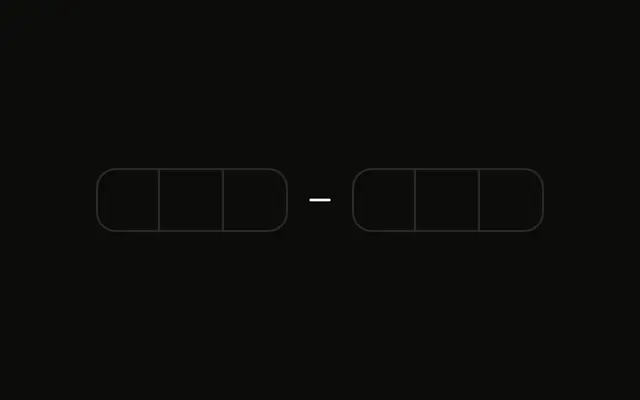
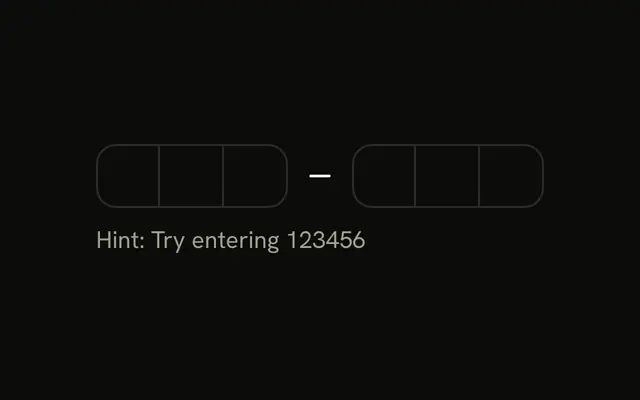
Use the boxes for the app code, and switch to one backup field when the app is unavailable. A Password Input is for the account password, not this second step. In Vue, Ark UI moves to the next box as you type.
Installation
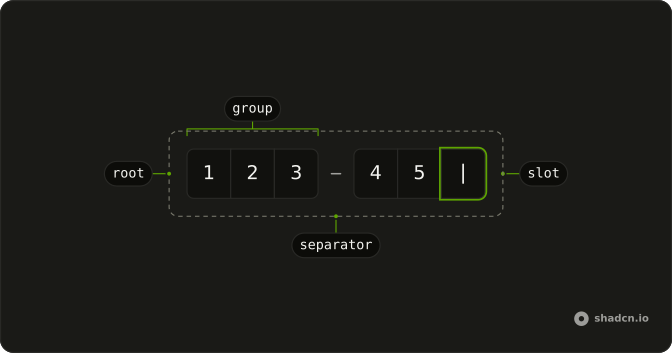
Anatomy
Usage
<div class="flex w-full max-w-sm flex-col gap-6">
  <div class="flex flex-col items-center gap-2 text-center">
    <div class="flex size-12 items-center justify-center rounded-full bg-primary/10">
      <ShieldIcon aria-hidden="true" class="size-6 text-primary" />
    </div>
    <h2 class="font-semibold text-2xl">Two-Factor Authentication</h2>
    <p class="text-muted-foreground text-sm">
      Enter the code from your authenticator app
    </p>
  </div>
  <form class="flex flex-col gap-6" @submit="handleSubmit">
    <Field v-if="useBackupCode">
      <FieldLabel>Backup Code</FieldLabel>
      <Input
        class="bg-background"
        @input="handleBackupCodeChange"
        placeholder="Enter backup code"
        type="text"
        :value="backupCode"
      />
      <FieldDescription>Enter one of your backup codes.</FieldDescription>
    </Field>
    <Field v-else :invalid='error !== ""'>
      <FieldLabel class="sr-only">Authentication code</FieldLabel>
      <div class="flex justify-center">
        <InputOTP @value-change="handleValueChange" :value="value">
          <InputOTPGroup>
            <InputOTPSlot class="bg-background" :index="0" />
            <InputOTPSlot class="bg-background" :index="1" />
            <InputOTPSlot class="bg-background" :index="2" />
          </InputOTPGroup>
<!-- The rest of the file is under Installation. -->
FAQ
How does the backup code switch work?
Whether the backup code is used lives in state. The link-style Button with a KeyIcon flips it, and the form renders either the code field or the backup input.
How is the backup field built?
A Field with the label Backup Code, a text Input and the description Enter one of your backup codes.
How is the code validated?
The authenticator code must have six characters, or FieldError shows Authentication code must be 6 characters.. The backup code is passed through; check it on the server.
What happens after Verify?
The example shows the result in a status line under the form instead of calling an API. Replace that with your request, and show its error in FieldError when the code is rejected. Here it says which method was used and echoes the code.
API Reference
Field
Sets v-if="useBackupCode", v-else and invalid="error !== ". The rest is on the Field page.
Input
Sets input="handleBackupCodeChange", placeholder="Enter backup code", type="text" and value="backupCode". The rest is on the Input page.
Input OTP
Sets value-change="handleValueChange", value="value", index="0", index="1", index="2" and index="3". The rest is on the Input OTP page.
Button
Sets type="submit", click="handleToggle", type="button" and variant="link". The rest is on the Button page.