shadcn.io is an independent project built on shadcn/ui
Base UI does not include this primitive, so this page uses the Ark UI component. The visuals match the Ark UI version.
A signature pad is a box people sign in with a mouse, a pen or a finger. Each stroke is kept as an SVG path, and the pad hands you the drawing as a PNG, JPEG or SVG image when a stroke ends. Reach for it when a form needs a drawn mark, such as a proof of delivery, a consent form or a lease signed on a tablet.
When a typed name is enough to agree to terms, an Input with a Checkbox is faster to fill in.
Installation
Anatomy
Usage
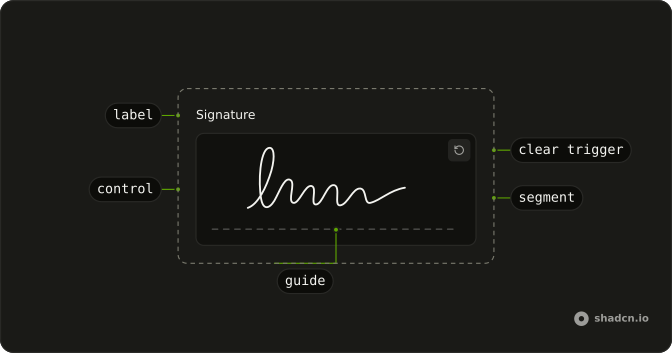
import { SignaturePad } from "@/components/ui/signature-pad";SignaturePad renders the whole pad: the drawing area, the dashed guide line and a clear button that appears after the first stroke. Its parts aren't exported, so change them in components/ui/signature-pad. Anything you nest in it renders below the drawing area.
<SignaturePad className="w-full max-w-md" />Accessibility
This component is built on Ark UI's signature pad, here as on every other library. The pad is in the tab order and announced as a signature pad, but nothing can be drawn from the keyboard, so give people who can't use a pointer another way to sign, such as a typed full name. The clear button is labeled clear signature, stays hidden until there is a stroke and puts focus back on the pad once it has erased. A FieldLabel beside the pad doesn't name it: pass a control label in translations instead.
- Tab
- Moves focus to the pad, then to the clear button once something is drawn.
- Shift+Tab
- Moves focus to the previous focusable element.
- Enter
- When focus is on the clear button, erases every stroke and moves focus to the pad.
- Space
- When focus is on the clear button, erases every stroke and moves focus to the pad.
Demos
Field
The pad sits in a Field under the label Signature, with a line below it asking people to draw in the box above. The label doesn't name the pad, so the demo passes the same word as the control label in translations, and a screen reader hears Signature too. Use this layout when the signature is one step in a longer form.
Form
The pad has a name, so the form posts the drawing as a PNG data URL beside its other fields, or an empty string while nothing is drawn. Submitting an empty pad shows an error under it, checked in the submit handler. Use this when your server takes the signature with the rest of the form.
Image preview
When a stroke ends, onDrawEnd hands over getDataUrl, and the demo asks it for a PNG and shows the image in the box below the pad. The preview follows finished strokes, not the one being drawn, and clearing the pad empties it. Use this when you need a picture of the signature to upload or print on a receipt.
FAQ
When should I use a Signature Pad instead of a typed name field?
Use a signature pad when the drawn mark itself is what you keep: a courier's proof of delivery, a patient's consent form, a lease signed in person on a tablet. It works best with a finger or a pen on a touch screen.
When people only need to agree to terms, a full name typed into an Input, with a Checkbox for the agreement, is faster and works from the keyboard. Offer that as a fallback even where a drawing is expected, because the pad can't be used without a pointer.
How do I save a Signature Pad drawing as a PNG image?
Read it in onDrawEnd, which runs after every stroke. Its details.getDataUrl takes image/png, image/jpeg or image/svg+xml and resolves to a data URL, as the Image preview demo shows, and a JPEG takes an optional quality from 0 to 1.
Keep the latest data URL in state and read it when the form is saved, or put the Save button inside SignaturePad: what you nest in it renders below the drawing area, where useSignaturePad reads the pad's state and its getDataUrl. An empty pad resolves to an empty string, so check for that before you upload.
How do I submit a Signature Pad with a form?
Give it a name. The pad then renders a hidden input holding the drawing as a PNG data URL, redrawn each time the strokes change, so the form posts it with the other fields, as the Form demo shows. An empty pad posts an empty string, and a disabled one posts nothing.
required doesn't stop the form from submitting: the hidden input is read-only, and browsers skip read-only fields when they validate. Check for an empty value in your submit handler instead.
How do I clear a Signature Pad?
Press the button in the top corner, which appears after the first stroke, erases all of them at once and leaves focus on the pad. To clear from your own code, control the strokes: hold paths in state and set it to an empty array.
The clear button also fires onDrawEnd, with no paths and a getDataUrl that resolves to an empty string, so a preview built from that callback empties along with the pad, as in Image preview. Setting paths from your code fires nothing, so clear a stored image yourself when you do.
How do I control the strokes of a Signature Pad in React?
Hold the strokes in state as an array of SVG path strings, pass them as paths, and replace them in onDrawEnd, which receives the full list in details.paths after each stroke and after a clear.
defaultPaths draws a signature saved earlier without taking control. The paths are in the pad's own pixel coordinates, so they redraw exactly in a pad of the same size and get cut off in a smaller one.
What is the difference between a read-only and a disabled Signature Pad?
readOnly keeps the strokes on screen, ignores the pointer and hides the clear button, so the drawing can't change, while the pad keeps its look and its place in the tab order. disabled ignores the pointer too, fades and greys out the pad, takes it out of the tab order and disables the clear button.
To show a signature that must not change, such as one on a signed contract, use readOnly, or show the saved image in place of the pad.
Does the Signature Pad work with a finger or a stylus on a phone?
Yes. The pad draws from pointer events, so a mouse, a finger and a pen all draw the same way, and the drawing area has touch-none, so a finger on it draws instead of scrolling the page. The pad also captures the pointer, so a stroke that slides past its edge keeps going until the finger lifts.
Because a finger on the pad can't scroll, a pad that fills a phone's screen leaves nowhere to swipe from. Keep it short, as the default 160 pixels does, with room above and below it.
How do I change the Signature Pad's size or ink color?
Pass a class to SignaturePad for its size. It is full width and 160 pixels tall by default, so h-56 gives a taller pad, while a shorter one needs a smaller min-h too, because the root keeps min-h-40.
The ink comes from drawing: size sets the stroke width, 2 unless you change it, and fill sets the color. Without a fill, strokes take the fill-foreground class on screen, but an exported image doesn't carry that class, so its strokes come out black. Set fill when the image must match.
API Reference
SignaturePad
<div> data-slot="signature-pad"
defaultPaths?string[]
The default paths of the signature pad. Use when you don't need to control the paths of the signature pad.
dir?"ltr" | "rtl"
The document's text/writing direction.
- Type
"ltr" | "rtl"- Default
"ltr"
disabled?boolean
Whether the signature pad is disabled.
drawing?object
The drawing options.
- Type
{ fill?: string }- Default
"{ size: 2, simulatePressure: true }"
id?string
The unique identifier of the machine.
ids?object
The ids of the signature pad elements. Useful for composition.
- Type
{ root?: string; control?: string; hiddenInput?: string; label?: string }
name?string
The name of the signature pad. Useful for form submission.
onDraw?(details: DrawDetails) → void
Callback when the signature pad is drawing or the committed paths change.
paths contains only committed strokes; use currentPath for the in-progress stroke.
- Parameters
details– { paths: string[]; currentPath: string | null }- Returns
void
onDrawEnd?(details: DrawEndDetails) → void
Callback when the signature pad is done drawing.
- Parameters
details– { paths: string[]; getDataUrl: (type: DataUrlType, quality?: number) → Promise<string> }- Returns
void
paths?string[]
The controlled paths of the signature pad.
readOnly?boolean
Whether the signature pad is read-only.
required?boolean
Whether the signature pad is required.
translations?object
The translations of the signature pad. Useful for internationalization.
- Type
{ clearTrigger?: string; control?: string }
asChild?boolean
Use the provided child element as the default rendered element, combining their props and behavior.
className?string
Merged with the part's classes.
data-disabled?string
Present when disabled.
SignaturePadControl
<div> data-slot="signature-pad-control"
asChild?boolean
Use the provided child element as the default rendered element, combining their props and behavior.
data-disabled?string
Present when disabled.
SignaturePadSegment
<svg> data-slot="signature-pad-segment"
asChild?boolean
Use the provided child element as the default rendered element, combining their props and behavior.
SignaturePadGuide
<div> data-slot="signature-pad-guide"
asChild?boolean
Use the provided child element as the default rendered element, combining their props and behavior.
data-disabled?string
Present when disabled.
SignaturePadClearTrigger
<button> data-slot="signature-pad-clear"
asChild?boolean
Use the provided child element as the default rendered element, combining their props and behavior.
useSignaturePad
defaultPaths?string[]
The default paths of the signature pad. Use when you don't need to control the paths of the signature pad.
disabled?boolean
Whether the signature pad is disabled.
drawing?object
The drawing options.
- Type
{ fill?: string }- Default
"{ size: 2, simulatePressure: true }"
id?string
The unique identifier of the machine.
ids?object
The ids of the signature pad elements. Useful for composition.
- Type
{ root?: string; control?: string; hiddenInput?: string; label?: string }
name?string
The name of the signature pad. Useful for form submission.
onDraw?(details: DrawDetails) → void
Callback when the signature pad is drawing or the committed paths change.
paths contains only committed strokes; use currentPath for the in-progress stroke.
- Parameters
details– { paths: string[]; currentPath: string | null }- Returns
void
onDrawEnd?(details: DrawEndDetails) → void
Callback when the signature pad is done drawing.
- Parameters
details– { paths: string[]; getDataUrl: (type: DataUrlType, quality?: number) → Promise<string> }- Returns
void
paths?string[]
The controlled paths of the signature pad.
readOnly?boolean
Whether the signature pad is read-only.
required?boolean
Whether the signature pad is required.
translations?object
The translations of the signature pad. Useful for internationalization.
- Type
{ clearTrigger?: string; control?: string }