shadcn.io is an independent project built on shadcn/ui
Sphere Background for Solid
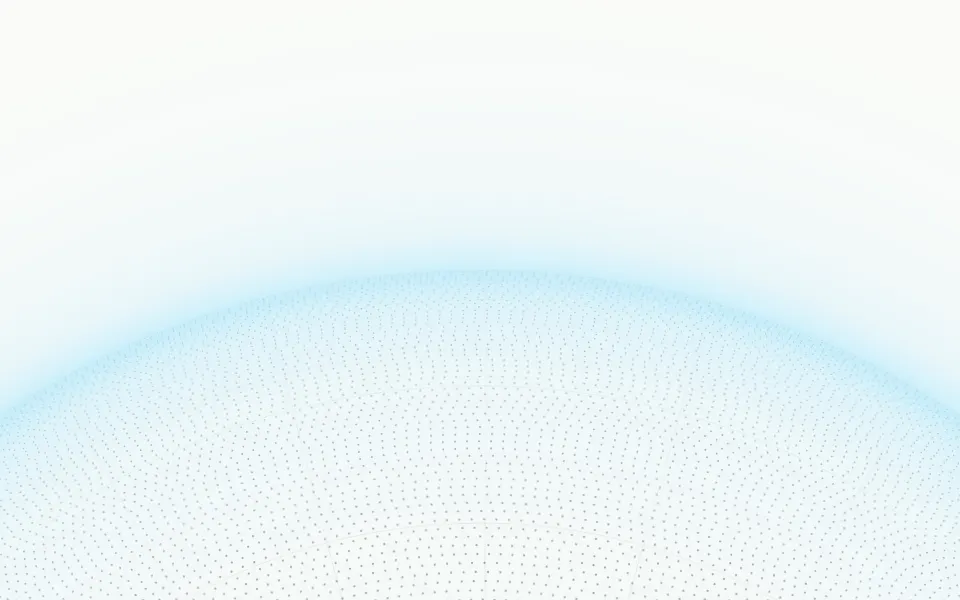
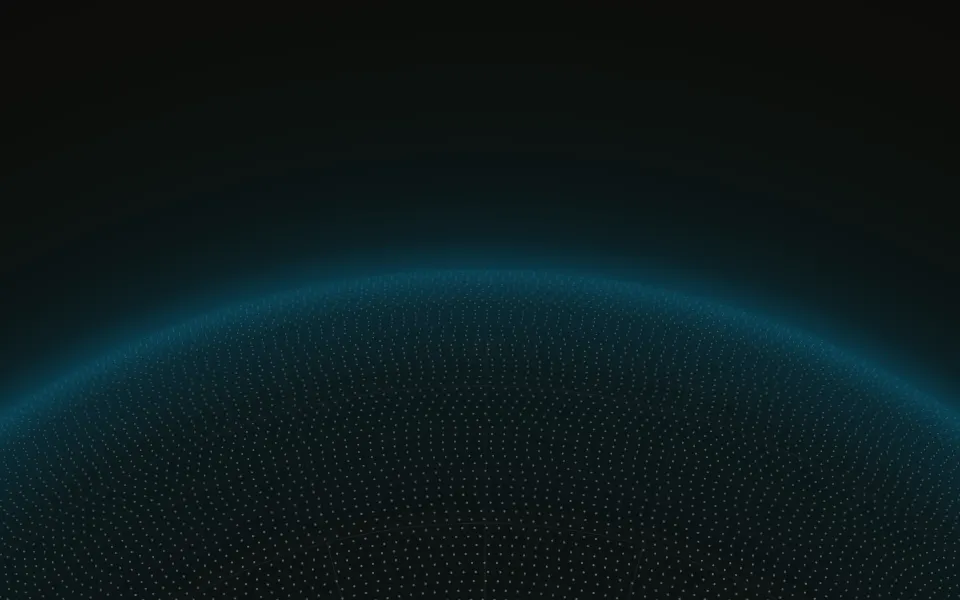
A globe of dots turns slowly, lit from one side, with a rim of atmosphere. For Solid with Ark UI, when a hero is about a network.
A globe of dots turns slowly behind your content, lit from one side, with a rim of atmosphere along its edge. Rows of dots run along the latitudes, as close at the poles as at the equator; the far side shows through, dimmer, and a few dots light up in the glow color by themselves. It's a GLSL scene on WebGL2 with no dependency. The dots are ink on a light surface and light on a dark one, and the pointer turns the globe.
Use it under a hero's headline for a network, an infrastructure or a worldwide product: by default the globe's cap rises from the bottom edge and leaves the top of the box to the copy. For a dark disc with a bright rim and no dots, use Eclipse; for tilted rings with bodies travelling along them, Orbits; for the same dots flat and still, Dot Pattern. With reduced motion it holds one still frame.
Installation
Usage
import { Sphere } from "@/components/ui/sphere";<Sphere class="flex min-h-[36rem] flex-col items-center pt-16">
<h1 class="text-5xl font-semibold">Your API, 20 ms from every user</h1>
</Sphere>Sphere is a container: whatever you put inside sits on top of the globe, in normal flow. It fills its own box, so give it a height or content. For a backdrop behind the whole page, render it empty with className="fixed inset-0 -z-10".
Presets
<Sphere /><Sphere
activity={0.2}
atmosphere={1.5}
depth={0.15}
glowColor="#f5b85c"
light={115}
placement="center"
shade={1}
/><Sphere
activity={0}
atmosphere={0}
density={0.75}
depth={0}
dotSize={3}
light={-55}
placement="right"
shade={1}
/><Sphere
atmosphere={1.4}
density={1.3}
dotSize={1}
glowColor="#8b7bff"
size={2}
tilt={35}
/><Sphere
activity={0.3}
glowColor="var(--muted-foreground)"
placement="right"
/><Sphere
activity={0.8}
depth={0.2}
glowColor="#14b8a6"
land={0.45}
placement="center"
/><Sphere
activity={0}
atmosphere={0.5}
density={0.5}
depth={0.9}
dotSize={1.1}
grid={1}
placement="center"
shade={0.4}
tilt={28}
/>Each preset is a set of props, so copy one and keep tuning. Globe is the default. Planet clears seas between continents of dots (land) and shows the globe whole, Halftone drops the atmosphere and grows the dots into a print screen, Wireframe draws the lines of latitude and longitude over a sparse lattice, and Mono takes its glow from your theme.
Examples
Hero
The default look with no props: the cap of the globe fills the bottom of the box and the copy sits above it, on the plain surface. The chip and the second button have a translucent ground of their own.
Planet
land={0.45} keeps the dots of the continents only, placement="center" shows the globe whole, and glowColor turns the atmosphere teal, here on a slate surface. activity={0.8} lights more dots.
In a card
size={2} flattens the globe into a horizon along the bottom of a card, with tilt={35}, smaller and closer dots (dotSize, density) and a violet atmosphere.
Customization
color and glowColor take any CSS color, so a theme variable works and follows a theme switch: the dots default to var(--foreground). placement sets where the globe sits, size how large it is, light where the light comes from and shade how far the other side fades.
The surface is the root's own background, bg-background by default. Give the root another (bg-slate-950, a gradient) and the scene adapts: the atmosphere adds light to a dark surface and tints a light one, and dots whose color can't show on it (the theme's dark text color on a dark class of your own) turn near-white or near-black. fade masks an edge, opacity turns the whole effect down, and grain adds film grain.
<Sphere
  class="min-h-[32rem] bg-slate-950"
  color="var(--chart-2)"
  fade="bottom"
  glowColor="var(--chart-1)"
  placement="right"
/>
Performance
It's one WebGL2 canvas and one fragment shader with no loop over the dots: each pixel finds the one dot of its own row and column, on the near side and on the far side, so the cost is the same for 2,000 dots or 200,000. land below 1 adds nine samples of simplex noise a side. It draws only while it's on screen and the tab is visible, shares one frame loop with every other background on the page, and lowers its own resolution if frames run long. quality sets the render scale yourself, and paused holds the frame.
Accessibility
The globe is decoration: it's hidden from assistive tech and lets every click through to your content. With reduced motion it draws one still frame and ignores the pointer. Nothing flashes: a dot that lights up takes more than a second to do it.
On a light surface, text in text-foreground stays above 10:1 on the default look, over the rim and averaged over the dots. On a dark surface it averages 8:1 over the lit dots, and where a line crosses the brightest part of the default blue rim it falls to about 3.8:1 for the width of the rim. Keep small copy off the rim there: lower atmosphere, or use placement and size to move the rim away from it.
FAQ
How do I change the colors?
color is the dots and glowColor is the atmosphere and the dots that light up. Both take any CSS color: hex, oklch() or a theme variable such as var(--primary), which follows your theme when it changes. The dots default to var(--foreground), so they are dark on a light page and light on a dark one with no prop.
Does it work on a light page?
Yes, with no prop to set. The scene reads the color behind it: on a light surface the dots are drawn as ink and the atmosphere is a pale tint around the globe, and on a dark one the dots are light and the atmosphere glows. Set the surface with a class on the component, such as bg-slate-950.
How do I keep the globe out of the way of my headline?
Use placement. bottom, the default, raises the cap of a globe wider than the box from the bottom edge, so the top 60% of the box stays plain. right crops the globe by the right edge and leaves the left half to the copy. center shows it whole, which suits a section with the copy beside or under it. size scales it in each.
Can it show the real continents?
No. The scene has no map: land below 1 clears seas between continents drawn from noise, so it reads as a planet, not as the Earth. For a product that needs real geography, draw a map over a plain globe yourself, or keep land at 1 and let the even lattice stand for the whole world.
How do I put it behind the whole page?
Render it empty with className="fixed inset-0 -z-10". It still follows the pointer there, since it listens on the window. To put it behind one section, wrap that section's content in it and give it a height, such as min-h-svh.
Will it slow my page down?
It's a light shader: a few dozen operations a pixel, on the GPU, and nothing at all while it's off screen or the tab is hidden. The number of dots doesn't change the cost. If a device can't keep up, it renders fewer pixels by itself, and quality={0.75} does the same from the start for a phone-first page.
Does it work with Next.js and server components?
Yes. Import it into a server component and it renders its box and your content on the server; the canvas starts in the browser and fades in over the surface. It needs WebGL2, which every current browser has. Without it the box keeps its background, or the fallback you pass.
What does the pointer do, and can I turn it off?
Moving the pointer across the box turns the globe a little further on its axis and tips it, and a press sends a ring of light across the surface from that point. Touch never moves it, so scrolling on a phone isn't disturbed. interactive={false} turns both off.
API Reference
Sphere
data-slot="sphere"
activity?number
How many dots light up in the glow color by themselves, from 0 to 1.
- Default
0.5
atmosphere?number
How strong the rim of atmosphere around the globe is, from 0 to 2.
- Default
1
color?string
The dots' color, any CSS color. The default follows your theme's text color.
- Default
"var(--foreground)"
density?number
How closely the dots are packed, from 0.4 to 2.5: 1 is about nine pixels from one dot to the next.
- Default
1
depth?number
How strongly the far side of the globe shows through, from 0 (a solid globe) to 1.
- Default
0.35
dotSize?number
The radius of a dot, in pixels, from 0.5 to 3.
- Default
1.3
fade?"none" | "radial" | "top" | "bottom" | "left" | "right"
Which edges fade out to the surface: radial keeps the middle, the
others name the side that fades.
- Type
"none" | "radial" | "top" | "bottom" | "left" | "right"- Default
"none"
fallback?string
What shows until the first frame and in browsers without WebGL2: a CSS
background value that looks like the scene.
glowColor?string
The color of the atmosphere and of the dots that light up, any CSS color.
- Default
"#3b9eff"
grain?number
Film grain over the scene, from 0 to 1.
- Default
0
grid?number
How strongly the lines of latitude and longitude show, from 0 to 1.
- Default
0
intensity?number
How strong the dots are, from 0 to 2.
- Default
1
interactive?boolean
Whether the scene follows the pointer and answers a press. Touch never moves it, so scrolling a page on a phone isn't disturbed.
- Default
true
land?number
How much of the globe is land, from 0.2 to 1: at 1 the dots cover it evenly, lower values clear seas between continents of dots.
- Default
1
light?number
Where the light comes from, in degrees around the globe: 0 is above it, 90 its right, -90 its left.
- Default
-30
opacity?number
How strongly the scene shows over the surface, from 0 to 1.
- Default
1
paused?boolean
Holds the current frame.
- Default
false
placement?"center" | "bottom" | "right"
Where the globe sits: bottom raises its cap from the bottom edge,
right crops it by the right edge, center shows it whole.
- Type
"center" | "bottom" | "right"- Default
"bottom"
quality?number
Render scale, from 0.25 to 1, of the screen's pixels (capped at 2×). Lower is cheaper and softer.
- Default
1
shade?number
How far the side away from the light fades, from 0 (evenly lit) to 1.
- Default
0.75
size?number
How large the globe is, from 0.4 to 2: on an edge, a larger globe is a flatter horizon.
- Default
1
speed?number
Animation speed: 1 is normal, 0 holds the frame.
- Default
1
tilt?number
How far the globe's north pole tips toward you, in degrees, from -60 to 60.
- Default
20
time?number
A fixed moment, in seconds: draws it and doesn't animate.