shadcn.io is an independent project built on shadcn/ui
Personal Workspace starts selected. Under the list, a separator and a Manage Workspaces button with a settings icon close the popup. That button is for managing, not for switching.
Use it for a switcher that also needs a way to add or manage what it lists. A list with no extra action is a plain Combobox. In React, Ark UI does not add the footer button.
Installation
Sign in to get your install command
Free with an account. It carries your token, so the CLI installs everything in one go.
Use email insteadNo credit card
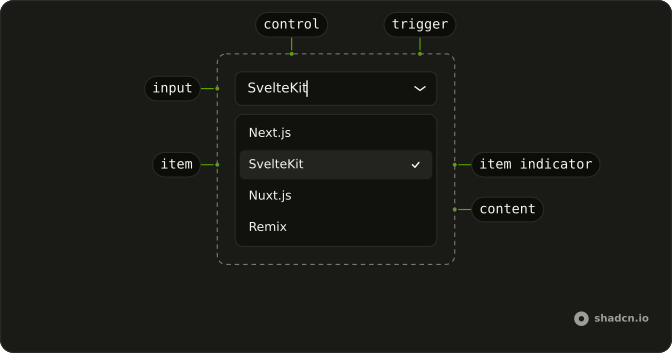
Anatomy
Usage
<Combobox
  collection={collection}
  onInputValueChange={handleInputValueChange}
  onOpenChange={handleOpenChange}
  onValueChange={handleValueChange}
  open={open}
  positioning={{ getAnchorElement: () => triggerRef.current }}
  selectionBehavior="clear"
  value={value}
>
  <ComboboxTrigger
    className={cn(
      buttonVariants({ variant: "outline" }),
      "w-[250px] justify-between"
    )}
    ref={triggerRef}
  >
    {selected ? selected.label : "Select workspace..."}
  </ComboboxTrigger>
  <ComboboxContent>
    <ComboboxInput
      className="w-full"
      placeholder="Search workspaces..."
      showTrigger={false}
    />
    <ComboboxEmpty>No workspace found.</ComboboxEmpty>
    <ComboboxList>
      {collection.items.map((workspace) => (
        <ComboboxItem item={workspace} key={workspace.value}>
          {workspace.label}
        </ComboboxItem>
{/* The rest of the file is under Installation. */}
FAQ
API Reference
Combobox
Sets collection={collection}, onInputValueChange={handleInputValueChange}, onOpenChange={handleOpenChange}, onValueChange={handleValueChange}, open={open} and positioning. The rest is on the Combobox page.
Button
Sets onClick={handleManage} and variant="ghost". The rest is on the Button page.