shadcn.io is an independent project built on shadcn/ui
UI library: Ark UI
Personal Workspace starts selected. Under the list, a separator and a Manage Workspaces button with a settings icon close the popup. That button is for managing, not for switching.
Use it for a switcher that also needs a way to add or manage what it lists. A list with no extra action is a plain Combobox. In Solid, Ark UI does not add the footer button.
Installation
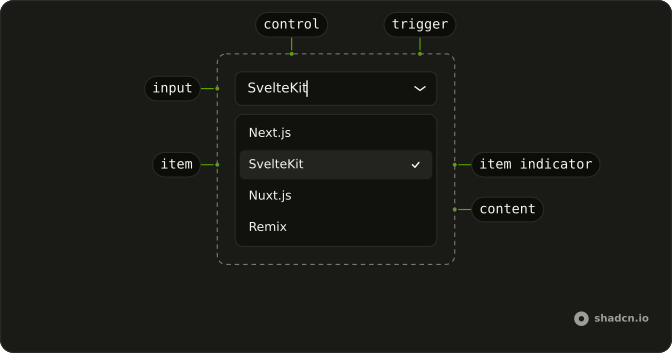
Anatomy
Usage
<Combobox collection={_listCollection.collection()} onInputValueChange={handleInputValueChange} onOpenChange={handleOpenChange} onValueChange={handleValueChange} open={open()} positioning={{
    getAnchorElement: () => triggerRef
  }} selectionBehavior="clear" value={value()}>
      <ComboboxTrigger class={cn(buttonVariants({
      variant: "outline"
    }), "w-[250px] justify-between")} ref={triggerRef}>
        {selected() ? selected()!.label : "Select workspace..."}
      </ComboboxTrigger>
      <ComboboxContent>
        <ComboboxInput class="w-full" placeholder="Search workspaces..." showTrigger={false} />
        <ComboboxEmpty>No workspace found.</ComboboxEmpty>
        <ComboboxList>
          {_listCollection.collection().items.map(workspace => <ComboboxItem item={workspace}>
              {workspace.label}
            </ComboboxItem>)}
        </ComboboxList>
        <ComboboxSeparator />
        <div class="p-1">
          <Button class="w-full justify-start text-xs" onClick={handleManage} variant="ghost">
            <SettingsIcon aria-hidden="true" data-icon="inline-start" />
            Manage Workspaces
          </Button>
        </div>
      </ComboboxContent>
    </Combobox>
FAQ
API Reference
Combobox
Sets collection={_listCollection.collection()}, onInputValueChange={handleInputValueChange}, onOpenChange={handleOpenChange}, onValueChange={handleValueChange}, open={open()} and positioning. The rest is on the Combobox page.
Button
Sets onClick={handleManage} and variant="ghost". The rest is on the Button page.