shadcn.io is an independent project built on shadcn/ui
A muted speaker, a switch, and a speaker icon sit in a row. The switch starts on. The icons stay where they are. Its accessible name is Sound.
Use it for notification sounds or a player mute, where the icons suggest the setting. They are hidden from assistive tech, so the name has to say Sound. A choice saved with a form fits a Checkbox. In React, Ark UI does not change the volume.
Installation
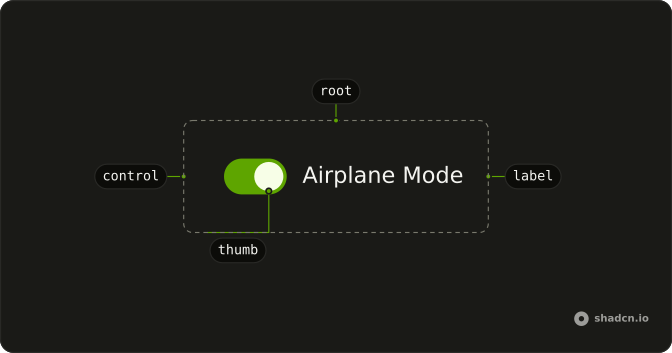
Anatomy
Usage
<div className="flex items-center gap-2">
  <VolumeXIcon aria-hidden="true" className="size-4 text-muted-foreground" />
  <Switch aria-label="Sound" defaultChecked />
  <Volume2Icon aria-hidden="true" className="size-4" />
</div>
FAQ
What do the two icons show?
VolumeXIcon, a muted speaker, comes before the switch with size-4 text-muted-foreground. Volume2Icon comes after it with size-4. Both have aria-hidden, and the row is flex items-center gap-2.
What do screen readers call this switch?
The icons are hidden from screen readers, so the switch has aria-label (Sound). On means sound plays.
How do I control this switch in React?
The switch starts on through its default prop, which only sets the starting state; after that it keeps its own state. To control it, keep the on or off state in your own state and pass it back.
The prop is defaultChecked.
Pass checked; onCheckedChange receives details.checked.
How do I add a visible label to this switch?
Put the Switch in a horizontal Field next to a FieldLabel. Clicking the label toggles the switch, and screen readers read the label with it.
The Field links the label to the switch for you.
API Reference
Switch
Sets aria-label="Sound" and defaultChecked. The rest is on the Switch page.