shadcn.io is an independent project built on shadcn/ui
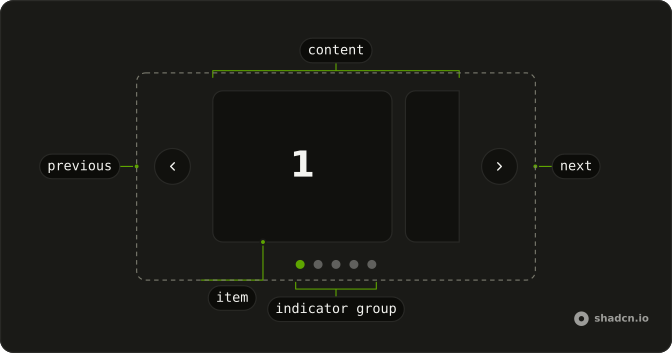
Each slide is a product card: a photo, sometimes a badge, a name, stars with a review count, a price and Add to Cart. Wireless Headphones is $199 with a New badge. Previous and next sit beside the card.
Use a product carousel for a shelf of featured items. A grid of Card components fits when every product should be visible at once. Ark UI in Solid does not add the item to a cart.
Installation
Anatomy
Usage
<div class="mx-auto w-full max-w-sm">
    <Carousel slideCount={products.length}>
      <CarouselContent>
        {products.map((product, index) => <CarouselItem index={index}>
            <div class="overflow-hidden rounded-md border bg-background">
              <div class="relative aspect-3/2 bg-muted">
                <img alt={product.name} class="absolute inset-0 size-full object-cover" height={400} src="https://placehold.co/600x400" width={600} />
                {product.badge ? <Badge class="absolute end-4 top-4">
                    {product.badge}
                  </Badge> : null}
              </div>
              <div class="flex flex-col gap-4 p-6">
                <div>
                  <h3 class="mb-2 font-semibold text-lg">{product.name}</h3>
                  <div class="mb-2 flex items-center gap-2">
                    <div class="flex items-center">
                      {stars.map(star => <StarIcon aria-hidden="true" class={cn("size-4", star <= Math.floor(product.rating) ? "fill-primary text-primary" : "fill-muted text-muted")} />)}
                    </div>
                    <span class="text-muted-foreground text-sm">
                      {product.rating} ({product.reviews})
                    </span>
                  </div>
                  <p class="font-bold text-2xl">${product.price}</p>
                </div>
                <Button class="w-full">Add to Cart</Button>
              </div>
            </div>
          </CarouselItem>)}
      </CarouselContent>
      <CarouselControl>
        <CarouselPrevious />
{/* The rest of the file is under Installation. */}
FAQ
When should I use a product carousel instead of a grid?
For a short, picked set of 5 to 12 items, such as deals or recommendations, where you lead the eye one product at a time. When people need to compare prices or filter, a grid works better.
How do I use my own products?
Replace the products array: each entry has a name, price, rating, reviews and a badge that can be null. Swap the placeholder image src for each product's photo, and keep alt set to the product's name.
How are the stars filled?
Five StarIcons. A star is fill-primary text-primary when its number is at most the rating rounded down, and fill-muted text-muted otherwise, so 4.6 shows four stars. The rating and the review count follow as text, which is what a screen reader reads.
When does the badge show?
When the product's badge is set. It's a Badge with absolute end-4 top-4 in the image's corner, and a null badge renders nothing.
API Reference
Carousel
Sets slideCount={products.length} and index={index}. The rest is on the Carousel page.
Badge
No extra props in this demo. The rest is on the Badge page.
Button
No extra props in this demo. The rest is on the Button page.