shadcn.io is an independent project built on shadcn/ui
The bar shows Solutions. The panel mixes solution cards, including Developer Platform and Design System, some with Popular or New badges, a webinar with Watch Now, and Start Building with two buttons.
Mix links, a promo, and a signup when the header is doing more than navigation. Keep a single list in a Dropdown Menu when that is all you need. In Vue, Ark UI closes the open panel when you press Escape.
Installation
Anatomy
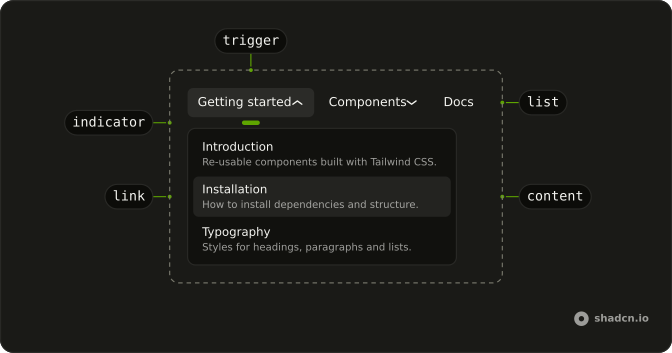
Usage
<div class="w-full max-w-md rounded-md border bg-background p-px">
  <NavigationMenu>
    <NavigationMenuList>
      <NavigationMenuItem>
        <NavigationMenuTrigger>Solutions</NavigationMenuTrigger>
        <NavigationMenuContent>
          <div class="grid w-[800px] max-w-full grid-cols-[1fr_300px] gap-6 p-4">
            <div class="grid grid-cols-2 gap-x-6 gap-y-4">
              <NavigationMenuLink
                v-for="solution in solutions"
                :asChild="true"
                class="flex-col items-stretch justify-between gap-4"
                :key="solution.title"
              >
                <a href="#">
                  <div class="flex items-center justify-between gap-2">
                    <component :is="solution.icon" aria-hidden="true" class="size-5" />
                    <Badge v-if="solution.badge" :variant="solution.badgeVariant">
                      {{ solution.badge }}
                    </Badge>
                  </div>
                  <div class="flex flex-col gap-0.5">
                    <span class="font-medium">{{ solution.title }}</span>
                    <span class="text-muted-foreground">
                      {{ solution.description }}
                    </span>
                  </div>
                </a>
              </NavigationMenuLink>
            </div>
            <div class="flex flex-col gap-4">
<!-- The rest of the file is under Installation. -->
FAQ
How are the solution cards built?
Each card is a NavigationMenuLink with flex-col: the icon and an optional Badge on top, the title and description below.
How do the links use my router?
Each link is your router's link rendered through NavigationMenuLink, so it keeps the menu's styles and focus handling.
NavigationMenuLink takes as-child, and the demo puts an anchor inside. Put RouterLink or NuxtLink there instead.
API Reference
Navigation Menu
Sets v-for="solution in solutions", asChild and key="solution.title". The rest is on the Navigation Menu page.
Badge
Sets v-if="solution.badge" and variant="solution.badgeVariant". The rest is on the Badge page.
Button
Sets size="sm" and variant="outline". The rest is on the Button page.