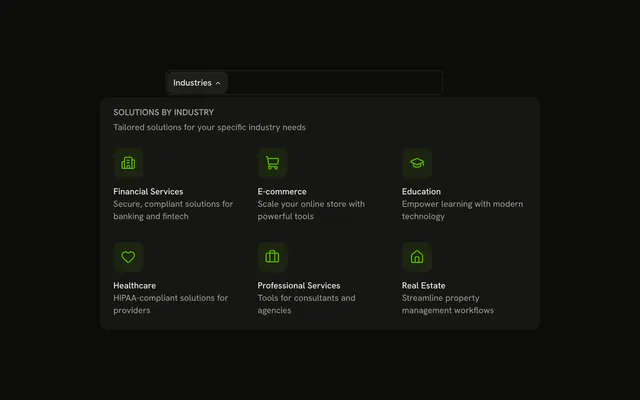
shadcn.io is an independent project built on shadcn/ui
The bar shows Products. The panel lists AI Studio, Automation Suite, and Analytics Pro, each with an icon and a description, beside Get Started, Start Free Trial, and View Pricing.
Use the side panel when sign-up should sit next to the products. A Button in the page header is enough when there is only one next step. In Vue, Ark UI closes the open panel when you press Escape.
Installation
Anatomy
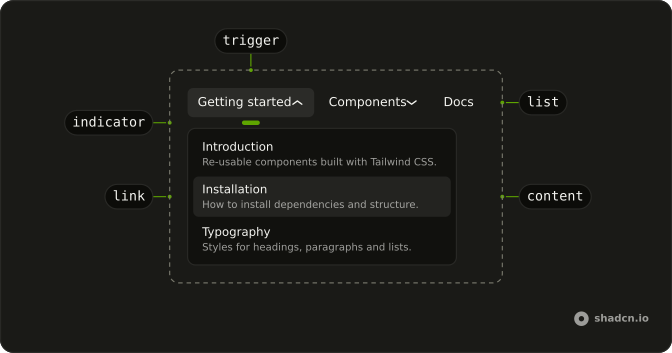
Usage
<div class="w-full max-w-md rounded-md border bg-background p-px">
  <NavigationMenu>
    <NavigationMenuList>
      <NavigationMenuItem>
        <NavigationMenuTrigger>Products</NavigationMenuTrigger>
        <NavigationMenuContent>
          <div class="grid w-[600px] max-w-full grid-cols-[2fr_1fr] gap-4 p-2">
            <div class="flex flex-col gap-1">
              <NavigationMenuLink
                v-for="product in products"
                :asChild="true"
                class="items-start gap-2"
                :key="product.label"
              >
                <a :href="product.href">
                  <component :is="product.icon" aria-hidden="true" class="mt-0.5 size-5" />
                  <div class="flex flex-col gap-0.5">
                    <span class="font-medium">{{ product.label }}</span>
                    <span class="text-muted-foreground">
                      {{ product.description }}
                    </span>
                  </div>
                </a>
              </NavigationMenuLink>
            </div>
            <div class="flex flex-col gap-3 rounded-lg bg-muted p-4">
              <div class="flex flex-col gap-2">
                <h4 class="font-semibold">Get Started</h4>
                <p class="text-muted-foreground text-sm">
                  Start your free trial today. No credit card required.
                </p>
<!-- The rest of the file is under Installation. -->
FAQ
How is the panel split?
A two-column grid, grid-cols-[2fr_1fr]: the product links take two thirds, the call-to-action panel one third.
How do the links use my router?
Each link is your router's link rendered through NavigationMenuLink, so it keeps the menu's styles and focus handling.
NavigationMenuLink takes as-child, and the demo puts an anchor inside. Put RouterLink or NuxtLink there instead.
API Reference
Navigation Menu
Sets v-for="product in products", asChild and key="product.label". The rest is on the Navigation Menu page.
Button
Sets variant="outline". The rest is on the Button page.