shadcn.io is an independent project built on shadcn/ui
A small notice with a title, a short detail, and an optional undo button. It leaves on its own.
Use a toast for the result of an action people just took. An Alert stays in the layout when they have to deal with the message before continuing. In React, React Aria announces the notice in a live region and does not move focus.
Installation
Anatomy
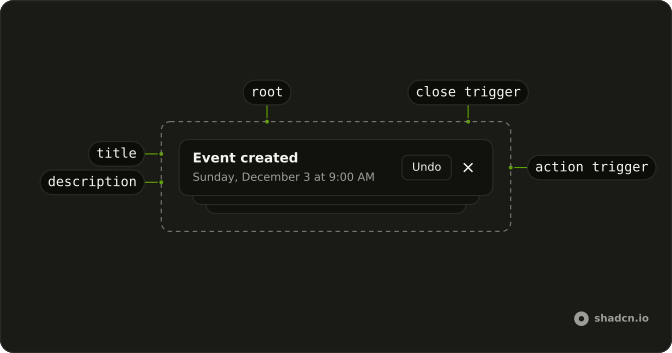
ToastItem
├── ToastGroup
├── ToastTitle
├── ToastDescription
├── ToastActionTrigger
└── ToastCloseTrigger
Usage
import { Button } from "@/components/ui/button";
import { Toaster, toast } from "@/components/ui/toast";
const ToastDemo = () => {
const handleShowToast = () => {
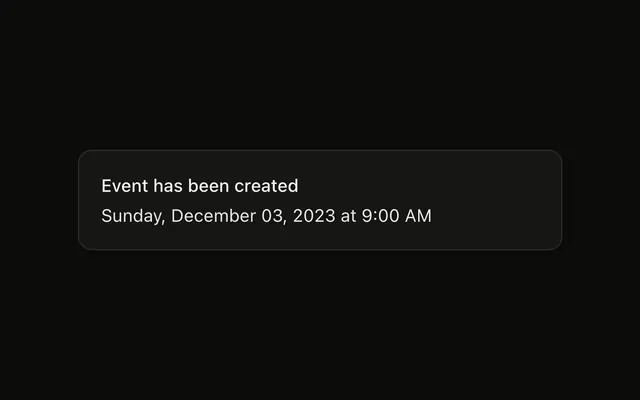
const id = toast("Event has been created", {
action: {
label: "Undo",
onClick() {
toast.dismiss(id);
},
},
description: "Sunday, December 03, 2023 at 9:00 AM",
});
};
return (
<>
<Toaster />
<Button onClick={handleShowToast} variant="outline">
Show Toast
</Button>
</>
);
};Accessibility
- Enter
- Activate the focused control.
- Space
- Activate the focused control.
Demos
Types
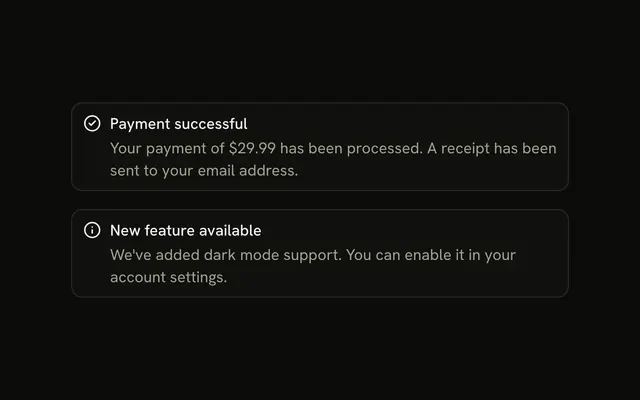
Five buttons fire five notices: a plain one, then success, info, warning, and error. The typed ones carry a status icon and a color, and the sentence is the whole message. Use a type when the outcome is not neutral, so a glance tells success from failure. Do not rely on the color alone, because the words still have to say what happened.
Promise
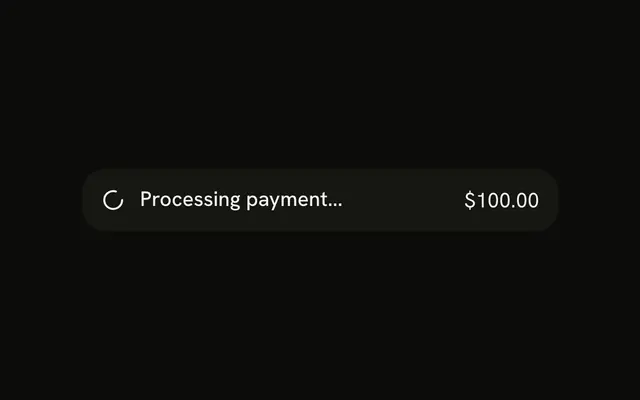
Create Event starts a notice that says it is creating the event, waits two seconds, then updates that same notice to say the event was created. The error copy is there for when the promise rejects, though this request always resolves. Use a promise toast for a request the person is waiting on. A static success toast is enough when you already know the result.
FAQ
How do I show a toast in React?
Render the Toaster once near the root of your app, then call the toaster from any event handler.
Import toast and call toast("Event has been created"), with a description in the options, as the default demo does.
How do I show a success or error toast with React Aria?
Each type gets its own icon and color; the Types demo shows them all.
Call toast.success, toast.error, toast.warning or toast.info.
How do I show a loading toast that updates when a request finishes?
Use toast.promise with the promise and a loading, a success and an error message, as the Promise demo does. The same toast shows the loading state, then the result once the promise settles.
How do I close a toast from code?
Keep the id the call returns and close that toast with it, for example from an Undo button in its action.
Call toast.dismiss with the id; without an id it closes them all.
How do I change where toasts appear?
Set position on the Toaster, for example top-center or bottom-right.
Are toasts accessible to screen readers?
Yes. Toasts are announced through a live region without taking focus, so the page keeps working. Keep the title short, and do not put the only way to do something in a toast that disappears on its own.
Should I use Toast or Sonner?
Use Toast for toasts built on your project's primitives, on every framework. Use Sonner on React for the quickest setup, a single toast() call with nothing to configure.
On this base, Toast already uses Sonner's API.
API Reference
Toaster
data-slot="toaster"
closeButton?boolean
Whether each toast shows a close button.
containerAriaLabel?string
The toasts region's label for screen readers, before its hotkey: Notifications when unset.
customAriaLabel?string
The toasts region's whole label for screen readers, in place of containerAriaLabel and the hotkey.
dir?"rtl" | "ltr" | "auto"
The reading direction. Inherits the nearest DirectionProvider when unset.
- Type
"rtl" | "ltr" | "auto"
duration?number
How long each toast stays, in milliseconds.
expand?boolean
Whether the toasts show expanded instead of stacked.
gap?number
The space between expanded toasts, in px.
hotkey?string[]
The keys that move focus to the toasts: altKey and KeyT when unset.
icons?object
The icon for each kind of toast: success, info, warning, error, loading and close.
- Type
{ success?: React.ReactNode; info?: React.ReactNode; warning?: React.ReactNode; error?: React.ReactNode; loading?: React.ReactNode; close?: React.ReactNode }
id?string
The element's id.
invert?boolean
Whether the toasts take the other theme's colors.
mobileOffset?{ top?: string | number
The distance from the screen's edges on small screens: px, or one per side.
- Type
{ top?: string | number
offset?{ top?: string | number
The distance from the screen's edges: px, or one per side.
- Type
{ top?: string | number
position?"top-left" | "top-right" | "bottom-left" | "bottom-right" | "top-center" | "bottom-center"
Where the toasts show: top-left, top-center, top-right, bottom-left, bottom-center or bottom-right.
- Type
"top-left" | "top-right" | "bottom-left" | "bottom-right" | "top-center" | "bottom-center"
richColors?boolean
Whether success, info, warning and error toasts get their own colors.
style?React.CSSProperties
Inline styles for the list that holds the toasts.
swipeDirections?SwipeDirection[]
The directions a toast can be swiped away in.
theme?"light" | "dark" | "system"
The color theme: light, dark or system.
- Type
"light" | "dark" | "system"- Default
pageTheme
toastOptions?object
Defaults for every toast: its class names, styles, duration and more.
- Type
{ className?: string; closeButton?: boolean; descriptionClassName?: string; style?: React.CSSProperties; cancelButtonStyle?: React.CSSProperties; actionButtonStyle?: React.CSSProperties; duration?: number; unstyled?: boolean; classNames?: ToastClassnames; closeButtonAriaLabel?: string; toasterId?: string }
visibleToasts?number
How many toasts show at once.
className?string
Merged with the part's classes.