shadcn.io is an independent project built on shadcn/ui
Sandbox is a small playground for a tutorial or a docs page: the reader edits HTML, CSS and JavaScript files and sees the page they make, with a console for what its scripts log. It runs those files as the browser does, in a sandboxed frame, with no bundler and no packages, so JSX and npm imports won't run.
To show code the reader can edit without running it, use a Code Editor on its own.
Installation
The install also adds Code Editor, Tabs and Button.
Anatomy
Usage
<script lang="ts">
import {
  SandboxCodeEditor, SandboxLayout, SandboxPreview, SandboxProvider,
} from "@/components/ui/sandbox";
</script>
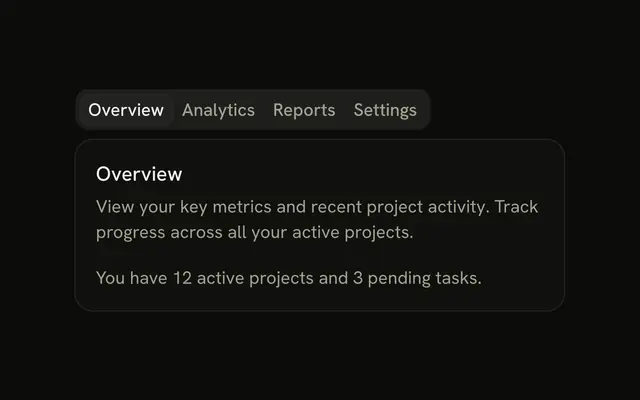
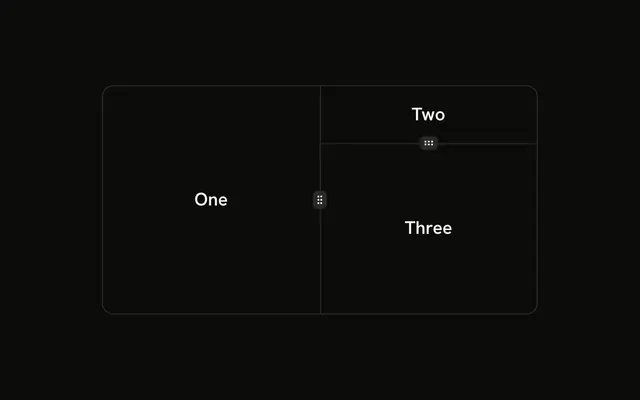
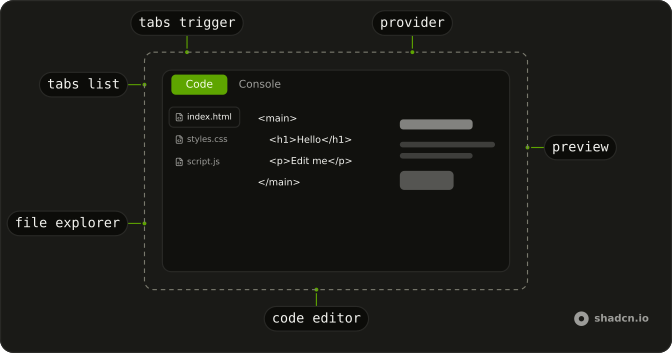
SandboxProvider holds the files and draws the bordered box around the parts, and every part reads the files from it. Put the parts in SandboxLayout to show them side by side, or in SandboxTabs to switch between them in one space.
const files = {
  "/index.html": `<h1>Hello</h1>`,
  "/styles.css": `h1 { font-family: system-ui; }`,
  "/script.js": `console.log("ready")`,
};

<SandboxProvider class="h-96" defaultFiles={files}>
  <SandboxLayout>
    <SandboxCodeEditor showTabs />
    <SandboxPreview />
  </SandboxLayout>
</SandboxProvider>;
Accessibility
The editor is a textarea named after the open file, the preview is an iframe named by title (Preview unless you change it), and the console is a log region named Console. The file list is a navigation landmark named Files, and the open file's button carries aria-current. The corner buttons are labeled Run again and Clear console. Tab indents in the editor, so Escape then Tab is the way out. With readonly set on SandboxCodeEditor, Tab moves focus as usual. SandboxTabs keeps the keys of Tabs.
- Tab
- In the editor, inserts spaces up to the next tab stop, or indents every line in the selection.
- Shift+Tab
- In the editor, outdents the line the caret is on, or every line in the selection.
- Enter
- In the editor, starts a new line at the same indentation, one step deeper after an opening bracket.
- Escape
- In the editor, lets the next Tab or Shift + Tab move focus out instead of indenting.
How it runs
The preview is one page, built from the first HTML file. A <link> to one of your CSS files and a <script src> pointing at one of your JavaScript files are replaced by that file's code, in place. Files the page doesn't link are added anyway, CSS at the start of the head and JavaScript at the end of the body, in the order they appear in the files object, with a .mjs file run as a module. A JSON or TypeScript file opens in the editor but is never added on its own. If a <script src> links one, its code is inlined and run as plain JavaScript.
That page runs in an iframe whose sandbox attribute allows scripts, forms and dialogs and nothing else. Without same-origin access, the code inside can't reach your page, its cookies or its storage.
It runs again delay milliseconds after the last edit, 500 by default, as a new document with a clean console. The Run again button starts it over at once, from the files as they are.
Before your code, a small script in the frame forwards each console.log, info, warn, error and debug call to SandboxConsole, along with uncaught errors and promise rejections nothing handled. Errors show as their name and message, other values that aren't strings as JSON, and the console keeps the last 200 lines.
Demos
Split
A file explorer, the editor with line numbers and the preview sit side by side in one SandboxLayout, on a report card whose script writes 280 signups into the heading. defaultActiveFile opens the stylesheet first. Use it on a wide page where the reader should see the code and the result at once. When the sandbox is narrower than 42rem, the panes stack and the file list becomes a row.
Console
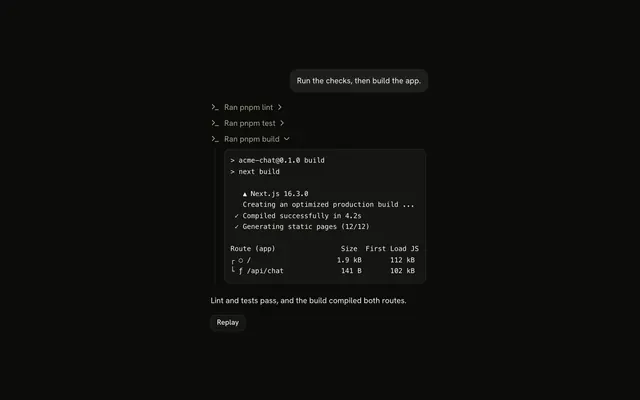
A store page whose script logs Store ready on load, the cart on each Add to cart, a warning when Pay finds the cart empty and an uncaught error when it doesn't. Preview and Console share a tab set, and both panels stay mounted, so the preview keeps reporting while the console shows. Pick a console when the lesson is about what a script does.
FAQ
What code can Sandbox run?
HTML, CSS and JavaScript, as the browser runs them. There is no bundler, so JSX, TypeScript and bare imports such as react or lodash won't run. A .ts or .jsx file opens in the editor, but it isn't added to the page unless a script tag links it, and then it runs as plain JavaScript and fails on the first type annotation or JSX tag.
One file can't import another, because the files are inlined into a single page with no file server behind it. An unlinked .mjs file, or one linked with type="module", runs as a module and can import from a full URL that serves an ES module, such as a CDN. For a React or npm project, link to a hosted playground instead.
Is it safe to run code a reader typed in Sandbox?
For your site, yes. The code runs in an iframe whose sandbox attribute allows scripts, forms and dialogs but not same-origin access, so it can't read your page, its cookies or its storage, and it can't navigate your page away.
It still runs in the reader's browser with the network open, so it can send requests and show dialogs like any page. If files can reach a sandbox from somewhere other than the reader, such as a shared link that fills them in, treat them as you would any page you embed.
How do I give Sandbox its files in Svelte?
Pass defaultFiles, an object from path to code, such as /index.html, /styles.css and /script.js. The page links each file by its name, with or without the leading slash. defaultActiveFile picks the file the editor opens on, and the first one opens otherwise.
defaultFiles is read once, when the sandbox mounts, so changing it later does nothing. To swap examples, or to save what the reader typed, pass files and update them from onFilesChange, which receives every file after each edit.
Do I need to link my script and stylesheet in the Sandbox HTML file?
No. Sandbox adds every CSS file the page doesn't link to the head and every JavaScript file to the end of the body, a .mjs file as a module, so a bare index.html with only markup works. Link a file when its place matters, such as a script that has to run before the markup.
In a single-file component, a closing script tag inside one of your strings ends the component's own script block. Leave the tag out, or write it as <\/script> in your source.
Why is my Sandbox console empty?
The console shows what the preview logs, so a SandboxPreview has to be rendered in the same provider, even if only in a tab that isn't showing. SandboxTabs keeps every panel mounted for that reason, as the Console demo shows.
The console also empties each time the preview runs again, after an edit or the Run again button. It shows console.log, info, warn, error and debug calls and uncaught errors, so a console.table or console.dir call never reaches it.
How do I lay out the Sandbox parts?
Put the parts in SandboxLayout, which shows them side by side once the sandbox is 42rem wide and stacks them below that. Use SandboxTabs to switch between views in one space, with a layout inside the tabs, as the first preview does with Code and Preview, or tabs inside a layout, as in the Console demo.
Give SandboxProvider a height, as every demo does with a class. The panes fill it and scroll inside it.
Why does localStorage throw an error in the Sandbox preview?
The frame has no same-origin access, so the page inside has an opaque origin, and the browser throws a security error when its code touches localStorage, sessionStorage or cookies. That is the isolation keeping the reader's code away from your site's data, and it should stay.
Don't add allow-same-origin to the frame: with scripts also allowed, the code could reach your page. For a lesson that needs state, keep it in variables, which last until the preview runs again.
How do I stop the Sandbox preview from running on every keystroke?
It already waits for a pause. The preview runs delay milliseconds after the last edit, 500 by default, so a reader typing steadily doesn't restart it on each key.
Raise delay on SandboxProvider for a page that is slow to start, such as one that draws a large canvas, and the reader can still run it at once with the Run again button. Set showRefreshButton to false on SandboxPreview to hide that button.
API Reference
SandboxProvider
files?SandboxFiles
The files, controlled: HTML, CSS and JavaScript, by path.
defaultFiles?SandboxFiles
The files when it starts, uncontrolled.
- Default
{}
onFilesChange?(files: SandboxFiles) → void
Called with every file after each edit.
- Parameters
files– SandboxFiles- Returns
void
defaultActiveFile?string
The file the editor opens on. @default the first file.
- Default
""
delay?number
How long the preview waits after the last edit before it runs the files again, in milliseconds.
- Default
500
class?string
Merged with the part's classes.
SandboxLayout
<div> data-slot="sandbox-layout"
class?string
Merged with the part's classes.
SandboxTabs
data-slot="sandbox-tabs"
value?string | null
The controlled selected tab value.
- Type
string | null
defaultValue?string | null
The initial selected tab value when rendered. Use when you don't need to control the selected tab value.
- Type
string | null
onValueChange?(value: string) → void
Called with the tab chosen.
- Parameters
value– string- Returns
void
activationMode?"manual" | "automatic"
The activation mode of the tabs. Can be manual or automatic
- manual: Tabs are activated when clicked or press enter key.
- automatic: Tabs are activated when receiving focus
- Type
"manual" | "automatic"- Default
"automatic"
composite?boolean
Whether the tab is composite.
deselectable?boolean
Whether the active tab can be deselected when clicking on it.
dir?"ltr" | "rtl"
The document's text/writing direction.
- Type
"ltr" | "rtl"- Default
"ltr"
hideMode?"display-none" | "activity"
How to hide content when mounted but not present.
- display-none: HTML hidden attribute. Effects stay alive.
- activity: React 19 <Activity mode="hidden">. Effects pause. Requires React 19+.
- Type
"display-none" | "activity"- Default
"display-none"
id?string
The unique identifier of the machine.
ids?object
The ids of the elements in the tabs. Useful for composition.
- Type
{ root?: string; trigger?: (value: string) → string; list?: string; content?: (value: string) → string; indicator?: string }
lazyMount?boolean
Whether to enable lazy mounting.
- Default
false
loopFocus?boolean
Whether the keyboard navigation will loop from last tab to first, and vice versa.
- Default
true
navigate?((details: NavigateDetails) → void) | null
Function to navigate to the selected tab when clicking on it. Useful if tab triggers are anchor elements.
- Type
((details: NavigateDetails) → void) | null- Parameters
(details– { value: string; node: HTMLAnchorElement; href: string }- Returns
void) | null
onFocusChange?(details: FocusChangeDetails) → void
Callback to be called when the focused tab changes.
- Type
(details: FocusChangeDetails) → void- Parameters
details– { focusedValue: string }- Returns
void
orientation?"horizontal" | "vertical"
The orientation of the tabs. Can be horizontal or vertical
- horizontal: only left and right arrow key navigation will work.
- vertical: only up and down arrow key navigation will work.
- Type
"horizontal" | "vertical"- Default
"horizontal"
translations?object
Specifies the localized strings that identifies the accessibility elements and their states.
- Type
{ listLabel?: string }
unmountOnExit?boolean
Whether to unmount on exit.
- Default
false
asChild?Snippet<[PropsFn]>
Render your own element: a snippet that gets the part's props to spread on it.
- Type
Snippet<[PropsFn]>
class?string
Merged with the part's classes.
SandboxTabsList
data-slot="sandbox-tabs-list"
variant?"default" | "line" | "underline"
The visual style. underline is the earlier name of line and still
works. Ark default: default.
- Type
"default" | "line" | "underline"- Default
"line"
asChild?Snippet<[PropsFn]>
Render your own element: a snippet that gets the part's props to spread on it.
- Type
Snippet<[PropsFn]>
class?string
Merged with the part's classes.
SandboxTabsTrigger
data-slot="sandbox-tabs-trigger"
asChild?Snippet<[PropsFn]>
Render your own element: a snippet that gets the part's props to spread on it.
- Type
Snippet<[PropsFn]>
class?string
Merged with the part's classes.
SandboxTabsContent
data-slot="sandbox-tabs-content"
asChild?Snippet<[PropsFn]>
Render your own element: a snippet that gets the part's props to spread on it.
- Type
Snippet<[PropsFn]>
class?string
Merged with the part's classes.
SandboxCodeEditor
<div> data-slot="sandbox-code-editor"
readOnly?boolean
The files can be read and copied, not changed.
- Default
false
showLineNumbers?boolean
Number each line.
- Default
false
showTabs?boolean
A tab per file above the code, to switch files.
- Default
false
wrapContent?boolean
Wrap long lines instead of scrolling sideways.
- Default
false
class?string
Merged with the part's classes.
SandboxFileExplorer
<nav> data-slot="sandbox-file-explorer"
class?string
Merged with the part's classes.
SandboxPreview
<div> data-slot="sandbox-preview"
showRefreshButton?boolean
A button that runs the files again. @default true.
- Default
true
title?string
The frame's accessible name.
- Default
"Preview"
class?string
Merged with the part's classes.
SandboxConsole
<div> data-slot="sandbox-console"
class?string
Merged with the part's classes.
data-level?string
Mirrors level.