shadcn.io is an independent project built on shadcn/ui
Book Appointment opens a dialog with the same title. A month grid sits beside Available Times, fourteen slots from 9:00 AM to 4:30 PM. None is filled until a slot is clicked.
Use it when booking should stay hidden until someone asks. On a booking page, show the same grid without a Dialog. In Solid, Ark UI does not hold the appointment.
Installation
Anatomy
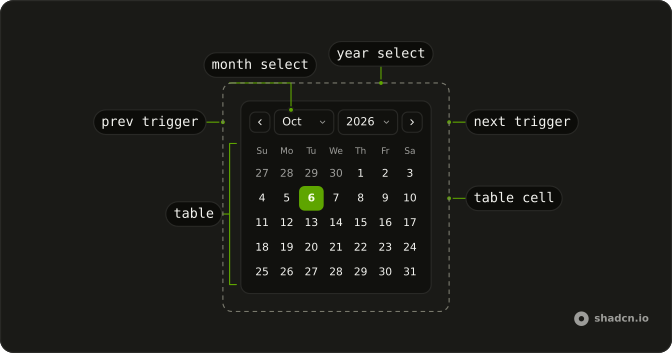
Usage
<Dialog>
      <DialogTrigger asChild={props => <Button {...props()} variant="outline">Book Appointment</Button>} />
      <DialogContent class="sm:max-w-fit">
        <DialogHeader>
          <DialogTitle>Book Appointment</DialogTitle>
        </DialogHeader>
        <div class="flex divide-x overflow-hidden rounded-md border bg-background">
          <Calendar onValueChange={handleValueChange} value={value()}>
            <CalendarViewControl>
              <CalendarPrevTrigger />
              <CalendarViewDate />
              <CalendarNextTrigger />
            </CalendarViewControl>
            <CalendarTable>
              <CalendarWeekDays />
              <CalendarTableDays />
            </CalendarTable>
          </Calendar>
          <div class="relative w-62 overflow-hidden">
            <div class="absolute inset-0 flex flex-col gap-4">
              <p class="px-4 pt-4 text-center font-medium text-sm">
                Available Times
              </p>
              <ScrollArea class="min-h-0 flex-1">
                <div class="flex flex-col gap-2 px-4 pb-4">
                  {availableTimes.map(time => <Button onClick={handleTimeClick} size="sm" value={time} variant={selectedTime() === time ? "default" : "outline"}>
                      {time}
                    </Button>)}
                </div>
              </ScrollArea>
            </div>
{/* The rest of the file is under Installation. */}
FAQ
How do I read the date the person picked?
value is a list holding the selected date, and onValueChange receives { value }. This demo starts the list from parseDate(new Date()).
How does a time slot get selected?
Each time is a Button with that string as value. The click handler stores event.currentTarget.value in selectedTime, and that button uses variant="default" while the others stay outline.
Where does the list of times come from?
The times are a fixed availableTimes array: 9:00 AM through 11:30 AM, then 1:00 PM through 4:30 PM, in 30 minute steps. The date handler only updates the date, so the highlighted time stays until a time button is clicked.
How does the time list scroll?
The times column is w-62, filled by an absolute inset-0 wrapper. ScrollArea has min-h-0 flex-1 under the heading Available Times, so the buttons scroll inside the row.
API Reference
Dialog
Sets asChild and props. The rest is on the Dialog page.
Button
Sets props, variant="outline", onClick={handleTimeClick}, size="sm", value={time} and variant={selectedTime() === time ? "default" : "outline"}. The rest is on the Button page.
Calendar
Sets onValueChange={handleValueChange} and value={value()}. The rest is on the Calendar page.
Scroll Area
No extra props in this demo. The rest is on the Scroll Area page.