shadcn.io is an independent project built on shadcn/ui
The dashed area reads Right click here. Edit stands alone, then Cut, Copy, and Paste, then Delete in the destructive color. Lines split the three parts.
Use separators when groups are obvious without labels, and to keep a dangerous item apart. Confirm Delete in an Alert Dialog if it cannot be undone. In Vue, Ark UI draws the lines and does not delete.
Installation
Anatomy
Usage
<ContextMenu>
  <ContextMenuTrigger class="flex h-[200px] w-full max-w-lg items-center justify-center rounded-md border border-dashed text-sm">
    <span class="pointer-fine:inline-block hidden">Right click here</span>
    <span class="pointer-coarse:inline-block hidden">Long press here</span>
  </ContextMenuTrigger>
  <ContextMenuContent class="w-56">
    <ContextMenuGroup>
      <ContextMenuItem value="edit">
        <SquarePenIcon aria-hidden="true" />Edit
      </ContextMenuItem>
    </ContextMenuGroup>
    <ContextMenuSeparator />
    <ContextMenuGroup>
      <ContextMenuItem value="cut">
        <ScissorsIcon aria-hidden="true" />Cut
      </ContextMenuItem>
      <ContextMenuItem value="copy">
        <CopyIcon aria-hidden="true" />Copy
      </ContextMenuItem>
      <ContextMenuItem value="paste">
        <ClipboardIcon aria-hidden="true" />Paste
      </ContextMenuItem>
    </ContextMenuGroup>
    <ContextMenuSeparator />
    <ContextMenuGroup>
      <ContextMenuItem value="delete" variant="destructive">
        <Trash2Icon aria-hidden="true" />Delete
      </ContextMenuItem>
    </ContextMenuGroup>
  </ContextMenuContent>
</ContextMenu>
FAQ
How are the parts separated?
Each run of items is a ContextMenuGroup, and a ContextMenuSeparator sits between groups. The separator is decorative and isn't focusable.
How is the destructive item styled?
variant="destructive" on ContextMenuItem colors it with the destructive token, icon included. Keep it last, after a separator, and confirm with an Alert Dialog when it can't be undone.
How are the icons added?
A Lucide icon as the first child of each item, hidden from assistive tech since the label names the action. The menu styles size and space it.
What opens the menu?
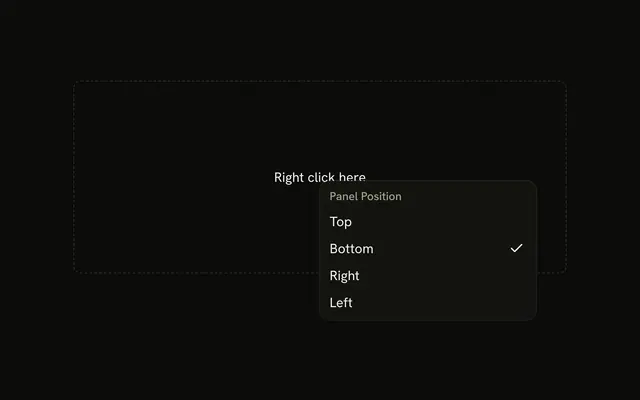
A right-click inside the dashed area, which reads Right click here on a mouse and Long press here on a touch screen.
The area is ContextMenuTrigger; a long press on it opens the menu too.
Wrap your own row, file or canvas in the trigger instead.
How do I run an action when an item is chosen?
Each item has a value; listen to @select on ContextMenu, which receives { value }.
The menu closes after the action runs.
How do keyboard and touch users find these actions?
The arrow keys move through an open menu, Enter runs an item and Escape closes it. A right-click is easy to miss, so also offer the same actions from a visible button, such as a Dropdown Menu.
API Reference
Context Menu
Sets value="edit", value="cut", value="copy", value="paste", value="delete" and variant="destructive". The rest is on the Context Menu page.