shadcn.io is an independent project built on shadcn/ui
Actions opens three full-width buttons: Edit, Share, and Delete. Delete uses the destructive style. Each one closes the panel. The title Actions is hidden and read by screen readers.
Use it for a few actions on one item when a menu would be more chrome than help. Delete should still confirm if it cannot be undone, in an Alert Dialog. In Vue, Ark UI does not run Edit, Share, or Delete.
Installation
Anatomy
Usage
<Popover>
  <PopoverTrigger :asChild="true">
    <Button variant="outline">Actions</Button>
  </PopoverTrigger>
  <PopoverContent class="gap-2">
    <PopoverTitle class="sr-only">Actions</PopoverTitle>
    <PopoverClose :asChild="true"><Button class="w-full">Edit</Button></PopoverClose>
    <PopoverClose :asChild="true">
      <Button class="w-full" variant="outline">Share</Button>
    </PopoverClose>
    <PopoverClose :asChild="true">
      <Button class="w-full" variant="destructive">Delete</Button>
    </PopoverClose>
  </PopoverContent>
</Popover>
FAQ
How do I close this panel from code?
Edit, Share and Delete each close the panel.
Here each button sits in PopoverClose, which closes the panel without any state. To close it from your own code, control the open state on Popover.
Bind v-model:open on Popover.
How does the Actions button become the trigger?
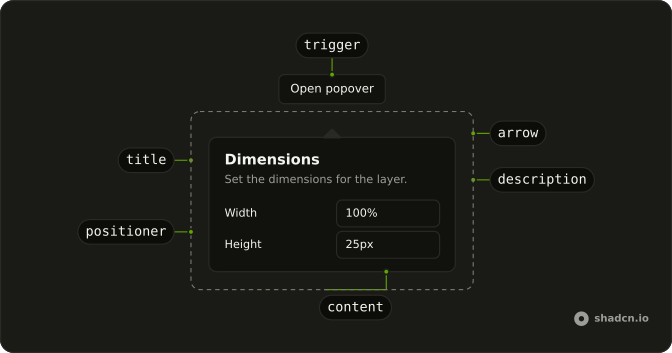
The trigger is a Button with variant="outline" and the label Actions. PopoverTitle reads Actions and has className="sr-only".
Set asChild on PopoverTrigger and pass that one button. PopoverContent is the panel.
What order are the actions in?
Edit, then Share, then Delete, which is the order of the buttons in the file. Delete is the one with variant="destructive". Share is variant="outline". All three are w-full.
API Reference
Popover
Sets asChild. The rest is on the Popover page.
Button
Sets variant="outline" and variant="destructive". The rest is on the Button page.