Shrink an image file.
Got a file too large error? Set the limit and let the tool find the quality that fits under it, then cap the pixels if it needs more room.
Shrink an image file.
Need the UI around it? With Pro, your AI agent builds the form, the result card and the rest of the page from a prompt.
Get ProHow it works
4 steps, no account. It runs in your browser and nothing is uploaded.
Drop an image
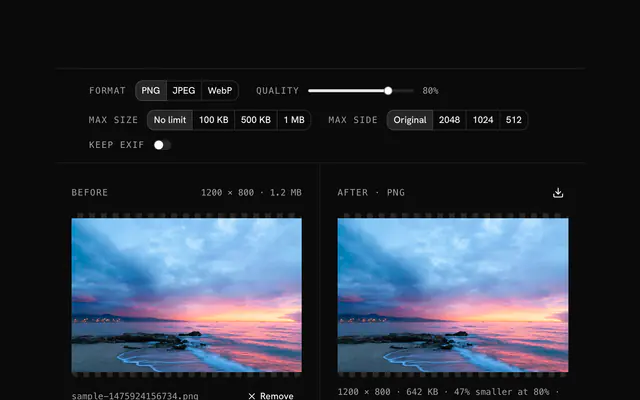
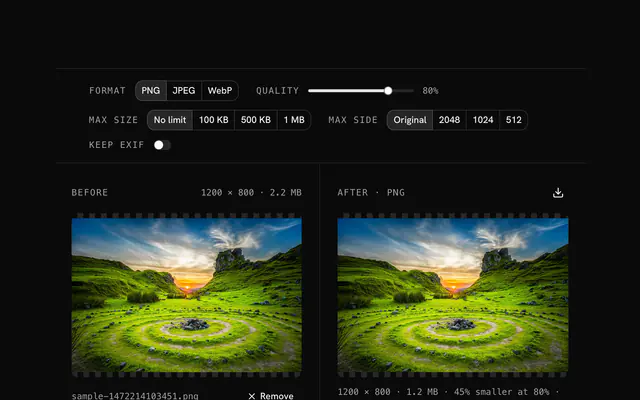
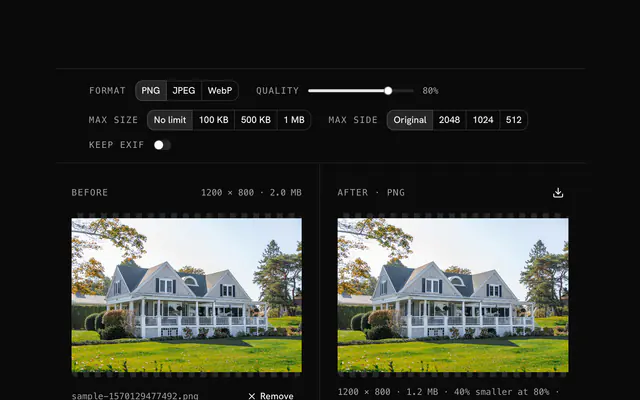
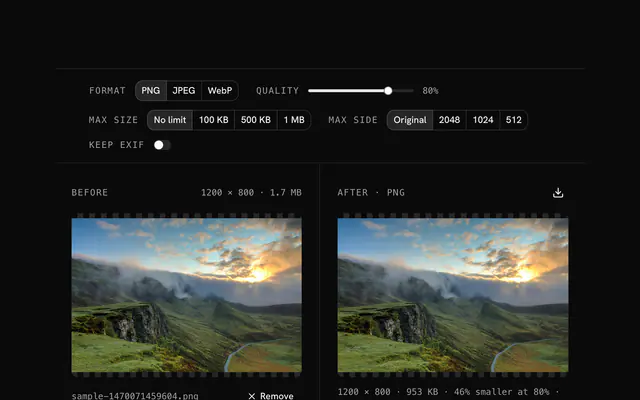
Drop an image onto the pane or choose it; the original shows with its size.
Set the format and quality
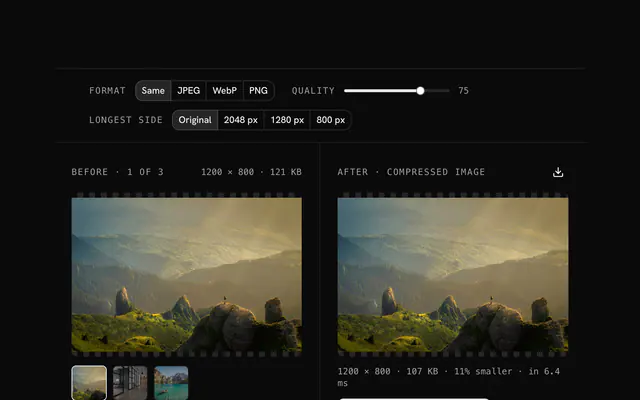
Pick PNG, JPEG or WebP and move the quality slider; the result and its size update as you go.
Add a size cap if you need one
Cap the file at 100 KB, 500 KB or 1 MB, or the longest side at 2048, 1024 or 512 pixels, when you have a limit to meet.
Download
Compare the two panes and download the smaller file.
Related tools
More PNG tools. Every one free, in the browser.
Pricing
Build it with Pro
The tool is free. Pro adds 6,000+ blocks, premium templates and the MCP server, so your AI editor builds the product around it.
4.9/5 out of 5 · 150+ reviewsfrom 150+ founders and developers.
- Secure checkout via Stripe
- Code lives in your repo
- Keep what you've shipped if you cancel
- License terms
Questions and answers
Before you trust the result: what to know about the format, the limits, your data and the tools next to it.
Pick 1 MB under Max size. The tool compresses, measures, lowers the quality and repeats until the file is under the cap. If it can't get there at the lowest quality, add a side cap so there are fewer pixels to store.
Choose 100 KB and set the side cap to 1024 or 512 pixels. A small target needs a small image; 100 KB holds a 1024 pixel JPEG at decent quality and a 4000 pixel one at no quality at all.
Because PNG stores every pixel losslessly, so a photo or a screenshot with a gradient has nowhere to shrink. Switch the format to JPEG for photos or WebP for anything, and the same picture drops by several times.
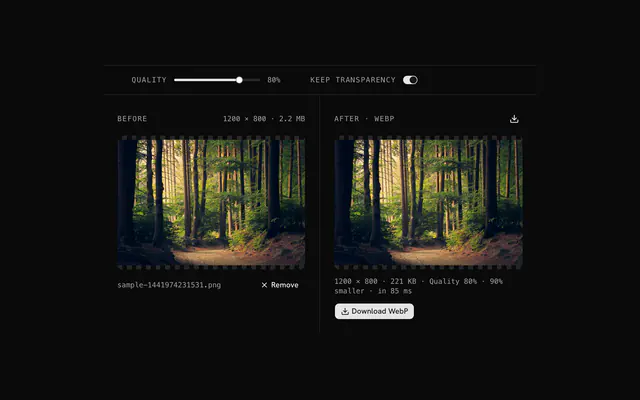
Screenshots are PNGs and often a few megabytes. If the text must stay crisp, keep PNG and lower the side cap; if it just needs to be readable, WebP at 80 percent is a fraction of the size.
Any image the browser can decode: PNG, JPG, WebP, GIF, AVIF, BMP, ICO and SVG, up to 100 MB. The tool is named for PNG because that is where people arrive from, but the input doesn't have to be one.
Quality drives the lossy encoders. For JPEG and WebP, 70 to 80 percent is where the file gets small while photos still look unchanged on a screen; under 60 the blocking starts to show. For PNG the slider matters less, since the format is lossless: the gains come from the side cap and from switching format.
The tool compresses, checks the size, lowers the quality and tries again until the file is under the cap or the quality runs out. Pair a small cap with a side cap: a 4000 pixel photo won't fit in 100 KB at any quality, a 1024 pixel one will.
Off by default, which strips the camera model, exposure settings, date and GPS position from a photo. Turn it on when you want that data to travel with the image. Stripping it also saves a few kilobytes.
The result pane shows the original's size, the result's size and the saving in percent. If the encoder can't beat the original (a PNG already optimised, a tiny icon), the tool returns the original rather than a larger file.
No. The file is read in your browser and every step runs there, on your device. The page makes no request with your image, so you can load it, go offline and keep working.
No. The "Shrink an image file" tool is free and opens without a sign-in, an account or an install.
Up to 100 MB per file, the limit the tool states under its drop area. A larger file is refused with a plain message instead of being decoded.
No, it takes one file at a time. If you drop or choose several, only the first is used; run the tool again for the next one.
When the output would not be smaller and you kept the same format, the tool hands back your original and says so in the status line.
Closest to the "Shrink an image file" tool: PNG compressor, Reduce image size online, Image size reducer, Compress an image for email. Each opens on its own page, free and in the browser.
The "Shrink an image file" tool is one of 47 in its group. The group's page, /tools/png, lists them all.
The tool is free. Its interface is built from shadcn.io's own components (Button, Input, Slider and the rest of the registry under /ui), which come in React, Vue, Svelte and Solid. Pro adds the blocks and templates for the product around it.
4.9 out of 5 from 150+ developers


Build the product around it
Every block, template and icon, installed by your AI agent in your theme. The tools stay free.
Get Pro