SVG illustration toning.
Turn a colorful vector illustration into a single-tone version in your brand's color, with its shading kept. Nothing is uploaded.
SVG illustration toning.
Need the UI around it? With Pro, your AI agent builds the form, the result card and the rest of the page from a prompt.
Get ProHow it works
4 steps, no account. It runs in your browser and nothing is uploaded.
Drop an SVG
Drop an SVG; the browser draws it at the size it declares.
Choose the tone
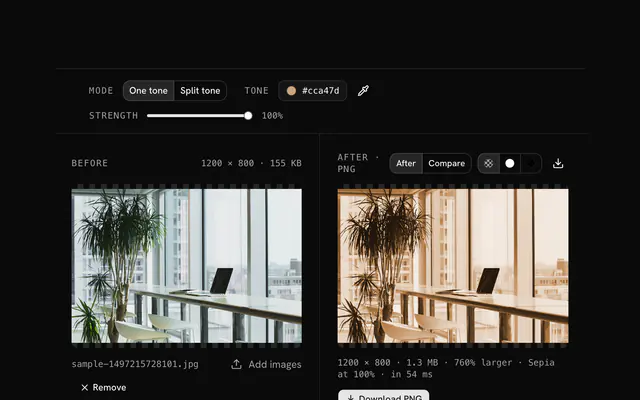
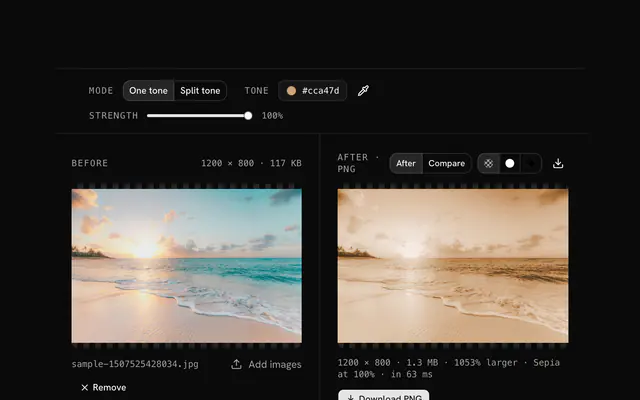
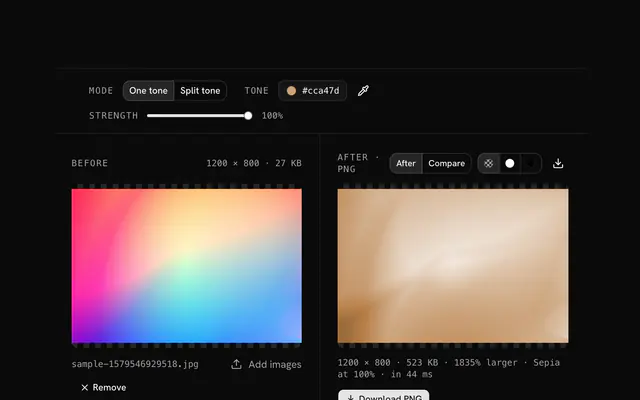
Pick a preset, from sepia to slate to cool blue, or type a hex, and set how strongly it takes.
Read the preview
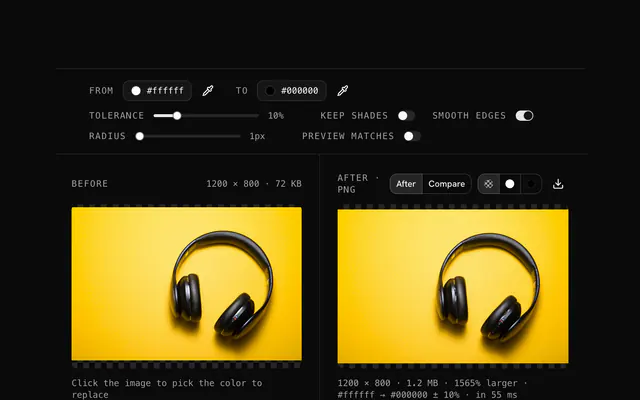
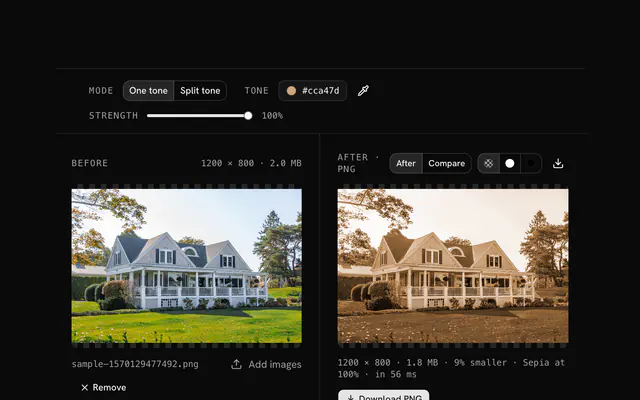
Every color moves toward the tone while its brightness stays, so lines, shading and highlights keep their depth.
Download the PNG
The result is a PNG with the transparency kept.
Related tools
More SVG tools. Every one free, in the browser.
Pricing
Build it with Pro
The tool is free. Pro adds 6,000+ blocks, premium templates and the MCP server, so your AI editor builds the product around it.
4.9/5 out of 5 · 150+ reviewsfrom 150+ founders and developers.
- Secure checkout via Stripe
- Code lives in your repo
- Keep what you've shipped if you cancel
- License terms
Questions and answers
Before you trust the result: what to know about the format, the limits, your data and the tools next to it.
Every color moves to the chosen hue while its brightness stays: blues, reds and greens all become shades of that hue, and the scene reads as one.
Yes. Brightness is kept, so gradients stay smooth, shadows stay dark and highlights stay bright; only the hue changes.
Yes. Type the brand's hex and the illustration shifts to that family with its depth intact.
Transparency is kept; only the illustration takes the tone.
Yes. Drop the SVG, apply the tone you need, download the PNG; repeat for every color variation you want.
Yes. Sepia or a warm brown over modern flat art gives it a vintage character at once.
A complex illustration has dozens of colors, gradients and effects; changing each by hand is slow, and this treats them all at once.
The browser draws the SVG to pixels at the size it declares (its width and height, or its viewBox), and the tool works on those pixels. The result is a PNG, not an SVG: for a larger output, set a larger width and height on the SVG first, with the SVG editor.
No. The file is read and drawn by your browser, and the page makes no request with it. You can load the page, go offline and keep working; nothing is stored either, so reload and it is gone.
No. The "SVG illustration toning" tool is free and opens without a sign-in, an account or an install.
Nothing. The "SVG illustration toning" tool holds your input in the page's memory, so closing or reloading the tab clears it, and it saves nothing in this browser.
No, it takes one file at a time. If you drop or choose several, only the first is used; run the tool again for the next one.
The edit is written as a PNG because PNG stores every pixel exactly, with a full alpha channel, so the result can be edited again without a second round of loss.
No. The browser decodes the image and the tool writes a new file from its pixels, so camera EXIF, GPS position and text chunks in the original are not copied into the result. Keep the original file if you need them.
No. The result has the same width and height in pixels as the source.
Closest to the "SVG illustration toning" tool: SVG color tone changer, SVG color replacer, Vector art mood effects, Monochrome image maker. Each opens on its own page, free and in the browser.
The "SVG illustration toning" tool is one of 45 in its group. The group's page, /tools/svg, lists them all.
The tool is free. Its interface is built from shadcn.io's own components (Button, Input, Slider and the rest of the registry under /ui), which come in React, Vue, Svelte and Solid. Pro adds the blocks and templates for the product around it.
4.9 out of 5 from 150+ developers


Build the product around it
Every block, template and icon, installed by your AI agent in your theme. The tools stay free.
Get Pro