shadcn.io is an independent project built on shadcn/ui
Sign Up opens Create an account. The fields are Full name, Email, and Password, then a full-width Create Account button. A divider reads Or continue with, and Continue with Google sits under it. The footer links to Sign in.
Use it when creating an account should not leave the page. Google does not sign anyone in until you connect it. Terms and extra fields fit a Sheet. In Solid, Ark UI does not create the account.
Installation
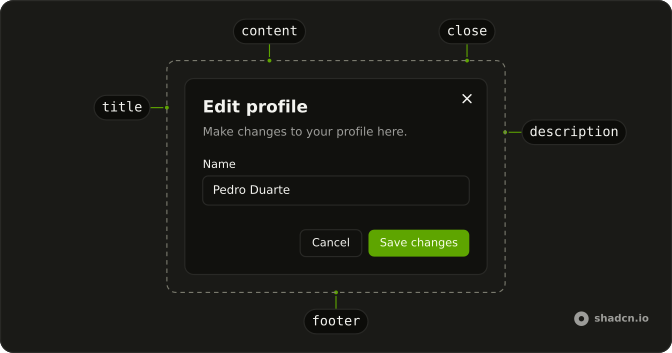
Anatomy
Usage
<Dialog>
    <DialogTrigger asChild={props => <Button {...props()} variant="outline">Sign Up</Button>} />
    <DialogContent class="sm:max-w-md">
      <DialogHeader>
        <DialogTitle>Create an account</DialogTitle>
        <DialogDescription>
          Enter your details below to create your account.
        </DialogDescription>
      </DialogHeader>
      <FieldGroup>
        <Field>
          <FieldLabel>Full name</FieldLabel>
          <Input autocomplete="name" name="name" placeholder="John Doe" type="text" />
        </Field>
        <Field>
          <FieldLabel>Email</FieldLabel>
          <Input autocomplete="email" name="email" placeholder="you@example.com" type="email" />
        </Field>
        <Field>
          <FieldLabel>Password</FieldLabel>
          <Input autocomplete="new-password" name="password" type="password" />
        </Field>
        <Button class="w-full">Create Account</Button>
        <FieldSeparator>Or continue with</FieldSeparator>
        <Button class="w-full" variant="outline">
          <GoogleIcon data-icon="inline-start" />
          Continue with Google
        </Button>
      </FieldGroup>
      <DialogFooter class="sm:justify-center">
        <p class="text-center text-muted-foreground text-sm">
{/* The rest of the file is under Installation. */}
FAQ
How do I validate the fields?
On blur and on submit: a valid email, a password of at least eight characters, a name. Show each error in a FieldError and keep Create Account disabled until everything passes.
Should I show password strength?
It helps people pick a good one: a short meter under the field, with the hint in a FieldDescription.
How does Continue with Google work?
It starts your provider's OAuth flow; the button only needs the redirect. The Google mark is a monochrome icon marked data-icon="inline-start".
Will browsers suggest a password?
Yes. The password input sets autoComplete="new-password", which tells browsers and password managers to offer a strong one.
API Reference
Dialog
Sets asChild and props. The rest is on the Dialog page.
Button
Sets props, variant="outline" and variant="link". The rest is on the Button page.
Field
No extra props in this demo. The rest is on the Field page.
Input
Sets autocomplete="name", name="name", placeholder="John Doe", type="text", autocomplete="email" and name="email". The rest is on the Input page.