JPG compressor.
Drop a JPG, set a quality and a size cap, and download a smaller file that still looks like the original. The compression happens in your browser; nothing is uploaded.
JPG compressor.
Need the UI around it? With Pro, your AI agent builds the form, the result card and the rest of the page from a prompt.
Get ProHow it works
4 steps, no account. It runs in your browser and nothing is uploaded.
Drop a photo
Drop a JPG, or any photo, onto the pane or choose it; the original shows with its size.
Set quality and a cap
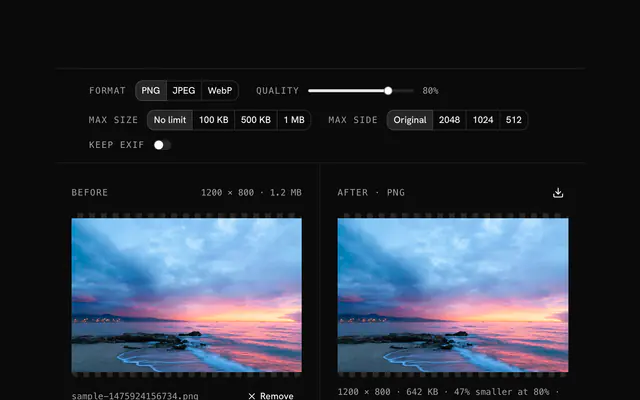
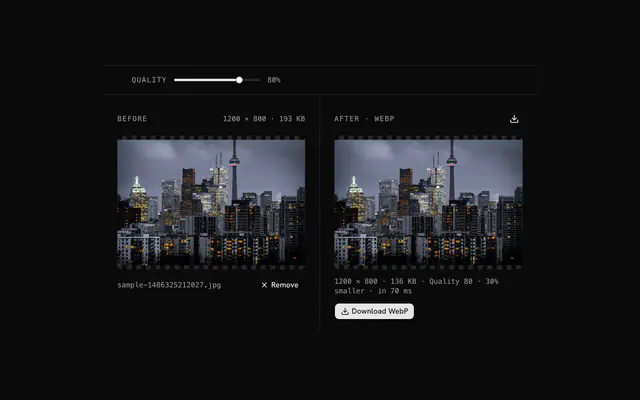
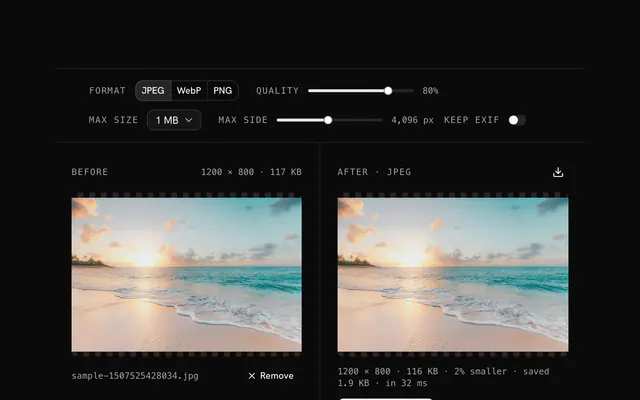
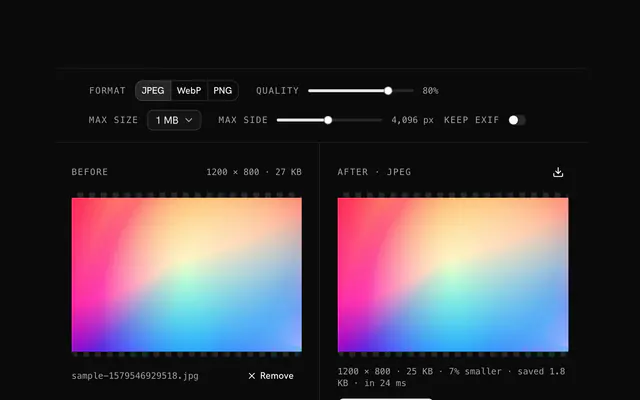
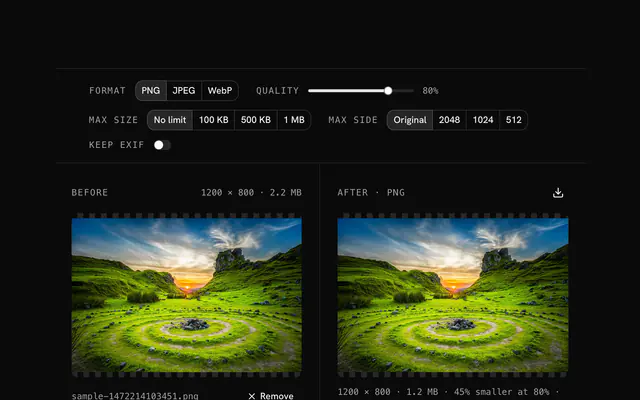
Move the quality slider, pick a size cap or a longest side; the result and its size update each time.
Choose the format
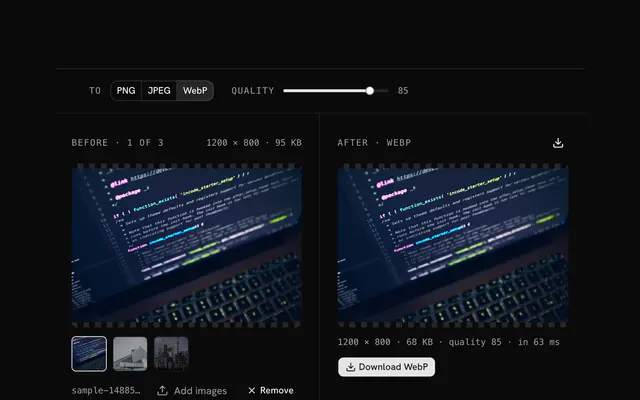
Keep JPEG, or write WebP for the web and PNG for graphics; keep EXIF only when you need it.
Compare and download
Compare the two previews and download the smaller file; the original stays untouched on your disk.
Related tools
More JPG tools. Every one free, in the browser.
Pricing
Build it with Pro
The tool is free. Pro adds 6,000+ blocks, premium templates and the MCP server, so your AI editor builds the product around it.
4.9/5 out of 5 · 150+ reviewsfrom 150+ founders and developers.
- Secure checkout via Stripe
- Code lives in your repo
- Keep what you've shipped if you cancel
- License terms
Questions and answers
Before you trust the result: what to know about the format, the limits, your data and the tools next to it.
JPEG keeps the detail the eye notices and drops what it does not: fine color variation first, then fine texture. At 70 to 90 the loss is invisible on a screen. Lower and blocks, banding and halos appear around edges and in smooth areas.
70 to 80 for the web: a big saving and no visible change. 85 to 95 for printing, where the detail is worth the bytes. 50 to 60 for thumbnails and previews, where nobody looks closely.
Nothing. They are one format, defined by the Joint Photographic Experts Group in 1992. The three-letter extension dates from Windows systems that allowed no more, and every tool here takes both spellings.
Every save throws away a little more detail: that is generation loss. Keep the original and make each compressed version from it rather than recompressing a compressed file. Converting to PNG stops the loss but cannot bring back what an earlier save dropped.
The file was already well compressed, or you asked for PNG, which is lossless and larger for a photo. In the first case the tool keeps your original and tells you; in the second, choose JPEG or WebP for a photograph.
The slider sets the starting quality, and a size cap makes the tool try lower qualities until the file fits under it. The longest-side cap scales the image down first, which is the biggest lever for a photo straight from a camera. Every change reruns the compression and shows the new size.
Then there was nothing to gain: the file was already smaller than any recompression at these settings. The tool keeps your original, says so under the result, and never hands you a bigger file than the one you dropped.
No. The file is decoded, drawn and re-encoded by your browser's canvas, and the page makes no request with it. You can load the page, go offline and keep working; nothing is stored either.
No. The JPG compressor is free and opens without a sign-in, an account or an install.
Up to 100 MB per file, the limit the tool states under its drop area. A larger file is refused with a plain message instead of being decoded.
No, it takes one file at a time. If you drop or choose several, only the first is used; run the tool again for the next one.
By default, yes. The Keep EXIF switch is off; turn it on to carry the original's EXIF into the result (for JPEG output only in the JPG tool).
When the output would not be smaller and you kept the same format, the tool hands back your original and says so in the status line.
Closest to the JPG compressor: PNG compressor, JPG to WebP converter, Reduce a JPG's file size, Optimize a JPG for the web. Each opens on its own page, free and in the browser.
The JPG compressor is one of 44 in its group. The group's page, /tools/jpg, lists them all.
The tool is free. Its interface is built from shadcn.io's own components (Button, Input, Slider and the rest of the registry under /ui), which come in React, Vue, Svelte and Solid. Pro adds the blocks and templates for the product around it.
4.9 out of 5 from 150+ developers


Build the product around it
Every block, template and icon, installed by your AI agent in your theme. The tools stay free.
Get Pro