WebP image quality reducer.
Lower a WebP's quality to shrink the file, with a slider and a preview that shows exactly what each setting gives.
WebP image quality reducer.
Need the UI around it? With Pro, your AI agent builds the form, the result card and the rest of the page from a prompt.
Get ProHow it works
3 steps, no account. It runs in your browser and nothing is uploaded.
Drop the WebP
Drop the WebP on the pane or choose it from your device.
Lower the quality
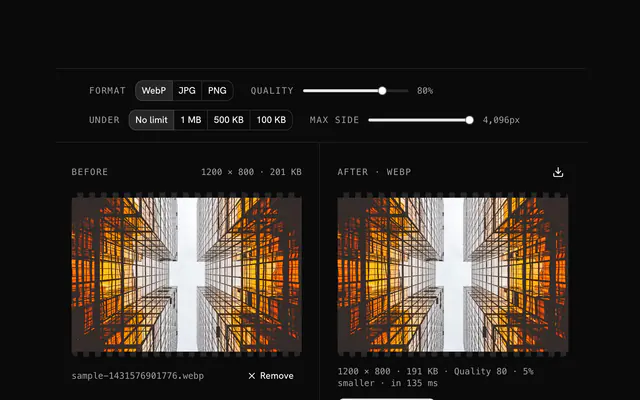
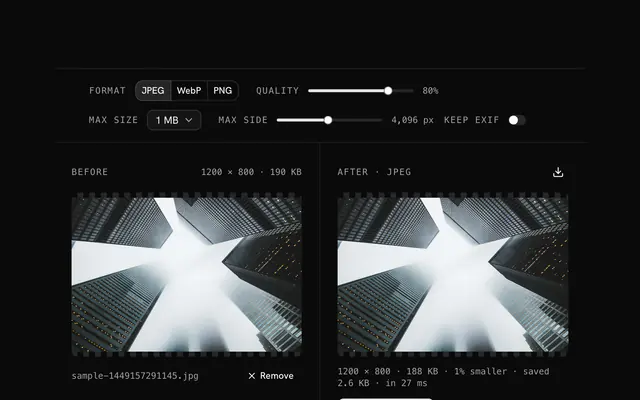
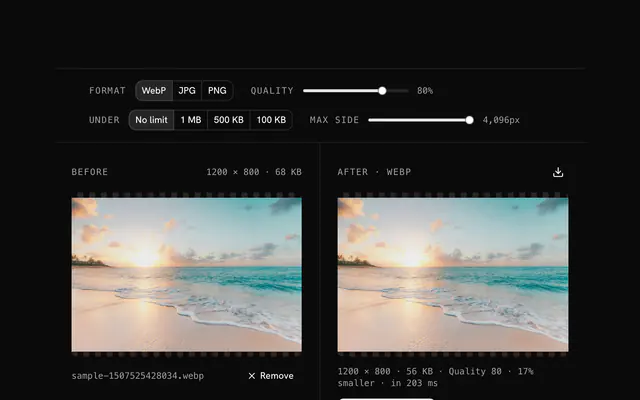
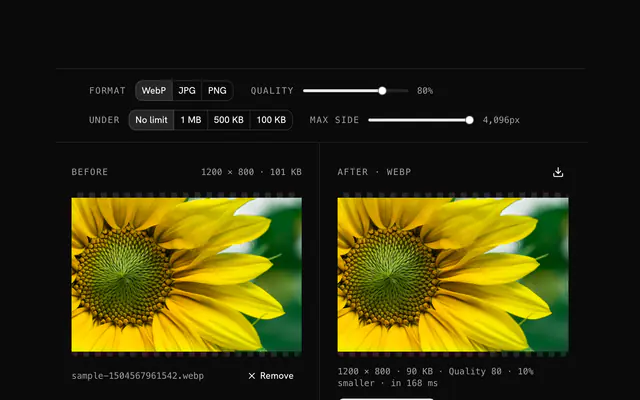
Move the quality slider and watch the preview and the size.
Download
Stop where it still looks right, then download.
Related tools
More WebP tools. Every one free, in the browser.
Pricing
Build it with Pro
The tool is free. Pro adds 6,000+ blocks, premium templates and the MCP server, so your AI editor builds the product around it.
4.9/5 out of 5 · 150+ reviewsfrom 150+ founders and developers.
- Secure checkout via Stripe
- Code lives in your repo
- Keep what you've shipped if you cancel
- License terms
Questions and answers
Before you trust the result: what to know about the format, the limits, your data and the tools next to it.
Quality, from 1 to 100, sets how much the encoder is allowed to discard. 100 keeps the most detail and the largest file; lower values drop more and shrink the file. WebP at 80 is smaller than a JPEG at 80 and looks about the same.
90 to 100 for archive and professional work. 80 to 90 for high-quality web images. 70 to 80 for ordinary web use, the usual balance. 60 to 70 for aggressive compression that still passes. Below 60, thumbnails only.
WebP at 75 looks roughly like JPEG at 85 and is 25 to 30% smaller. Its compression is more efficient, so you reach a given look at a lower number and a smaller file.
Blocky patches and banding in gradients, at low settings. WebP shows fewer than JPEG at the same compression. The preview is the actual output, so you see them before downloading.
No. What the encoder dropped is gone; re-saving at a higher quality just makes a larger file of the same degraded image. Keep the originals.
Not quite. Quality 100 is still the lossy encoder at its gentlest, indistinguishable from lossless in practice but not identical. Lossless WebP needs a dedicated encoder.
No. The browser decodes the file, a canvas does the work and the result is built on your device; the page makes no request with your image. You can load it, go offline and keep working.
No. The WebP image quality reducer is free and opens without a sign-in, an account or an install.
Nothing. The WebP image quality reducer holds your input in the page's memory, so closing or reloading the tab clears it, and it saves nothing in this browser.
Up to 100 MB per file, the limit the tool states under its drop area. A larger file is refused with a plain message instead of being decoded.
No, it takes one file at a time. If you drop or choose several, only the first is used; run the tool again for the next one.
Yes. It has no Keep EXIF option: the re-encoded file carries pixels only, so camera, GPS and date fields in the original are dropped.
It always writes a new file in the format you picked, and the status line reports how much smaller or larger it is. If a Max size cap is still exceeded it says so and suggests lowering the side.
Closest to the WebP image quality reducer: WebP compressor, JPEG quality reducer, Reduce WebP file size, WebP optimizer. Each opens on its own page, free and in the browser.
The WebP image quality reducer is one of 44 in its group. The group's page, /tools/webp, lists them all.
The tool is free. Its interface is built from shadcn.io's own components (Button, Input, Slider and the rest of the registry under /ui), which come in React, Vue, Svelte and Solid. Pro adds the blocks and templates for the product around it.
4.9 out of 5 from 150+ developers


Build the product around it
Every block, template and icon, installed by your AI agent in your theme. The tools stay free.
Get Pro