shadcn.io is an independent project built on shadcn/ui
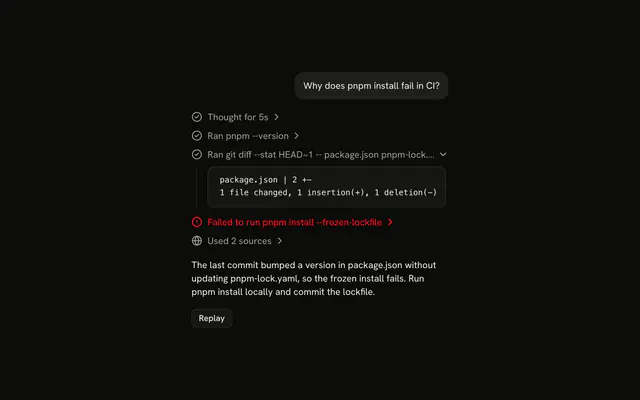
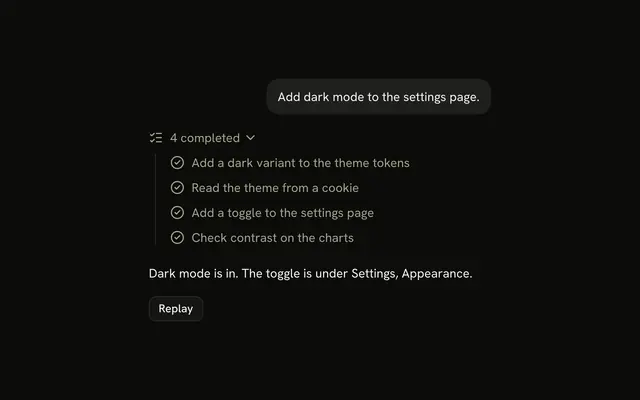
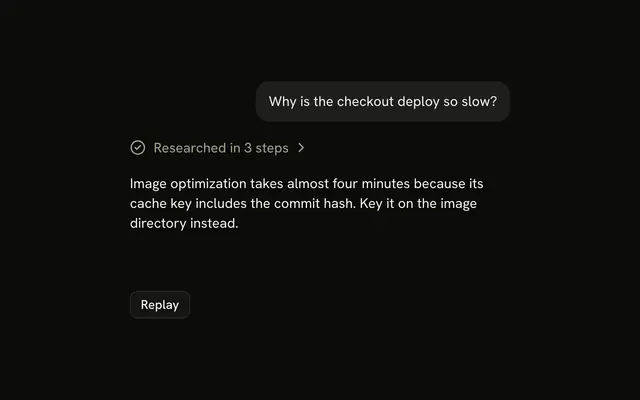
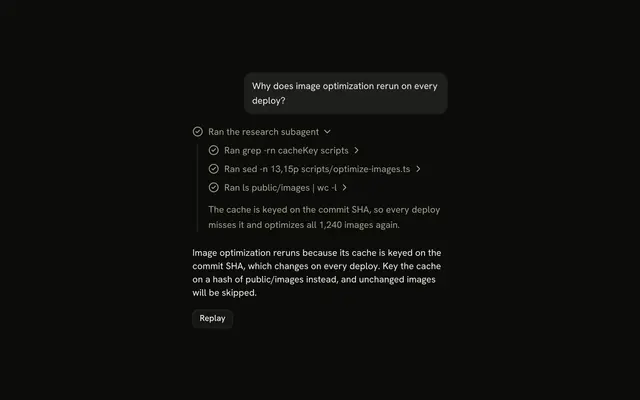
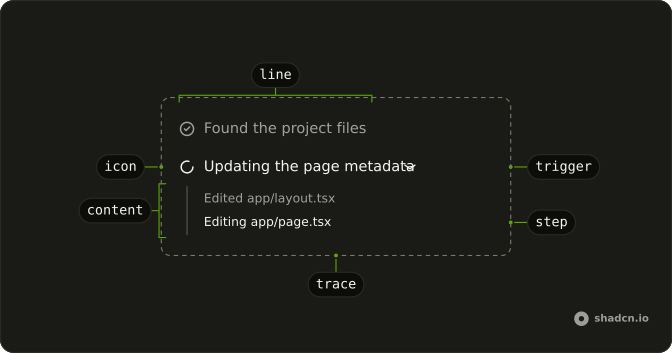
Task shows the work an agent is doing as one line per task, such as Finding the project files, that opens onto the steps it has taken so far: a search, a read, an edit. Each title reads in the present tense while the task runs and in the past tense once it is done.
Use it when the agent finds its next step only by taking the last one. When it writes every step down first, use Plan, and for a single call with its output, use Tool.
Installation
Task is a pattern. The command adds the part it's built from, Trace, and the code to copy is the demo's.
Anatomy
Usage
import { FileTextIcon, SearchIcon } from "lucide-react";
import {
  Trace, TraceCollapsible, TraceCollapsibleContent,
  TraceCollapsibleTrigger, TraceIcon, TraceLine, TraceTitle,
} from "@/components/ui/trace";<Trace>
<TraceCollapsible>
<TraceCollapsibleTrigger>
<TraceLine>
<TraceTitle>Found the project files</TraceTitle>
</TraceLine>
</TraceCollapsibleTrigger>
<TraceCollapsibleContent>
<Trace>
<TraceLine>
<TraceIcon>
<SearchIcon aria-hidden="true" />
</TraceIcon>
<TraceTitle>Searched for app/page.tsx</TraceTitle>
</TraceLine>
<a href="/files/app/page.tsx">
<TraceLine>
<TraceIcon>
<FileTextIcon aria-hidden="true" />
</TraceIcon>
<TraceTitle>Read app/page.tsx</TraceTitle>
</TraceLine>
</a>
</Trace>
</TraceCollapsibleContent>
</TraceCollapsible>
</Trace>A step that has somewhere to go, like the file read here, is a link around its TraceLine. A step with nothing to open stays a plain line.
Accessibility
Each task's line is a <button> with aria-expanded, named by its title, so a screen reader hears what the task is and whether its steps are showing. The steps are plain text, and a step wrapped in a link is a tab stop of its own. The spinner, check and alert icons are hidden from screen readers, and the shimmer and the destructive color are only visual, so the title carries the state: Updating, Updated, Failed to update. Trace adds no live region, so nothing announces a new step on its own.
- Tab
- Moves focus to the next task's line, or to a linked step inside an open task.
- Shift+Tab
- Moves focus to the previous focusable element.
- Enter
- When focus is on a task's line, opens or closes its steps. On a linked step, follows the link.
- Space
- When focus is on a task's line, opens or closes its steps.
Demos
Failed task
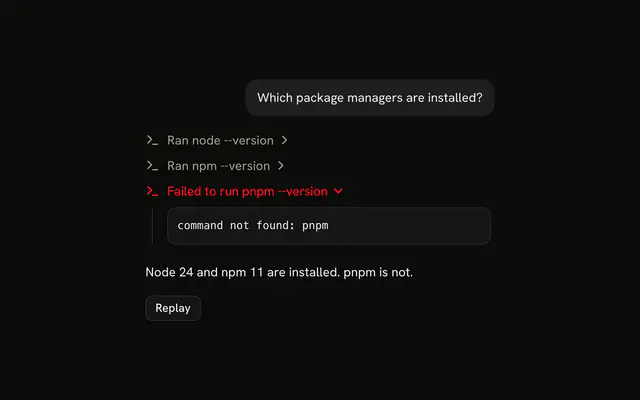
In this reply the second task stopped partway: Found the project files is done and closed, while Failed to update the page metadata starts open on the step that failed, Failed to edit app/page.tsx. That step and its task's line both take status="error", with titles that say so in words. Open a failed task with defaultOpen so the reader sees where it stopped.
Status
Set each task's status from its steps, and its title to match.
| Steps | status | Title |
|---|---|---|
| A step is still running | "running" | Updating the page metadata |
| A step failed | "error" | Failed to update the page metadata |
| Every step is done | none | Updated the page metadata |
Put the tasks of one reply in one Trace. The demo at the top of the page keeps the running task open and closes each one once it is done, unless the reader opened or closed it first: it holds the open state as undefined until the reader clicks, and in the meantime passes whether the task is running.
On TraceCollapsible that is open={open ?? running}, with your state set from onOpenChange, whose argument holds the new value in open.
A closed task's steps stay mounted, only hidden, so anything inside them keeps its state while the task is closed.
Task or plan
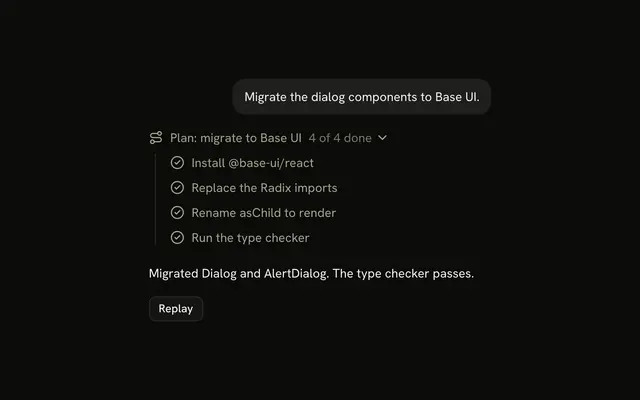
Both are a list of steps under a line that opens. The difference is when the steps are known: Plan lists every step the agent decided on before it started, while Task shows each step only once the agent has taken it.
| Plan | Task | |
|---|---|---|
| Steps | Every step, from the start | Each step, once the agent takes it |
| Pending steps | Yes, waiting their turn | None |
| Title | The goal, with progress: "2 of 4 done" | What the agent is doing, then what it did |
| Per reply | One plan | One or more tasks, each closing when it is done |
AI SDK
Stream each task as a data part with its own id. When a data part arrives with the type and id of one already in the message, the AI SDK replaces its data, so writing a task again with one more step updates it in place.
const stream = createUIMessageStream({
  execute: async ({ writer }) => {
    writer.write({ type: "data-task", id: "update", data: { title, steps } });
  },
});
On the client, the tasks are the message's data-task parts.
const tasks = message.parts.filter((part) => part.type === "data-task");Migrating from AI SDK Elements
If you added Task from AI SDK Elements (opens in a new tab), your project has a components/ai-elements/task.tsx wrapper. Paste this prompt into your coding agent to rebuild it on Trace. Every export keeps its name and props, so the code that uses it keeps working.
Migrate components/ai-elements/task.tsx from AI SDK Elements to the shadcn.io Trace component.

Keep every export, with the same name and props, so the code that imports it keeps working. Only change how each part renders.

1. Read https://www.shadcn.io/ui/ark/task.md and build Task the same way. If the project hasn't got Trace, run the command in its Installation section.
2. Rebuild each part:
   - Task renders a Trace with a TraceCollapsible. Pass open and defaultOpen to the TraceCollapsible, and call onOpenChange with details.open from its onOpenChange.
   - TaskTrigger renders a TraceCollapsibleTrigger with a TraceLine and a TraceTitle with title.
   - TaskContent renders a TraceCollapsibleContent with a Trace for the steps.
   - TaskItem renders a TraceLine with a TraceTitle.
   - Keep TaskItemFile as it is.
3. Remove the imports the file no longer uses.
4. Run the type checker and fix any errors.
FAQ
Should I use Task or Plan to show an agent's steps?
Use Task when the agent finds its steps as it works, and each one appears once it has been taken. Use Plan when the agent writes the steps down before it starts and checks them off, so the reader sees the whole job and how far along it is.
A plan has pending steps waiting their turn, and a task never does. The Task or plan section compares the two line by line.
How does a Task show that it is running or has failed?
Its TraceLine takes a status worked out from the steps: running while one runs, which makes the title shimmer, and error once one fails, which turns the line the destructive color. The demos also swap the icon: a spinner or a check at the top of the page, and an alert in Failed task.
The title says the same in words, Updating the page metadata and then Updated the page metadata, because color and motion don't reach a screen reader. The Status section has the whole mapping.
Why does the running task open and the finished one close?
That keeps the step in progress in view, and the transcript short once the work is done. The demo at the top of the page passes the running flag as the open state until the reader opens or closes a task, and from then on their choice wins.
Hold that choice as undefined until the first click, and fall back to whether the task is running. The Status section has the exact props for Ark UI.
How do I update a task while it streams from the AI SDK?
Write it again under the same id. When a data part arrives with the type and id of one already in the message, the AI SDK replaces that part's data, so the task gains its new step in place instead of adding a second row.
Send the whole task each time, its title and every step so far, since the new data replaces the old rather than merging with it. The AI SDK section shows the write on the server and the filter on the client.
How do I make a Task step link to the file it read?
Wrap the step's TraceLine in a link, as the file read in the Usage example is. Trace styles a line inside a link the way it styles one inside a button, with a pointer cursor and the full foreground color on hover.
A router's link component works the same way as long as it renders an a. Leave steps with nothing to open as plain lines, so the links stand out as the ones worth clicking.
Can people open a Task with the keyboard?
Yes. Each task's line is a button with aria-expanded, so Tab reaches it and Enter or Space opens or closes its steps.
The steps inside are plain lines, so Tab skips them unless one is a link. Put the state in every title as well, because the spinner and the shimmer say nothing to a screen reader.
Is this the same as AI SDK Elements' Task?
It does the same job without a wrapper. Elements' Task is a Collapsible with its own trigger and item parts, and here each task is a Trace line that opens onto a Trace of its steps.
The Migrating from AI SDK Elements section has a prompt that rebuilds your components/ai-elements/task.tsx on Trace and keeps its exports, so the code that uses it keeps working.
API Reference
Task has no props of its own. Each task is a Trace collapsible: status is TraceLine's, and the open state is TraceCollapsible's.