shadcn.io is an independent project built on shadcn/ui
An agent's code run shows up as a card: a header line with what ran and a badge, Running, Completed or Error, over tabs for the code, what it printed and the files it wrote.
Use it for a code interpreter's call, where the agent writes a script, runs it in a sandbox and answers from the result. The header is the button that folds the run, so a long one can be put away once it's done; the code tab holds a Code Block, the other tabs whatever the run made. It shows a run and doesn't run anything: to let people edit and run the code, use Sandbox.
Installation
Anatomy
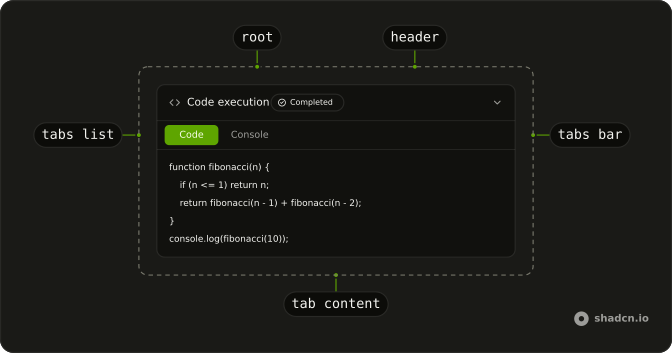
SandboxRun
├── SandboxRunHeader (title, state)
└── SandboxRunContent
    └── SandboxRunTabs
        ├── SandboxRunTabsBar
        │   └── SandboxRunTabsList
        │       └── SandboxRunTabsTrigger (one per tab)
        └── SandboxRunTabContent (one per tab)
Usage
import {
  SandboxRun, SandboxRunContent, SandboxRunHeader, SandboxRunTabContent,
  SandboxRunTabs, SandboxRunTabsBar, SandboxRunTabsList,
  SandboxRunTabsTrigger,
} from "@/components/ui/sandbox-run";<SandboxRun>
<SandboxRunHeader state="completed" title="Code execution" />
<SandboxRunContent>
<SandboxRunTabs defaultValue="code">
<SandboxRunTabsBar>
<SandboxRunTabsList>
<SandboxRunTabsTrigger value="code">Code</SandboxRunTabsTrigger>
<SandboxRunTabsTrigger value="console">Console</SandboxRunTabsTrigger>
</SandboxRunTabsList>
</SandboxRunTabsBar>
<SandboxRunTabContent value="code">
<pre className="p-3 font-mono text-xs">console.log(fibonacci(10));</pre>
</SandboxRunTabContent>
<SandboxRunTabContent value="console">
<pre className="p-3 font-mono text-xs">55</pre>
</SandboxRunTabContent>
</SandboxRunTabs>
</SandboxRunContent>
</SandboxRun>Demos
States
Three runs, closed, one per state: running pulses a dot in a blue badge, completed checks in green and error crosses in red. Each opens on its console, the error's in a destructive Code Block with the traceback. Close a run once it's done when the reply below it matters more, and leave a failed one where the reader can open it.
Set defaultOpen={false} on SandboxRun to start closed: it starts open.
Files
Four tabs for one Python run: the code, its output as a table, the console and the files it wrote, with a copy button for the code at the end of SandboxRunTabsBar. Show the tab that answers the question first, here the output, and leave out a tab the run has nothing for: an empty Files tab is a click for nothing.
Streaming
Run again prints the console a line at a time, with state at running until the last line and completed after. Stream into the console tab as the sandbox reports, and switch the state only when the run ends, so the badge doesn't say Completed over a console that's still filling.
AI SDK
A code run is a tool call, runCode in this example, and SandboxRunHeader takes the tool part's state as it is: the badge reads it the way the table below says. Its input has the code, its output what the run printed.
{message.parts.map((part) =>
  part.type === "tool-runCode" ? (
    <SandboxRun key={part.toolCallId}>
      <SandboxRunHeader state={part.state} title={part.input?.filename} />
      <SandboxRunContent>{/* the tabs, from part.input and part.output */}</SandboxRunContent>
    </SandboxRun>
  ) : null
)}
state | Badge |
|---|---|
input-streaming | Pending |
running, input-available | Running |
approval-requested | Awaiting approval |
approval-responded | Responded |
completed, output-available | Completed |
error, output-error | Error |
output-denied | Denied |
Migrating from AI SDK Elements
If you added Sandbox from AI SDK Elements (opens in a new tab), your project has a components/ai-elements/sandbox.tsx. Here its parts are Sandbox Run's, because Sandbox is the editor that runs code in the page. Run the command in the Installation section, then import from @/components/ui/sandbox-run and rename each part: Sandbox is SandboxRun, SandboxHeader is SandboxRunHeader, SandboxContent is SandboxRunContent, SandboxTabs is SandboxRunTabs, SandboxTabsBar is SandboxRunTabsBar, SandboxTabsList is SandboxRunTabsList, SandboxTabsTrigger is SandboxRunTabsTrigger and SandboxTabContent is SandboxRunTabContent. To leave your JSX as it is, import them under the old names: import { SandboxRun as Sandbox, … }.
The props stay: title and state on the header, which takes a tool part's state as before, and value and defaultValue on the tabs. onValueChange on SandboxRunTabs gets the tab's value.
FAQ
What does installing Sandbox Run add in React?
The sandbox-run file in your ui folder, with the Collapsible, Tabs and Badge it's built from, if you haven't got them. The demos' code tabs use Code Block, which you add on its own.
The command uses the shadcn CLI.
What's the difference between Sandbox Run and Sandbox?
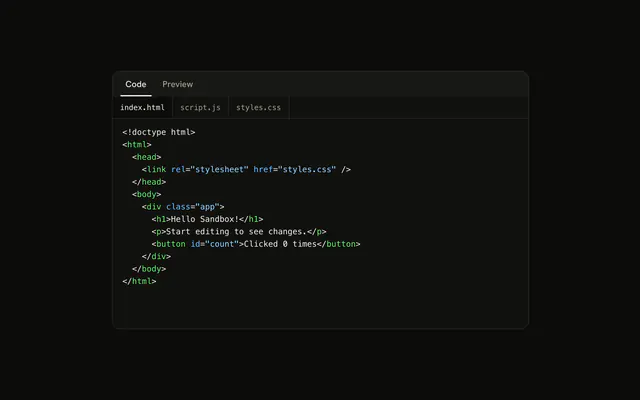
Sandbox Run shows code that already ran somewhere else, an agent's sandbox, with what came out of it; nothing runs in the page. Sandbox is an editor with a live preview: the reader changes the code and it runs in an iframe. Their parts are named apart, SandboxRun… and Sandbox…, so one page can use both.
Which states does the header show?
running, completed and error, as a blue badge with a pulsing dot, a green one with a check and a red one with a cross. It also takes an AI SDK tool part's state as it is, input-streaming or output-available, and shows Pending, Awaiting approval, Responded or Denied for the states a run can't name. The dot stops pulsing when the reader asks for reduced motion.
How do I start a run closed?
Set defaultOpen={false} on SandboxRun: it starts open. Hold it yourself with open and onOpenChange, to close a run once the reply below it arrives.
Which tabs should a run have?
The ones the run has something for: the code, then what came out, as output, console or files. Name them in SandboxRunTabsTrigger and give each SandboxRunTabContent the same value. SandboxRunTabsBar holds the list and anything after it, a copy or download button, as the Files demo shows.
How do I highlight the code in the code tab?
Put a Code Block in the tab, its lines from the useHighlightedCode hook, as the demos do, with rounded-none border-0 so it sits flush in the run's border. Sandbox Run doesn't highlight anything itself, so a console or an output tab stays plain text.
API Reference
SandboxRun
data-slot="sandbox-run"
open?boolean
The controlled open state of the collapsible.
defaultOpen?boolean
The initial open state of the collapsible when rendered. Use when you don't need to control the open state of the collapsible.
- Default
true
onOpenChange?(details: OpenChangeDetails) → void
The callback invoked when the open state changes.
- Type
(details: OpenChangeDetails) → void- Parameters
details– { open: boolean }- Returns
void
collapsedHeight?number | string
The height of the content when collapsed.
- Type
number | string
collapsedWidth?number | string
The width of the content when collapsed.
- Type
number | string
dir?"ltr" | "rtl"
The document's text/writing direction.
- Type
"ltr" | "rtl"- Default
"ltr"
disabled?boolean
Whether the collapsible is disabled.
hideMode?"display-none" | "activity"
How to hide content when mounted but not present.
- display-none: HTML hidden attribute. Effects stay alive.
- activity: React 19 <Activity mode="hidden">. Effects pause. Requires React 19+.
- Type
"display-none" | "activity"- Default
"display-none"
id?string
The unique identifier of the machine.
ids?object
The ids of the elements in the collapsible. Useful for composition.
- Type
{ root?: string; content?: string; trigger?: string }
lazyMount?boolean
Whether to enable lazy mounting.
- Default
false
onExitComplete?VoidFunction
The callback invoked when the exit animation completes.
unmountOnExit?boolean
Whether to unmount on exit.
- Default
false
asChild?boolean
Use the provided child element as the default rendered element, combining their props and behavior.
className?string
Merged with the part's classes.
SandboxRunContent
data-slot="sandbox-run-content"
disableAnimation?boolean
Opens and closes it at once, without the height animation.
asChild?boolean
Use the provided child element as the default rendered element, combining their props and behavior.
className?string
Merged with the part's classes.
SandboxRunHeader
data-slot="sandbox-run-header"
stateSandboxRunState
Where the run is, shown as a badge after the title.
title?string
What ran, in a few words: "Code execution", "analyze.py".
asChild?boolean
Use the provided child element as the default rendered element, combining their props and behavior.
className?string
Merged with the part's classes.
data-state?string
Mirrors state.
SandboxRunTabContent
data-slot="sandbox-run-tab-content"
asChild?boolean
Use the provided child element as the default rendered element, combining their props and behavior.
className?string
Merged with the part's classes.
SandboxRunTabs
data-slot="sandbox-run-tabs"
value?string | null
The controlled selected tab value.
- Type
string | null
defaultValue?string | null
The initial selected tab value when rendered. Use when you don't need to control the selected tab value.
- Type
string | null
onValueChange?(value: string) → void
Called with the tab chosen.
- Parameters
value– string- Returns
void
activationMode?"manual" | "automatic"
The activation mode of the tabs. Can be manual or automatic
- manual: Tabs are activated when clicked or press enter key.
- automatic: Tabs are activated when receiving focus
- Type
"manual" | "automatic"- Default
"automatic"
composite?boolean
Whether the tab is composite.
deselectable?boolean
Whether the active tab can be deselected when clicking on it.
dir?"ltr" | "rtl"
The document's text/writing direction.
- Type
"ltr" | "rtl"- Default
"ltr"
hideMode?"display-none" | "activity"
How to hide content when mounted but not present.
- display-none: HTML hidden attribute. Effects stay alive.
- activity: React 19 <Activity mode="hidden">. Effects pause. Requires React 19+.
- Type
"display-none" | "activity"- Default
"display-none"
id?string
The unique identifier of the machine.
ids?object
The ids of the elements in the tabs. Useful for composition.
- Type
{ root?: string; content?: string; trigger?: string }
lazyMount?boolean
Whether to enable lazy mounting.
- Default
false
loopFocus?boolean
Whether the keyboard navigation will loop from last tab to first, and vice versa.
- Default
true
navigate?((details: NavigateDetails) → void) | null
Function to navigate to the selected tab when clicking on it. Useful if tab triggers are anchor elements.
- Type
((details: NavigateDetails) → void) | null- Parameters
(details– { value: string; node: HTMLAnchorElement; href: string }- Returns
void) | null
onFocusChange?(details: FocusChangeDetails) → void
Callback to be called when the focused tab changes.
- Type
(details: FocusChangeDetails) → void- Parameters
details– { focusedValue: string }- Returns
void
orientation?"horizontal" | "vertical"
The orientation of the tabs. Can be horizontal or vertical
- horizontal: only left and right arrow key navigation will work.
- vertical: only up and down arrow key navigation will work.
- Type
"horizontal" | "vertical"- Default
"horizontal"
translations?object
Specifies the localized strings that identifies the accessibility elements and their states.
- Type
{ listLabel?: string }
unmountOnExit?boolean
Whether to unmount on exit.
- Default
false
asChild?boolean
Use the provided child element as the default rendered element, combining their props and behavior.
className?string
Merged with the part's classes.
SandboxRunTabsBar
<div> data-slot="sandbox-run-tabs-bar"
className?string
Merged with the part's classes.
SandboxRunTabsList
data-slot="sandbox-run-tabs-list"
variant?"default" | "line" | "underline"
The visual style. underline is the earlier name of line and still
works. Ark default: default.
- Type
"default" | "line" | "underline"- Default
"line"
asChild?boolean
Use the provided child element as the default rendered element, combining their props and behavior.
className?string
Merged with the part's classes.
SandboxRunTabsTrigger
data-slot="sandbox-run-tabs-trigger"
asChild?boolean
Use the provided child element as the default rendered element, combining their props and behavior.
className?string
Merged with the part's classes.