shadcn.io is an independent project built on shadcn/ui
One card says what an agent is: its name and model, the instructions it runs on, the tools it can call and what it returns.
Use it where people build, review or pick agents: a settings page, a team of agents side by side, the docs for an agent you ship. Each tool is a row that opens into its input schema, and the schemas show in a Code Block. Agent shows the setup before anything runs; Subagent shows a run that already happened, its tool calls and what it found. In React, Ark UI runs the tool list, so its rows open from the keyboard.
Installation
The install adds Accordion for the tools, Badge for the model, and Code Block with its highlighter for the schemas.
Anatomy
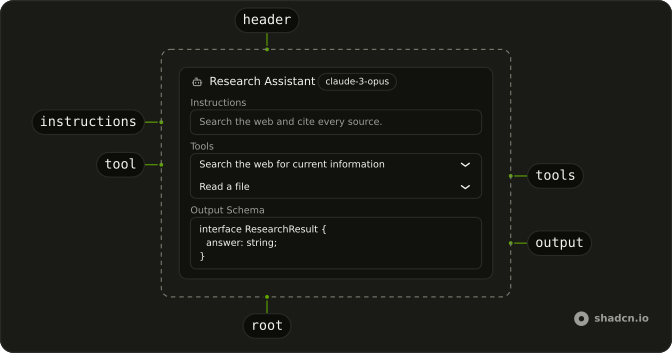
Agent
├── AgentHeader (its name and model)
└── AgentContent
    ├── AgentInstructions
    ├── AgentTools
    │   └── AgentTool (one per tool, opens into its schema)
    └── AgentOutput
Usage
import {
  Agent, AgentContent, AgentHeader, AgentInstructions, AgentOutput,
  AgentTool, AgentTools,
} from "@/components/ui/agent";<Agent>
<AgentHeader model="gpt-4o" name="Research Assistant" />
<AgentContent>
<AgentInstructions>Search the web and cite every source.</AgentInstructions>
<AgentTools>
<AgentTool
tool={{
description: "Search the web",
jsonSchema: { properties: { query: { type: "string" } }, type: "object" },
}}
value="search"
/>
</AgentTools>
<AgentOutput schema="interface Result { answer: string }" />
</AgentContent>
</Agent>Accessibility
- Tab
- Moves focus to the next tool's row, then into an open schema and its copy button.
- Enter
- Opens or closes the focused tool.
- Space
- Opens or closes the focused tool.
- Each tool's row is a button with
aria-expanded, and its description is the button's name. - A schema scrolls inside its block, and the block can take focus, so a long schema scrolls from the keyboard. Its copy button shows on focus as well as on hover.
- Schemas always read left to right. The card itself follows the page direction.
- The bot icon is hidden from assistive tech: the name says which agent it is.
Demos
Controlled
Three tools of a support agent, one open, with an Expand all button in the header. AgentTools takes the props of Ark UI's accordion, so the demo keeps which tools are open and sets them all at once. Whatever you pass as children to AgentHeader goes after the name, here the button. Open a tool from code when the reader came to see that one, from a link or a failed call.
Team
Three agents in a column, each with its model and the number of tools it has. A card without AgentTools or AgentOutput shows only what it has, here the instructions. Use it to compare agents that share a task, such as a researcher, a writer and a reviewer. Keep each one's instructions short enough to read in the card.
AI SDK Tools
Two tools written the way the AI SDK writes them, description and an inputSchema wrapped by jsonSchema(), and an output schema in JSON. AgentTool reads jsonSchema, then inputSchema, and unwraps the helper's wrapper, so a tools record renders as it is. language on AgentOutput sets its highlighting: TypeScript by default, json here.
AI SDK
A tool from the AI SDK's tool() is a description and an input schema, which is what AgentTool takes. Map the record you hand the model, keyed by name:
import { jsonSchema, tool } from "ai";

const tools = {
  getWeather: tool({
    description: "Get the current weather for a city",
    inputSchema: jsonSchema<{ city: string }>({
      properties: { city: { type: "string" } },
      required: ["city"],
      type: "object",
    }),
  }),
};

export function WeatherAgentTools() {
  return (
    <AgentTools>
      {Object.entries(tools).map(([name, definition]) => (
        <AgentTool key={name} tool={definition} value={name} />
      ))}
    </AgentTools>
  );
}
A Zod schema isn't JSON Schema yet: convert it first, with z.toJSONSchema(schema) in Zod 4, and pass the result as jsonSchema. Show the model id you pass to the provider in AgentHeader's model, and the system prompt in AgentInstructions.
Migrating from AI SDK Elements
If you added Agent from AI SDK Elements (opens in a new tab), your project has components/ai-elements/agent.tsx. Install Agent from this page, change the imports from @/components/ai-elements/agent to @/components/ui/agent, and delete the old file. The parts keep their names and props. What changes:
tooltakes any object with adescriptionand ajsonSchemaorinputSchema, so the AI SDK'sToolstill fits, and the file no longer importsai.- Schemas show in Code Block, highlighted, with a copy button.
AgentOutputtakeslanguage, TypeScript by default. AgentInstructions,AgentToolsandAgentOutputtakelabelfor their headings, andAgentHeaderrenders its children after the model.
AgentTools is Ark UI's Accordion: multiple is on by default, so drop type="multiple". A controlled list takes value and onValueChange, which gets { value }.
FAQ
How do I list an agent's tools in React?
Put one AgentTool per tool inside AgentTools, each with a unique value and a tool object. The row shows the tool's description, or No description, and opens into its input schema as JSON in a Code Block. Several tools can be open at once. AgentTool reads jsonSchema first, then inputSchema.
Can I pass AI SDK tools to Agent?
Yes. A tool made with the AI SDK's tool() has a description and an inputSchema, which is what AgentTool reads, and the wrapper that jsonSchema() adds is unwrapped for you. A Zod schema has to become JSON Schema first, with z.toJSONSchema in Zod 4, or the block shows Zod's internals instead of the fields.
What is the difference between Agent and Subagent?
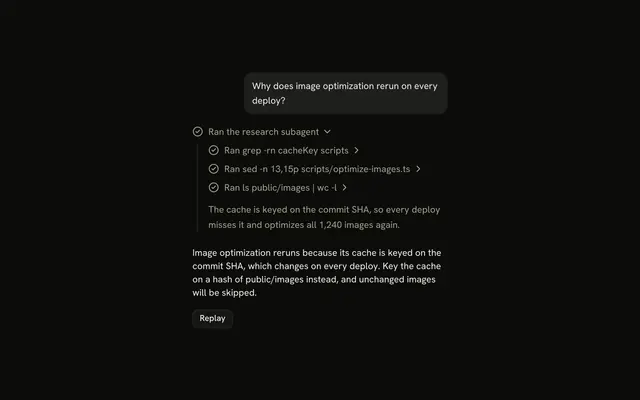
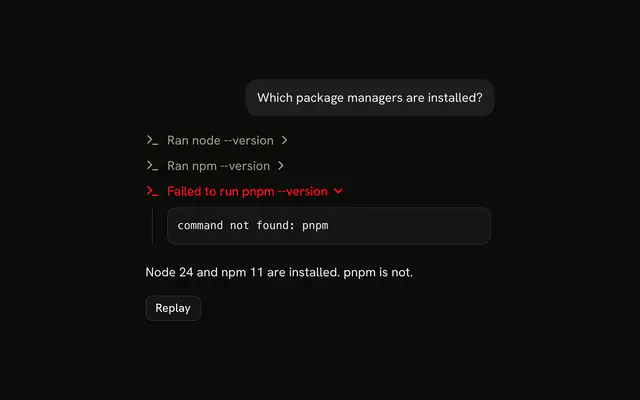
Agent is the setup: the model, the instructions, the tools it may call and what it returns, before it runs. Subagent is a run: one line in a reply that opens into the calls a subagent made and what it found. Show Agent in settings and docs, and Subagent in the conversation.
How do I show what an agent returns?
Pass the schema as text to AgentOutput's schema prop: a TypeScript interface, a JSON Schema, or the source of a Zod schema. It's highlighted as TypeScript unless you set language, such as json. A long schema scrolls inside its block, and the copy button copies all of it.
How do I open a tool from code?
Control AgentTools as an accordion: pass value, the open tools' values, and update it from onValueChange, as the Controlled demo does.
Open the tool a link points at, or the one whose call failed, rather than all of them.
How do I style an Agent with Ark UI?
Edit the agent file under components/ui. Every part has its own data-slot, from agent and agent-header to agent-tool and agent-output, and the model badge is agent-model. The tool rows are your accordion, and the schemas are Code Blocks, so their styles come from those files. Pass className to any part for a one-off change.
API Reference
Agent
<div> data-slot="agent"
className?string
Merged with the part's classes.
AgentHeader
<div> data-slot="agent-header"
namestring
The agent's name.
model?string
The model it runs on, shown as a badge after its name.
className?string
Merged with the part's classes.
AgentContent
<div> data-slot="agent-content"
className?string
Merged with the part's classes.
AgentInstructions
<div> data-slot="agent-instructions"
childrenstring
The system prompt.
label?string
The heading above it.
- Default
"Instructions"
className?string
Merged with the part's classes.
AgentTools
<div> data-slot="agent-tools"
value?string[]
The controlled value of the expanded accordion items.
defaultValue?string[]
The initial value of the expanded accordion items. Use when you don't need to control the value of the accordion.
onValueChange?(details: ValueChangeDetails) → void
The callback fired when the state of expanded/collapsed accordion items changes.
- Type
(details: ValueChangeDetails) → void- Parameters
details– { value: string[] }- Returns
void
collapsible?boolean
Whether an accordion item can be closed after it has been expanded.
- Default
false
dir?"ltr" | "rtl"
The document's text/writing direction.
- Type
"ltr" | "rtl"- Default
"ltr"
disabled?boolean
Whether the accordion items are disabled.
hideMode?"display-none" | "activity"
How to hide content when mounted but not present.
- display-none: HTML hidden attribute. Effects stay alive.
- activity: React 19 <Activity mode="hidden">. Effects pause. Requires React 19+.
- Type
"display-none" | "activity"- Default
"display-none"
id?string
The unique identifier of the machine.
ids?object
The ids of the elements in the accordion. Useful for composition.
- Type
{ root?: string; item?: (value: string) → string; itemContent?: (value: string) → string; itemTrigger?: (value: string) → string }
label?string
The heading above the list.
- Default
"Tools"
lazyMount?boolean
Whether to enable lazy mounting.
- Default
false
multiple?boolean
Whether multiple accordion items can be expanded at the same time. Ark default: false.
- Default
true
onFocusChange?(details: FocusChangeDetails) → void
The callback fired when the focused accordion item changes.
- Type
(details: FocusChangeDetails) → void- Parameters
details– { value: string | null }- Returns
void
orientation?"horizontal" | "vertical"
The orientation of the accordion items.
- Type
"horizontal" | "vertical"- Default
"vertical"
unmountOnExit?boolean
Whether to unmount on exit.
- Default
false
asChild?boolean
Use the provided child element as the default rendered element, combining their props and behavior.
className?string
Merged with the part's classes.
AgentTool
data-slot="agent-tool"
toolobject
The tool: its description is the row, its input schema the panel.
- Type
{ description?: string; inputSchema?: unknown; jsonSchema?: unknown }
valuestring
The value of the accordion item.
disabled?boolean
Whether the accordion item is disabled.
asChild?boolean
Use the provided child element as the default rendered element, combining their props and behavior.
className?string
Merged with the part's classes.
AgentOutput
<div> data-slot="agent-output"
schemastring
What the agent returns: a type or a JSON Schema, as text.
label?string
The heading above it.
- Default
"Output Schema"
language?string
The language the schema is highlighted in.
- Default
"typescript"
className?string
Merged with the part's classes.