Change a color in an image.
Change one color in an image to another and keep everything else. Try a product in every color, test a palette on a mockup or match a brand hex code, with the shading preserved by Keep shades.
Change a color in an image.
Need the UI around it? With Pro, your AI agent builds the form, the result card and the rest of the page from a prompt.
Get ProHow it works
4 steps, no account. It runs in your browser and nothing is uploaded.
Pick the current color
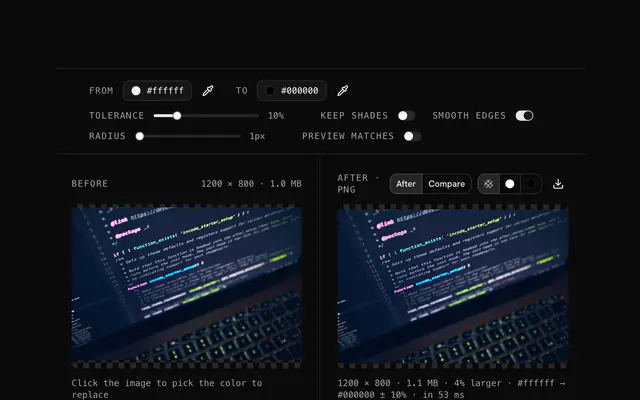
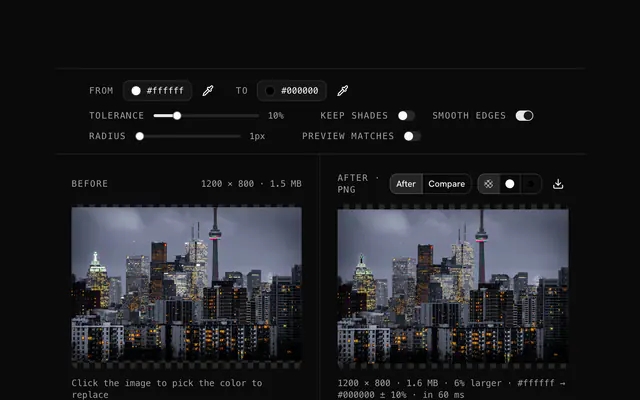
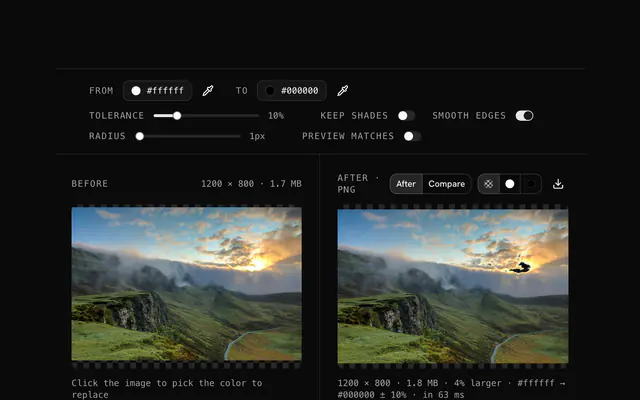
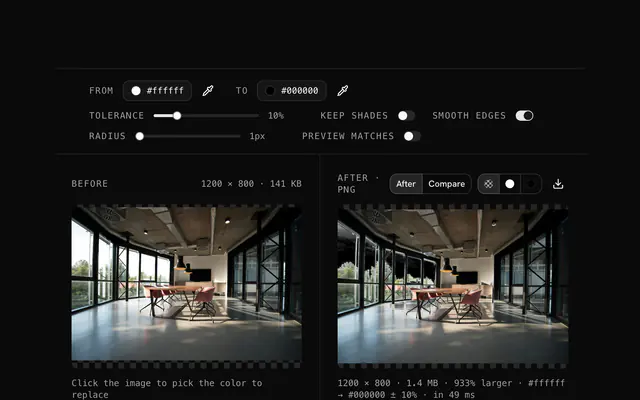
Drop the image and set From to the color you want to change.
Cover the item
Raise the tolerance with Preview matches on until the whole item is covered and nothing else.
Choose the new color
Set To, with Keep shades on so highlights and shadows carry over.
Download each variant
Download, change To again and download the next variant.
Related tools
More PNG tools. Every one free, in the browser.
Pricing
Build it with Pro
The tool is free. Pro adds 6,000+ blocks, premium templates and the MCP server, so your AI editor builds the product around it.
4.9/5 out of 5 · 150+ reviewsfrom 150+ founders and developers.
- Secure checkout via Stripe
- Code lives in your repo
- Keep what you've shipped if you cancel
- License terms
Questions and answers
Before you trust the result: what to know about the format, the limits, your data and the tools next to it.
Drop the product photo, set From to the current color of the item and To to the new one, with Keep shades on so the folds and shadows stay. Download, then change To again for the next variant: the original stays loaded, so a whole color line takes a minute.
Yes, within limits. A photo has many shades of one color, so a tolerance of 15 to 30 is normal, and Keep shades is what keeps the result looking lit rather than painted. It works best on one distinct, fairly even color: a wall, a garment, a car. A color that appears all over the photo will change all over.
Type the hex code into the To picker. Brand colors are published as hex, so the match is exact; with Keep shades on, the hue and saturation are the brand's and the lightness is the image's.
One color at a time, with its tolerance. For a second color, download the result, drop it back in and pick the next From color; each pass builds on the last. Keep the original file so you can start over.
Tolerance decides how far a pixel's color may be from the From color and still be replaced, as a percentage of the distance between black and white in RGB. At 0 only exact matches change; at 10 to 20, shades around it change as well, which is what a photo or a JPG needs. The replacement is strongest at the exact color and fades toward the tolerance limit.
With Keep shades on, each matched pixel takes the hue and saturation of the To color but keeps its own lightness, so a shaded red shirt becomes a shaded blue shirt instead of a flat blue cutout. Leave it off for flat graphics where every matched pixel should become exactly the new color.
Preview matches paints every pixel the From color matches in magenta over the original, so you can see what will change before it does. Tune the color and tolerance until only the intended area is covered, then turn it off: the download is always the recolored image, never the preview.
Smooth edges blends the replacement into its surroundings over the chosen radius, so the boundary between changed and unchanged pixels is anti-aliased rather than stepped. A radius of 1 suits icons and logos; 2 to 4 suits photos. It changes only pixels next to a match, never the rest of the image.
No. Your browser decodes the file and does the pixel work with its Canvas API, and the page makes no request with it. You can load the page, go offline and keep working; the download is written from memory on your device.
No. The "Change a color in an image" tool is free and opens without a sign-in, an account or an install.
Up to 100 MB per file, the limit the tool states under its drop area. A larger file is refused with a plain message instead of being decoded.
The edit is written as a PNG because PNG stores every pixel exactly, with a full alpha channel, so the result can be edited again without a second round of loss.
No. The browser decodes the image and the tool writes a new file from its pixels, so camera EXIF, GPS position and text chunks in the original are not copied into the result. Keep the original file if you need them.
No. The result has the same width and height in pixels as the source.
Closest to the "Change a color in an image" tool: PNG color replacer, Free online color changer for images, Swap colors in an image, Photo color changer. Each opens on its own page, free and in the browser.
The "Change a color in an image" tool is one of 47 in its group. The group's page, /tools/png, lists them all.
The tool is free. Its interface is built from shadcn.io's own components (Button, Input, Slider and the rest of the registry under /ui), which come in React, Vue, Svelte and Solid. Pro adds the blocks and templates for the product around it.
4.9 out of 5 from 150+ developers


Build the product around it
Every block, template and icon, installed by your AI agent in your theme. The tools stay free.
Get Pro