Screenshot beautifier.
Drop, paste or choose a screenshot and set it on a gradient, a mesh or a blurred copy of itself, framed as a window with padding, corners and a soft shadow. Save a sharp PNG or copy it straight into a post.
Screenshot beautifier.
Need the UI around it? With Pro, your AI agent builds the form, the result card and the rest of the page from a prompt.
Get ProHow it works
4 steps, no account. It runs in your browser and nothing is uploaded.
Add a screenshot
Drop an image on the preview, paste one with Ctrl+V or ⌘V, or choose a file; the sample dashboard shows the settings until you do.
Pick the look
Choose a background and a window frame, then set the padding, inset, corners and shadow.
Size it for its place
Keep Auto or pick 16:9, Open Graph, X, LinkedIn, Instagram or Dribbble, then scale, move or tilt the window.
Save or copy
Download a PNG, JPG or WebP at 1×, 2× or 3×, or copy a PNG to paste into a post.
Sizes for each platform
Pick the size where it will be seen. Each platform crops to its own shape, so the canvas presets match them.
Open Graph
1200 × 630 (1.91:1): the card under a link on Facebook, LinkedIn, Slack, Discord and iMessage. Keep words away from the edges, which some apps crop.
X post
1600 × 900 (16:9) shows uncropped in the timeline on desktop and phones; a taller picture is cut to 16:9 until it's opened.
LinkedIn
1200 × 627 for a shared link or a single-image post; LinkedIn's feed also shows 1080 × 1080 squares at full width.
Instagram
1080 × 1350 (4:5), the tallest a feed post goes: it fills the most of a phone's screen. Squares (1:1) also work.
Dribbble
1600 × 1200 (4:3) is Dribbble's shot size; 800 × 600 is the least it takes, and 2× keeps the detail on Retina screens.
16:9
1920 × 1080 (16:9) fits slides, YouTube thumbnails at half size, product pages and README banners.
Square
1080 × 1080 works almost everywhere: Instagram, LinkedIn, Threads, Mastodon and app store screenshots' galleries.
Auto
Auto keeps the screenshot's own shape and adds the padding around it: the choice for docs, blog posts and changelogs.
Related tools
More design tools. Every one free, in the browser.
Pricing
Build it with Pro
The tool is free. Pro adds 6,000+ blocks, premium templates and the MCP server, so your AI editor builds the product around it.
4.9/5 out of 5 · 150+ reviewsfrom 150+ founders and developers.
- Secure checkout via Stripe
- Code lives in your repo
- Keep what you've shipped if you cancel
- License terms
Questions and answers
Before you trust the result: what to know about the format, the limits, your data and the tools next to it.
A bare screenshot has hard edges and borrows the page's color, so it blurs into the post around it. Padding gives it room, rounded corners and a shadow lift it off the ground as a window does on a desktop, and a background ties it to your brand. The screenshot itself is unchanged.
A gradient or a mesh behind a light screenshot reads well on most feeds; a dark ground suits a dark-mode app. The blurred-copy background takes its colors from the screenshot itself, so it always matches. Transparent leaves only the window and its shadow, for slides or a page of your own.
Twice the size it's shown at. Phones and most laptops have screens of two or three device pixels per CSS pixel, so a 2× picture stays sharp where a 1× one looks soft. 3× is for print and the largest displays; the file is larger.
Open Graph cards are 1200 × 630, X shows 1600 × 900 uncropped, LinkedIn 1200 × 627, an Instagram post up to 1080 × 1350 (4:5) and a Dribbble shot 1600 × 1200. Each is a canvas preset here, and the window fits inside it with your padding.
No. The image is decoded and drawn by your browser on a canvas; the page makes no request with it, and the PNG is made on your device. Close the tab and it's gone.
Press Ctrl+V (⌘V on a Mac) anywhere on the page after taking a screenshot to the clipboard; it replaces the sample. Dropping a file on the preview or choosing one works too: PNG, JPG, WebP, GIF, AVIF or SVG.
A screenshot wider than 2,000 pixels is taken as a Retina capture and laid out at half its size, so padding, corners and the frame look as they do on screen. Export at 2× and every one of its pixels is kept.
Yes, in Chrome, Edge, Safari and recent Firefox: the copy button puts a PNG on the clipboard, ready to paste into a chat, a document or Figma. Where a browser can't copy pictures the button is off and Download still works.
Tilt draws the window in perspective, like a CSS 3D transform: Left and Right turn it on its vertical axis, Lean tips it back. The tilt and rotation are drawn into the exported picture, not only the preview.
No. The "Screenshot beautifier" tool is free and opens without a sign-in, an account or an install.
Nothing. The "Screenshot beautifier" tool holds your input in the page's memory, so closing or reloading the tab clears it, and it saves nothing in this browser.
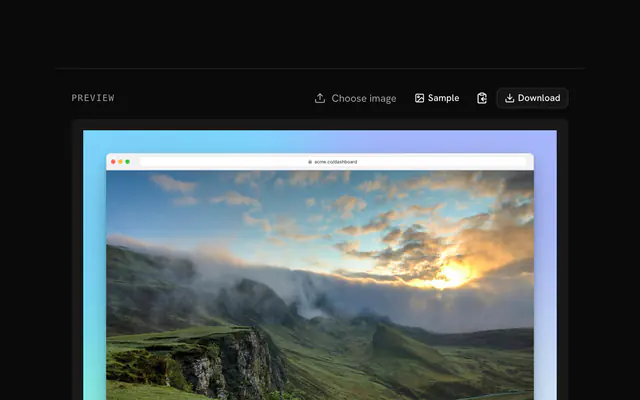
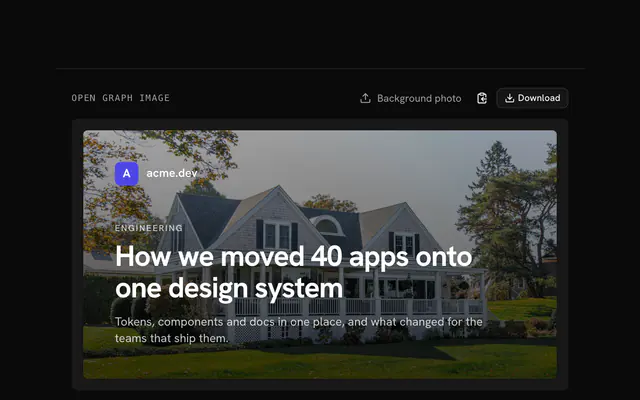
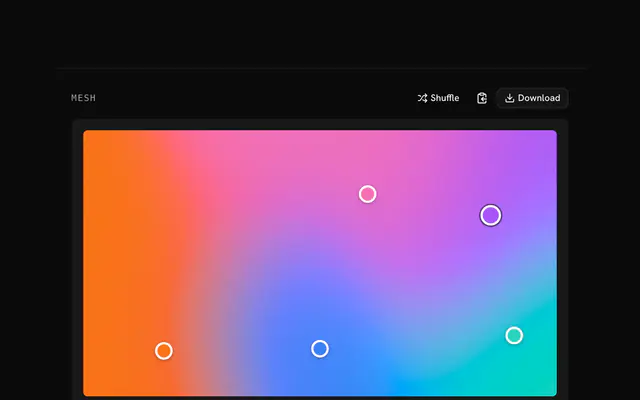
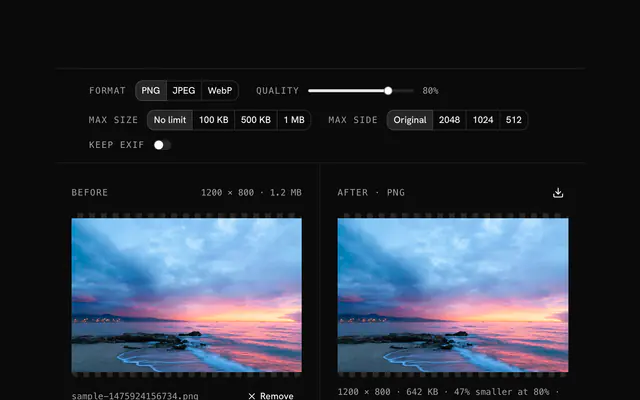
Closest to the "Screenshot beautifier" tool: Browser mockup generator, Open Graph image generator, Mesh gradient generator, PNG compressor. Each opens on its own page, free and in the browser.
The "Screenshot beautifier" tool is one of 11 in its group. The group's page, /tools/design, lists them all.
The tool is free. Its interface is built from shadcn.io's own components (Button, Input, Slider and the rest of the registry under /ui), which come in React, Vue, Svelte and Solid. Pro adds the blocks and templates for the product around it.
4.9 out of 5 from 150+ developers


Build the product around it
Every block, template and icon, installed by your AI agent in your theme. The tools stay free.
Get Pro