shadcn.io is an independent project built on shadcn/ui
A collapsible hides one section behind a button.
Use it for a single show-more, like an address under an order status. For several sections in a list, use an Accordion so the arrow keys move between them. In React, Radix UI connects the button to the panel.
Installation
Anatomy
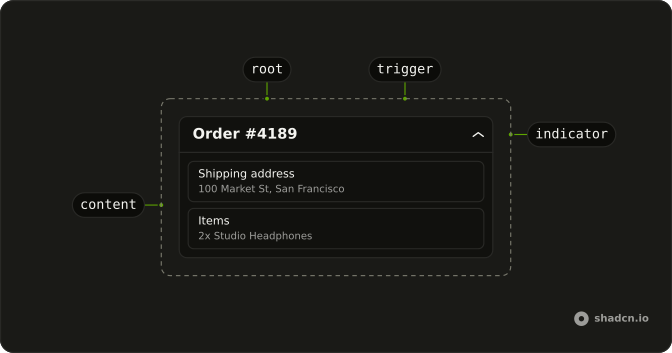
Collapsible
├── CollapsibleTrigger
├── CollapsibleContent
└── CollapsibleIndicator
Usage
import { ChevronsUpDownIcon } from "lucide-react";
import { useState } from "react";
import { Button } from "@/components/ui/button";
import {
  Collapsible, CollapsibleContent, CollapsibleTrigger,
} from "@/components/ui/collapsible";
const CollapsibleDemo = () => {
const [isOpen, setIsOpen] = useState(false);
return (
<Collapsible
className="flex w-[350px] flex-col gap-2"
onOpenChange={setIsOpen}
open={isOpen}
>
<div className="flex items-center justify-between gap-2 px-4">
<h4 className="font-semibold text-sm">Order #4189</h4>
<CollapsibleTrigger asChild>
<Button className="size-6" size="icon-xs" variant="ghost">
<ChevronsUpDownIcon aria-hidden="true" />
<span className="sr-only">Toggle details</span>
</Button>
</CollapsibleTrigger>
</div>
<div className="flex items-center justify-between rounded-md border px-4 py-2 text-sm">
<span className="text-muted-foreground">Status</span>
<span className="font-medium">Shipped</span>
</div>
<CollapsibleContent className="flex flex-col gap-2">
<div className="rounded-md border px-4 py-2 text-sm">
<p className="font-medium">Shipping address</p>
<p className="text-muted-foreground">100 Market St, San Francisco</p>
</div>
<div className="rounded-md border px-4 py-2 text-sm">
<p className="font-medium">Items</p>
<p className="text-muted-foreground">2x Studio Headphones</p>
</div>
</CollapsibleContent>
</Collapsible>
);
};Accessibility
- Space
- Opens/closes the collapsible.
- Enter
- Opens/closes the collapsible.
Demos
Basic
A card holds one full-width trigger, Product details, and a chevron that turns when the panel is open. Inside is a short note and a Learn More button. Nothing outside reads the open state, so the collapsible keeps it. Use that when the trigger is the only control that should care, and treat the card as just a frame.
Settings
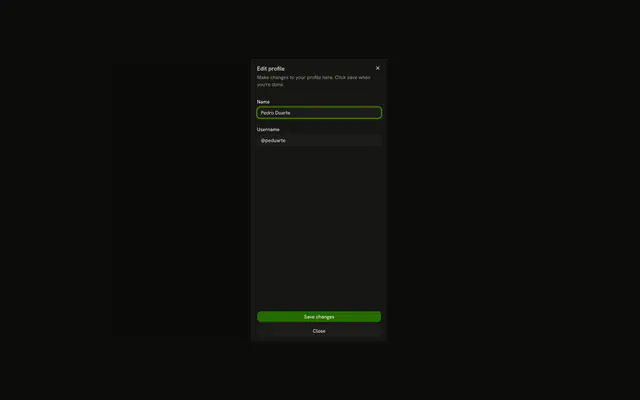
Two radius fields stay on screen. The bottom corners live in CollapsibleContent and show up when the icon button is pressed. The button's accessible name switches between show and hide, which is why open is controlled: the icon depends on it. Use this for advanced values that would double the form for most people, and do not hide a field this way if it has to be filled.
File Tree
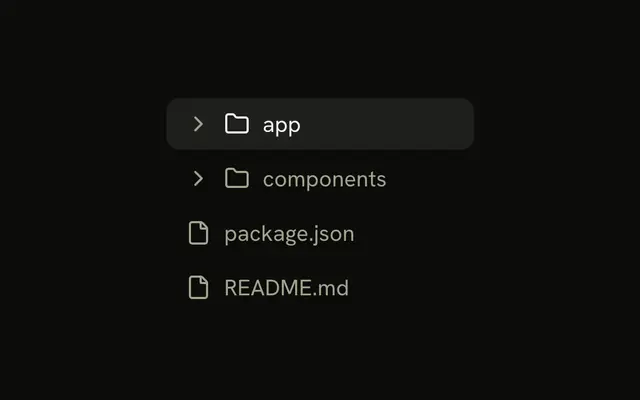
Folders are nested collapsibles and files are plain buttons. Each level opens on its own, which is enough for a small static outline in a card. There is no selection, no typeahead, and no rename, so a real navigator should be a Tree View instead of stacked disclosures. Arrow keys will not walk these rows, because each trigger is its own button.
Rtl
The same order summary, in Arabic, with dir set to rtl. The status row and the hidden address follow the text, and the toggle sits at the inline end. Set direction on the collapsible when this block is translated even if the page around it is not. The chevron does not point to a physical side, so leave it, and keep margins logical or the rows drift.
FAQ
Should I use a Collapsible or an Accordion?
Use a Collapsible for one region that shows and hides on its own, like "Show more" or a settings group. When several sections sit together and work as one list, with arrow keys between the headers, use an Accordion instead of stacking Collapsibles.
How do I open a Collapsible from another button in React?
Hold the open state yourself and pass it in: the trigger still toggles it, and your other button writes the same state.
Pass open and update it in onOpenChange, which receives the new boolean.
How do I make a Collapsible start open?
Set defaultOpen on Collapsible.
It still opens and closes on its own afterwards. If people should find it the way they left it, save the state yourself and pass it back as the controlled value.
Does the content of a closed Collapsible stay in the page?
No, Radix UI removes it while closed, so fields inside it don't submit. Set forceMount on CollapsibleContent to keep it in the page.
How do I use my own button as the Collapsible trigger in Radix UI?
Render your button through CollapsibleTrigger so it gets the open state and the ARIA attributes.
Pass asChild and put your button inside.
An icon-only trigger needs an aria-label.
How do I change or turn off the Collapsible animation?
The content animates its height when it opens and closes. Set disableAnimation on CollapsibleContent to open and close it at once, or edit the timing classes in the collapsible file in your components/ui folder. People who ask for reduced motion don't get the animation.
API Reference
Collapsible
<div> data-slot="collapsible"
open?boolean
Whether it's open. Pair with onOpenChange to control it.
defaultOpen?boolean
Whether it starts open, when you don't control open.
onOpenChange?{ bivarianceHack(open: boolean): void; }["bivarianceHack"]
Called when it opens or closes.
- Type
{ bivarianceHack(open: boolean): void; }["bivarianceHack"]
disabled?boolean
Whether it's disabled.
asChild?boolean
Merge props onto the child element instead of rendering a host.
className?string
Merged with the part's classes.
data-state"open" | "closed"
"open" or "closed".
- Type
"open" | "closed"
CollapsibleTrigger
data-slot="collapsible-trigger"
asChild?boolean
Merge props onto the child element instead of rendering a host.
className?string
Forwarded to the part.
CollapsibleContent
data-slot="collapsible-content"
disableAnimation?boolean
Opens and closes it at once, without the height animation.
- Default
false
forceMount?true
Used to force mounting when more control is needed. Useful when controlling animation with React animation libraries.
asChild?boolean
Merge props onto the child element instead of rendering a host.
className?string
Merged with the part's classes.
CollapsibleIndicator
<span> data-slot="collapsible-indicator"
className?string
Merged with the part's classes.