shadcn.io is an independent project built on shadcn/ui
Tabs show one panel from a short list of peer views. Four tabs is already plenty.
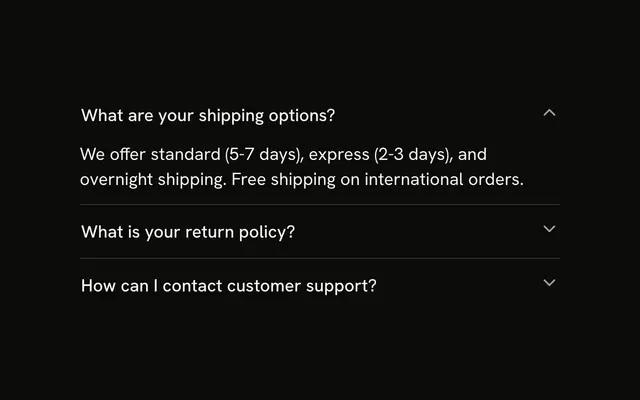
Use them when people switch views of the same thing, rather than reading down the page. If more than one section should stay open, use an Accordion. In React, Radix UI unmounts hidden panels, so a form there loses what was typed unless you keep it mounted.
Installation
Anatomy
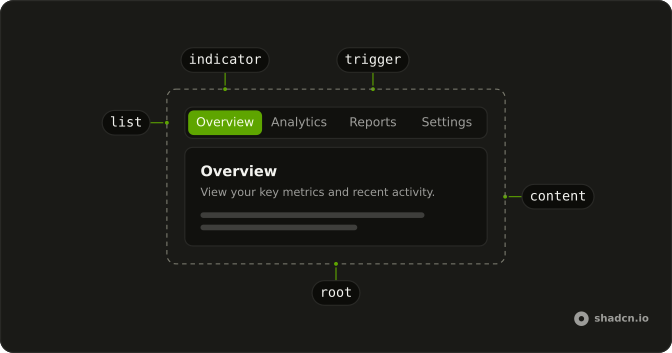
Tabs
├── TabsList
│   └── TabsIndicator
├── TabsTrigger
└── TabsContent
Usage
import {
  Card, CardContent, CardDescription, CardHeader, CardTitle,
} from "@/components/ui/card";
import {
  Tabs, TabsContent, TabsList, TabsTrigger,
} from "@/components/ui/tabs";
<Tabs className="w-[400px]" defaultValue="overview">
<TabsList>
<TabsTrigger value="overview">Overview</TabsTrigger>
<TabsTrigger value="analytics">Analytics</TabsTrigger>
<TabsTrigger value="reports">Reports</TabsTrigger>
<TabsTrigger value="settings">Settings</TabsTrigger>
</TabsList>
<TabsContent value="overview">
<Card>
<CardHeader>
<CardTitle>Overview</CardTitle>
<CardDescription>
View your key metrics and recent project activity. Track progress
across all your active projects.
</CardDescription>
</CardHeader>
<CardContent className="text-muted-foreground text-sm">
You have 12 active projects and 3 pending tasks.
</CardContent>
</Card>
</TabsContent>
<TabsContent value="analytics">
<Card>
<CardHeader>
<CardTitle>Analytics</CardTitle>
<CardDescription>
Track performance and user engagement metrics. Monitor trends and
identify growth opportunities.
</CardDescription>
</CardHeader>
<CardContent className="text-muted-foreground text-sm">
Page views are up 25% compared to last month.
</CardContent>
</Card>
</TabsContent>
<TabsContent value="reports">
<Card>
<CardHeader>
<CardTitle>Reports</CardTitle>
<CardDescription>
Generate and download your detailed reports. Export data in multiple
formats for analysis.
</CardDescription>
</CardHeader>
<CardContent className="text-muted-foreground text-sm">
You have 5 reports ready and available to export.
</CardContent>
</Card>
</TabsContent>
<TabsContent value="settings">
<Card>
<CardHeader>
<CardTitle>Settings</CardTitle>
<CardDescription>
Manage your account preferences and options. Customize your
experience to fit your needs.
</CardDescription>
</CardHeader>
<CardContent className="text-muted-foreground text-sm">
Configure notifications, security, and themes.
</CardContent>
</Card>
</TabsContent>
</Tabs>
Accessibility
- Tab
- When focus moves onto the tabs, focuses the active trigger. When a trigger is focused, moves focus to the active content.
- Arrow Down
- Moves focus to the next trigger in vertical orientation and activates its associated content.
- Arrow Right
- Moves focus to the next trigger in horizontal orientation and activates its associated content.
- Arrow Up
- Moves focus to the previous trigger in vertical orientation and activates its associated content.
- Arrow Left
- Moves focus to the previous trigger in horizontal orientation and activates its associated content.
- Home
- Moves focus to the first trigger and activates its associated content.
- End
- Moves focus to the last trigger and activates its associated content.
- Enter
- In manual mode, when a trigger is focused, moves focus to its associated content.
- Space
- In manual mode, when a trigger is focused, moves focus to its associated content.
Demos
Line
The list drops the filled track and underlines the active trigger. Overview, Analytics, and Reports are the list, with no panels under them. Use the underline when the tabs sit on a page that already has cards, and another boxed list would stack containers. Keep the default list when the control is small and needs a visible boundary of its own.
Vertical
orientation is vertical, so Account, Password, and Notifications stack, and the arrow keys that move between them are up and down. Only the list is on the page, and the panel belongs beside it. Use a vertical list when the labels are long enough to wrap in a horizontal row, such as a settings column. Two short words can stay horizontal.
Disabled
Home can be selected. The settings trigger sets disabled, so it is skipped and cannot become the active tab. Use a disabled trigger for a section this account cannot open yet, a missing permission or an unfinished area, while the label stays as a promise. If it will never apply, drop the trigger rather than showing a control that goes nowhere.
Icons
Preview and Code each lead with an icon, and the icons are aria-hidden because the words are the names. Use icons when the pair is a familiar mode switch, a preview against its source, and the picture helps at a glance. Do not ship icon-only triggers. The text is what gets announced, and a mystery glyph is not a tab label.
Rtl
Arabic labels and card copy, with dir set to rtl. The list follows the reading order, and the panel text aligns to the start. The trigger values stay overview, analytics, reports, and settings, and only the visible words change. Use this for a localized product, not as a visual flip on an English page.
FAQ
How do I control the selected tab in React?
Keep the selected tab's value in state and pass it back to Tabs; each trigger and panel is matched by its value. Use the default prop when you only need the first tab.
Pass value; onValueChange receives the new value.
How do I keep inactive Tabs panels mounted?
Inactive panels are unmounted by default, so their state resets when you switch back. Keep them mounted to preserve form input or scroll position.
With Radix UI, set forceMount on TabsContent and hide inactive panels yourself, for example with data-[state=inactive]:hidden.
How do I make underline Tabs with Radix UI?
Set variant="line" on TabsList, as the Line demo does: the list loses its background and the active tab gets an underline.
How do I show Tabs vertically?
Set orientation="vertical" on Tabs: the list stacks the triggers on the side and the Up and Down arrow keys move between them, as in the Vertical demo.
Are the Tabs accessible with the keyboard?
Yes. Tab moves focus into the list, the arrow keys move between triggers, and Home and End jump to the first and last; disabled triggers are skipped. The next Tab moves on to the open panel, which shows a focus ring.
Focusing a tab selects it; set activationMode="manual" to select only with Enter or Space.
Should I use Tabs or an Accordion?
Use Tabs when people switch between a few views of the same area, one at a time. Use an Accordion when sections stack vertically and several may be read in order, or on narrow screens where tab labels would not fit.
API Reference
Tabs
<div> data-slot="tabs"
value?string
The value for the selected tab, if controlled.
defaultValue?string
The value of the tab to select by default, if uncontrolled.
onValueChange?{ bivarianceHack(value: string): void; }["bivarianceHack"]
A function called when a new tab is selected.
- Type
{ bivarianceHack(value: string): void; }["bivarianceHack"]
activationMode?(typeof ActivationMode)[keyof typeof ActivationMode]
Whether a tab is activated automatically or manually.
- Type
(typeof ActivationMode)[keyof typeof ActivationMode]- Default
"automatic"
dir?Direction
The direction of navigation between toolbar items.
orientation?Orientation
The orientation the tabs are layed out. Mainly so arrow navigation is done accordingly (left & right vs. up & down)
- Default
"horizontal"
asChild?boolean
Merge props onto the child element instead of rendering a host.
className?string
Merged with the part's classes.
data-focus?string
Present when focused is true.
data-orientation?string
Mirrors orientation.
TabsList
data-slot="tabs-list"
loop?boolean
Whether arrow keys wrap from the last item to the first and back.
variant?"default" | "line"
The visual style.
- Type
"default" | "line"- Default
"default"
asChild?boolean
Merge props onto the child element instead of rendering a host.
className?string
Merged with the part's classes.
data-focus?string
Present when focused is true.
data-orientationRovingFocusGroupProps["orientation"]
Mirrors the orientation prop.
- Type
RovingFocusGroupProps["orientation"]
data-variant?string
Mirrors variant.
TabsTrigger
data-slot="tabs-trigger"
valuestring
The trigger's value.
asChild?boolean
Merge props onto the child element instead of rendering a host.
className?string
Merged with the part's classes.
data-disabled?string
Present when disabled is true.
data-focus?string
Present when focused is true.
data-orientationRovingFocusGroupProps["orientation"]
Mirrors the orientation prop.
- Type
RovingFocusGroupProps["orientation"]
data-ownedbystring
Id of the list part.
data-selected?string
Present when selected is true.
data-ssr?string
Present when ssr.
data-valuestring
The item's value.
TabsContent
data-slot="tabs-content"
valuestring
The content's value.
forceMount?true
Used to force mounting when more control is needed. Useful when controlling animation with React animation libraries.
asChild?boolean
Merge props onto the child element instead of rendering a host.
className?string
Merged with the part's classes.
data-orientationRovingFocusGroupProps["orientation"]
Mirrors the orientation prop.
- Type
RovingFocusGroupProps["orientation"]
data-ownedbystring
Id of the list part.
data-selected?string
Present when selected is true.