shadcn.io is an independent project built on shadcn/ui
An endpoint on one card: its method and path, what it does, its parameters, and the fields it takes and returns.
Use it to document the HTTP API behind a tool, a webhook your agent receives, or an endpoint it is about to call. Each {param} in the path is highlighted, and an object or array field opens into its own fields. To show a call that already ran, with its input and output, use Tool. In Vue, Ark UI runs each section as a collapsible, so the parts open from the keyboard.
Installation
The install adds Badge for the method and the field types, and Collapsible for the sections that open.
Anatomy
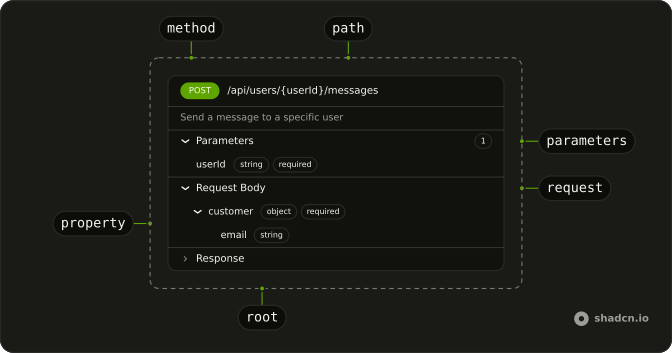
SchemaDisplay
├── SchemaDisplayHeader
│   ├── SchemaDisplayMethod
│   └── SchemaDisplayPath
├── SchemaDisplayDescription
├── SchemaDisplayContent
│   ├── SchemaDisplayParameters
│   │   └── SchemaDisplayParameter (one per parameter)
│   ├── SchemaDisplayRequest
│   │   └── SchemaDisplayBody
│   │       └── SchemaDisplayProperty (opens when it has fields)
│   └── SchemaDisplayResponse
│       └── SchemaDisplayBody
│           └── SchemaDisplayProperty
└── SchemaDisplayExample
With no children, SchemaDisplay renders the header, the description and a section for each list it was given. Pass children to lay the parts out yourself: they read the method, the path and the lists from the root.
Usage
<script setup lang="ts">
import { SchemaDisplay } from "@/components/ui/schema-display";
</script>
<SchemaDisplay
  description="Send a message to a specific user"
  method="POST"
  parameters={[
    { location: "path", name: "userId", required: true, type: "string" },
  ]}
  path="/api/users/{userId}/messages"
  requestBody={[{ name: "content", required: true, type: "string" }]}
  responseBody={[{ name: "id", type: "string" }]}
/>
Accessibility
- Tab
- Moves focus to the next section or field that opens.
- Enter
- Opens or closes the focused section or field.
- Space
- Opens or closes the focused section or field.
- Each section and each field with fields of its own is a button with
aria-expanded. A field's description sits outside its button, so the button's name stays short. - The method is written out, not only colored, and
requiredis a word, so neither relies on color. - Paths, field names, types and the example always read left to right. The card follows the page direction, and the chevrons point the reading way.
- The example scrolls inside its block and can take focus. Give it an
aria-label, such as Example response.
Demos
Nested
An order with a customer, an address inside the customer, and a list of items. A field with properties opens into them, and a field with items opens into one entry named after it with []. The first two levels start open and deeper ones start closed, so a large body still fits on screen. Each level steps in by 1rem.
Methods
Five endpoints of one resource, one per method, each a header with its description on the end. GET is green, POST blue, PUT and PATCH amber and DELETE red, from Badge's status variants, so they follow your theme. A card with only a header is an index: link each row to its full card. Give the method a fixed width so the paths line up.
Composed
The parts laid out by hand: Parameters starts closed with its count in view, there is no request body, and an example response sits under the fields. SchemaDisplayExample is a pre for any text. Compose the parts when the default order doesn't fit, or to add something of your own between them.
From JSON Schema
A tool's input is JSON Schema, and so is an OpenAPI body. Turn its properties into the fields Schema Display takes, and show the tool's input as a request body:
type JsonSchema = {
  description?: string;
  items?: JsonSchema;
  properties?: Record<string, JsonSchema>;
  required?: string[];
  type?: string;
};

const toProperties = (schema: JsonSchema): SchemaProperty[] =>
  Object.entries(schema.properties ?? {}).map(([name, field]) => ({
    description: field.description,
    items: field.items
      ? {
          name: "item",
          properties: field.items.properties
            ? toProperties(field.items)
            : undefined,
          type: field.items.type ?? "unknown",
        }
      : undefined,
    name,
    properties: field.properties ? toProperties(field) : undefined,
    required: schema.required?.includes(name),
    type: field.type ?? "unknown",
  }));
SchemaProperty and SchemaParameter are exported from the schema display file.
Migrating from AI SDK Elements
AI SDK Elements is for React. In Vue, Schema Display has the same parts and props, so its demos are the place to start.
FAQ
Which HTTP methods does Schema Display color?
GET, POST, PUT, PATCH and DELETE, each a Badge variant: GET success, POST info, PUT and PATCH warning, DELETE destructive. The colors come from your theme's status tokens, so they hold in dark mode. The badge also sets data-method, and children passed to SchemaDisplayMethod replace the method's text.
How do I show path, query and header parameters in Vue?
Pass parameters to SchemaDisplay: each has a name, a type, and optionally location (path, query or header), required and a description. They show under Parameters with a count, each with its type and location as badges. Parameters is open at first; close it from its own props when the list is long.
How do nested objects and arrays show?
A field with properties opens into its fields, and a field with items opens into one entry named after the field with [] on the end. Levels step in by 1rem. The first two levels start open and deeper ones start closed, so a large body still fits on the page.
How are path parameters highlighted?
Each parameter in the path, a name in curly braces, is wrapped in a span in the primary color, with data-slot schema-display-path-param, so you can restyle it. The path reads left to right on a right-to-left page and wraps anywhere when it's too long for the card. Pass children to SchemaDisplayPath to render your own markup instead.
Can I lay out the parts myself?
Yes. Give SchemaDisplay children and it renders only those, while every part still reads the method, path, description and lists from the root. Leave a section out, close one at first, or add a SchemaDisplayExample under the fields, as the Composed demo does.
How do I style a Schema Display with Ark UI?
Edit the schema display file under components/ui. Every part has its own data-slot, and each field sets data-depth, so a style can target one level. The sections are your Collapsible and the badges your Badge, so their styles come from those files. Pass className to any part for a one-off change.
How do I install Schema Display in Vue?
Run the command in the Installation section on this page. It adds the schema display file, Badge and Collapsible. Import SchemaDisplay and the parts you compose from that file, with the SchemaParameter and SchemaProperty types for your data. The command uses the shadcn-vue CLI.
API Reference
SchemaDisplay
methodHttpMethod
The HTTP method: its badge's color.
pathstring
The path; each {param} in it is highlighted.
description?string
What the endpoint does, under its header.
parameters?SchemaParameter[]
Its path, query and header parameters.
requestBody?SchemaProperty[]
The request body's fields.
responseBody?SchemaProperty[]
The response body's fields.
class?string
Merged with the part's classes.
SchemaDisplayHeader
<div> data-slot="schema-display-header"
class?string
Merged with the part's classes.
SchemaDisplayMethod
data-slot="schema-display-method"
pill?boolean
Fully rounded corners.
- Default
false
size?"lg" | "md" | "sm"
The size.
- Type
"lg" | "md" | "sm"- Default
"md"
variant?"default" | "destructive" | "ghost" | "info" | "link" | "outline" | "secondary" | "success" | "warning"
The visual style.
- Type
"default" | "destructive" | "ghost" | "info" | "link" | "outline" | "secondary" | "success" | "warning"- Default
"default"
asChild?boolean
Use the provided child element as the default rendered element, combining their props and behavior.
class?string
Merged with the part's classes.
data-method?string
Mirrors method.
SchemaDisplayPath
<span> data-slot="schema-display-path"
class?string
Merged with the part's classes.
SchemaDisplayDescription
<p> data-slot="schema-display-description"
class?string
Merged with the part's classes.
SchemaDisplayContent
<div> data-slot="schema-display-content"
class?string
Merged with the part's classes.
SchemaDisplayParameters
data-slot="schema-display-parameters"
open?boolean
The controlled open state of the collapsible. Two-way with v-model:open.
defaultOpen?boolean
The initial open state of the collapsible when rendered. Use when you don't need to control the open state of the collapsible.
- Default
true
collapsedHeight?number | string
The height of the content when collapsed.
- Type
number | string
collapsedWidth?number | string
The width of the content when collapsed.
- Type
number | string
dir?"ltr" | "rtl"
The document's text/writing direction.
- Type
"ltr" | "rtl"- Default
"ltr"
disabled?boolean
Whether the collapsible is disabled.
hideMode?"display-none" | "activity"
How to hide content when mounted but not present.
- display-none: HTML hidden attribute. Effects stay alive.
- activity: React 19 <Activity mode="hidden">. Effects pause. Requires React 19+.
- Type
"display-none" | "activity"- Default
"display-none"
id?string
The unique identifier of the machine.
ids?object
The ids of the elements in the collapsible. Useful for composition.
- Type
{ root?: string; content?: string; trigger?: string }
lazyMount?boolean
Whether to enable lazy mounting.
- Default
false
onExitComplete?VoidFunction
The callback invoked when the exit animation completes.
unmountOnExit?boolean
Whether to unmount on exit.
- Default
false
asChild?boolean
Use the provided child element as the default rendered element, combining their props and behavior.
class?string
Merged with the part's classes.
@open-change(details: OpenChangeDetails) → void
The callback invoked when the open state changes.
- Type
(details: OpenChangeDetails) → void- Parameters
details– { open: boolean }- Returns
void
SchemaDisplayParameter
<div> data-slot="schema-display-parameter"
namestring
The parameter's name, as the request spells it.
typestring
Its type, shown as a badge (string, integer, boolean…).
description?string
What the parameter does, under its name.
location?"path" | "query" | "header"
Where the request carries it: in the path, the query string or a header.
- Type
"path" | "query" | "header"
required?boolean
Marks it required; the rest are optional.
class?string
Merged with the part's classes.
SchemaDisplayRequest
data-slot="schema-display-request"
open?boolean
The controlled open state of the collapsible. Two-way with v-model:open.
defaultOpen?boolean
The initial open state of the collapsible when rendered. Use when you don't need to control the open state of the collapsible.
- Default
true
collapsedHeight?number | string
The height of the content when collapsed.
- Type
number | string
collapsedWidth?number | string
The width of the content when collapsed.
- Type
number | string
dir?"ltr" | "rtl"
The document's text/writing direction.
- Type
"ltr" | "rtl"- Default
"ltr"
disabled?boolean
Whether the collapsible is disabled.
hideMode?"display-none" | "activity"
How to hide content when mounted but not present.
- display-none: HTML hidden attribute. Effects stay alive.
- activity: React 19 <Activity mode="hidden">. Effects pause. Requires React 19+.
- Type
"display-none" | "activity"- Default
"display-none"
id?string
The unique identifier of the machine.
ids?object
The ids of the elements in the collapsible. Useful for composition.
- Type
{ root?: string; content?: string; trigger?: string }
lazyMount?boolean
Whether to enable lazy mounting.
- Default
false
onExitComplete?VoidFunction
The callback invoked when the exit animation completes.
unmountOnExit?boolean
Whether to unmount on exit.
- Default
false
asChild?boolean
Use the provided child element as the default rendered element, combining their props and behavior.
class?string
Merged with the part's classes.
@open-change(details: OpenChangeDetails) → void
The callback invoked when the open state changes.
- Type
(details: OpenChangeDetails) → void- Parameters
details– { open: boolean }- Returns
void
SchemaDisplayResponse
data-slot="schema-display-response"
open?boolean
The controlled open state of the collapsible. Two-way with v-model:open.
defaultOpen?boolean
The initial open state of the collapsible when rendered. Use when you don't need to control the open state of the collapsible.
- Default
true
collapsedHeight?number | string
The height of the content when collapsed.
- Type
number | string
collapsedWidth?number | string
The width of the content when collapsed.
- Type
number | string
dir?"ltr" | "rtl"
The document's text/writing direction.
- Type
"ltr" | "rtl"- Default
"ltr"
disabled?boolean
Whether the collapsible is disabled.
hideMode?"display-none" | "activity"
How to hide content when mounted but not present.
- display-none: HTML hidden attribute. Effects stay alive.
- activity: React 19 <Activity mode="hidden">. Effects pause. Requires React 19+.
- Type
"display-none" | "activity"- Default
"display-none"
id?string
The unique identifier of the machine.
ids?object
The ids of the elements in the collapsible. Useful for composition.
- Type
{ root?: string; content?: string; trigger?: string }
lazyMount?boolean
Whether to enable lazy mounting.
- Default
false
onExitComplete?VoidFunction
The callback invoked when the exit animation completes.
unmountOnExit?boolean
Whether to unmount on exit.
- Default
false
asChild?boolean
Use the provided child element as the default rendered element, combining their props and behavior.
class?string
Merged with the part's classes.
@open-change(details: OpenChangeDetails) → void
The callback invoked when the open state changes.
- Type
(details: OpenChangeDetails) → void- Parameters
details– { open: boolean }- Returns
void
SchemaDisplayBody
<div> data-slot="schema-display-body"
class?string
Merged with the part's classes.
SchemaDisplayProperty
<div> data-slot="schema-display-property"
namestring
The field's key in the body.
typestring
Its type, shown as a badge (string, object, array…).
depth?number
How deep in the body it is: each level steps in 1rem.
- Default
0
description?string
What the field holds, under its name.
items?object
For an array: the shape of each item, which opens under the field.
- Type
{ description?: string; items?: SchemaProperty; name: string; properties?: SchemaProperty[]; required?: boolean; type: string }
properties?SchemaProperty[]
For an object: its fields, which open under it.
required?boolean
Marks it required; the rest are optional.
class?string
Merged with the part's classes.
data-depth?string
Mirrors depth.
SchemaDisplayExample
<pre> data-slot="schema-display-example"
class?string
Merged with the part's classes.