shadcn.io is an independent project built on shadcn/ui
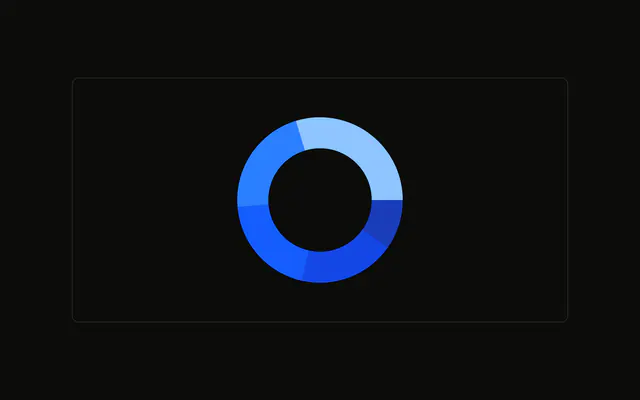
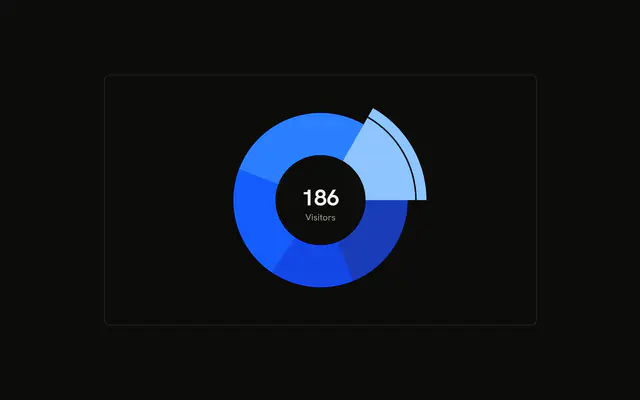
A browser donut. The Chrome slice is drawn with a larger outer radius so it sticks out. The rest of the ring stays put. The highlight is the first slice, not a hover.
Use a popped slice to point at one category while the whole stays visible. Do not leave it as a constant if the choice should follow the user. A Table shows every count at once. In React, Ark UI does not push Chrome outward.
Installation
Anatomy
Usage
<div className="w-full max-w-xl rounded-md border bg-background p-4">
  <ChartContainer
    className="mx-auto aspect-square max-h-[250px]"
    config={chartConfig}
  >
    <PieChart>
      <ChartTooltip content={renderTooltipContent} cursor={false} />
      <Pie
        data={chartData}
        dataKey="visitors"
        innerRadius={60}
        nameKey="browser"
        shape={renderSector}
        strokeWidth={5}
      />
    </PieChart>
  </ChartContainer>
</div>
FAQ
How does the Chrome slice stick out?
Pie sets shape to renderSector. When index equals ACTIVE_INDEX, which is 0, that function passes outerRadius plus 10 to Sector. The Chrome row is first, so Chrome is the slice that grows.
How do I pop out a different slice?
Change ACTIVE_INDEX. The order is Chrome, Safari, Firefox, Edge, Other. Pie still uses dataKey visitors, nameKey browser, innerRadius 60, and strokeWidth 5.
Where do the slice colors come from?
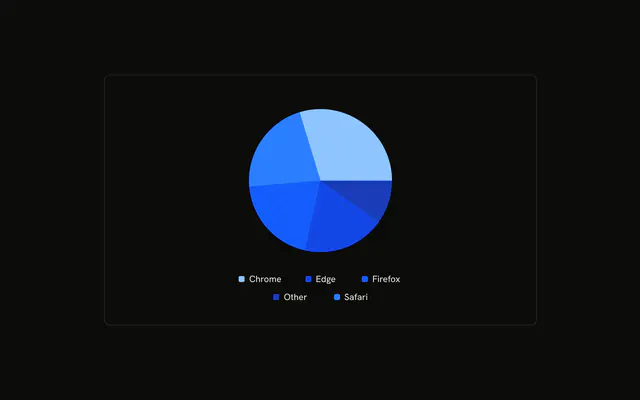
Each row's fill is var(--color-chrome) or the matching browser variable. config maps those keys to --chart-1 through --chart-5 and to the labels Chrome, Safari, Firefox, Edge, and Other.
What does the tooltip show for a slice?
ChartTooltipContent sets hideLabel, and cursor is false. The name comes from nameKey browser, looked up in config, and the value is visitors.
API Reference
Chart
Sets config={chartConfig}, content={renderTooltipContent} and cursor={false}. The rest is on the Chart page.