shadcn.io is an independent project built on shadcn/ui
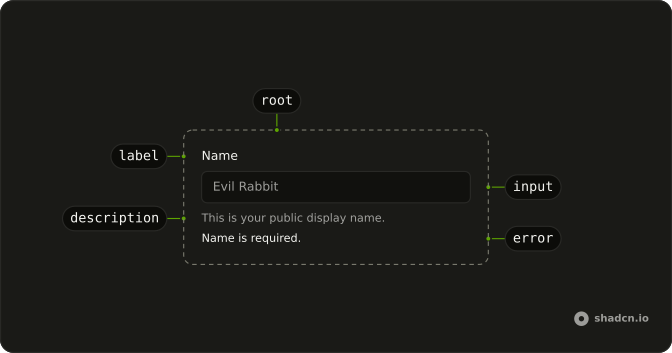
The label, the input or choice, and the line of help or error under it.
Use it when a control needs a label, a description, or an error. A prefix or a button on the input is an Input Group, not another caption. In React, React Aria handles the layout and the accessible name, not validation.
Installation
Anatomy
Usage
import {
  Field, FieldDescription, FieldLabel,
} from "@/components/ui/field";
import { Input } from "@/components/ui/input";
const FieldDemo = () => (
<Field className="max-w-xs">
<FieldLabel>Name</FieldLabel>
<Input placeholder="Evil Rabbit" type="text" />
<FieldDescription>This is your public display name.</FieldDescription>
</Field>
);Accessibility
- Space
- Activate the focused control.
- Enter
- Activate the focused control.
- Arrow Up
- Move up.
- Arrow Down
- Move down.
- Arrow Left
- Move left.
- Arrow Right
- Move right.
- Home
- Go to the start.
- End
- Go to the end.
Demos
Input
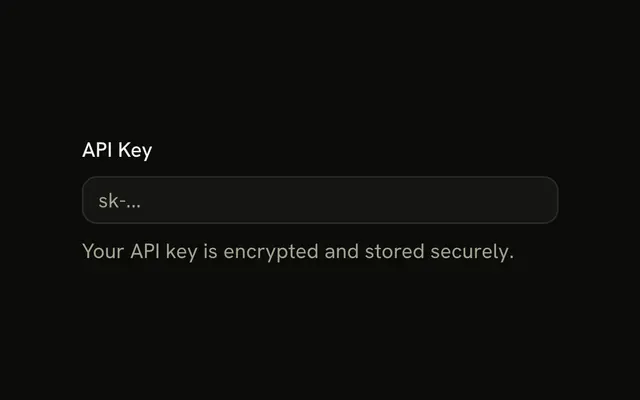
Password, with the rule above the box: at least 8 characters. Put FieldDescription before the control when people need the constraint before they type. The hero does the opposite and parks the hint underneath, which suits a note they can ignore. The input's type is password, so the characters stay masked while the rule stays readable.
Textarea
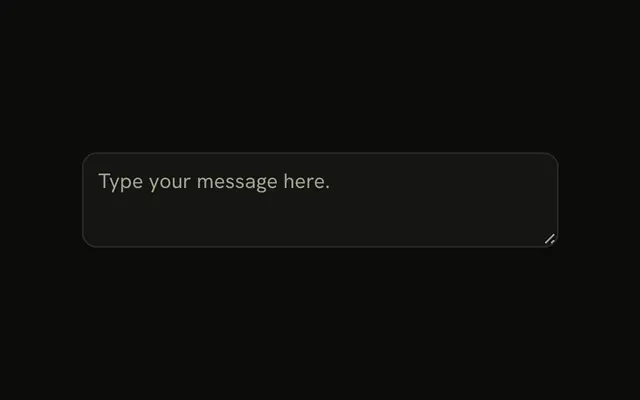
Feedback is a four-row textarea with a label and no helper line. The placeholder is the only hint, and it disappears once someone types, so use that only when the prompt is disposable. A rule that still matters after focus belongs in FieldDescription. A second paragraph under an already tall field is easy to miss.
Select
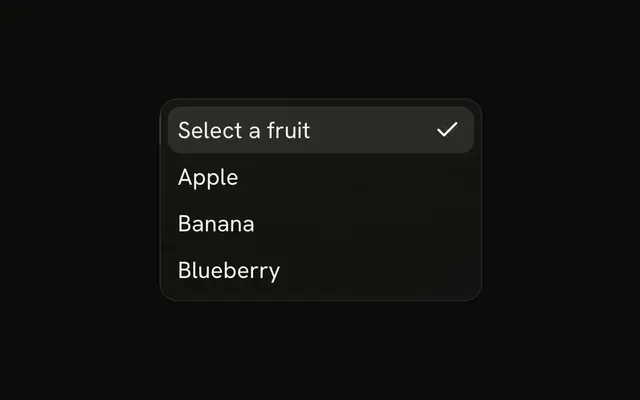
Department is chosen from engineering, design, or marketing rather than typed. The field label names the question, and the select keeps a placeholder until a value is picked. Use this for any short closed list in a form. A job title people invent goes back to a text input, with the label still outside the control so it stays visible after a choice.
Slider
Volume starts at 40, with the field label as the only caption. A slider often has no text of its own, so this is what makes the drag mean something. The control also carries its own accessible name. Drop that if the field label is already associated, or the name is read twice, and use a slider for a range rather than a number that has to be exact.
Fieldset
Street and city sit under one Address legend. FieldSet and FieldLegend are the wrap when several inputs answer a single question, the way a mailing address does. Each inner field still has its own label. The legend is announced with those labels and does not replace them, so two unrelated inputs do not need a set.
Checkbox
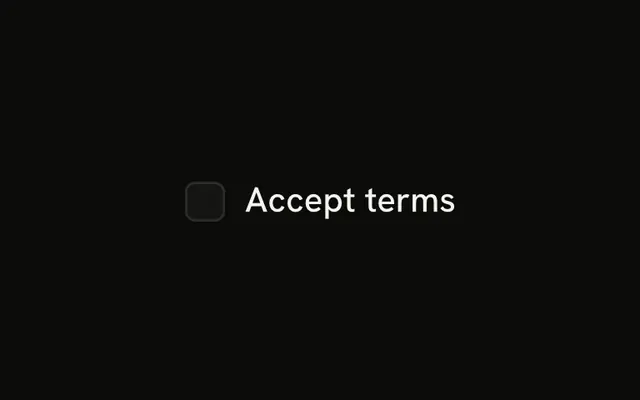
Same as shipping address starts checked, box and label in one horizontal row. Set orientation to horizontal for a single boolean. A label stacked over a tiny box looks like a heading that lost its section. The label is the choice itself, so normal weight is enough, and a checked default should be the common case rather than a quiet opt-in.
Radio
Monthly or yearly, under a legend that reads Subscription plan. The set is the question, and each option is its own horizontal field so the hit target includes the word. FieldLegend with variant set to label is quieter than the address legend, which fits a short choice. Only one plan can be on, and a checkbox list would lie about that.
Switch
Multi-factor authentication puts the label on one side and the switch on the other. Horizontal orientation matches a settings row. A switch stacked under a bold label looks like a field that forgot its input. There is no description, so if enabling it has a consequence, keep that sentence with the label and the row height stays even.
Choice Card
The whole plan row chooses the radio, not a 16 pixel circle. Wrap Field in FieldLabel, use FieldTitle for Monthly or Yearly, and put the radio at the end. FieldTitle is the visual name when another label nested inside the wrapping label would confuse the association. Save this for a handful of cards, because a long list is just a radio group with extra chrome.
Group
Email, a rule, then name. FieldGroup stacks them and FieldSeparator is only a pause between unrelated questions, so there is no shared legend. Use the rule when the stack would otherwise read as one blob. Skip it when a fieldset legend already says why the inputs belong together, and give the separator a short word such as or only when the pause itself needs a label.
Rtl
The public-name field in Arabic: caption, input, and the sentence about the display name, with dir set to rtl on the wrapper. Alignment follows that direction, which is the check before a translated form ships. A physical left margin on the label lands on the wrong side, and this is where it shows. The placeholder may stay in another language, but the caption should not.
Responsive
The label and the hint stay a pair, and the input moves beside them once the container is wide. orientation set to responsive only switches inside a FieldGroup, because the breakpoint is a container query on the group, not the viewport. FieldContent holds the caption and the description so a horizontal field can line that pair up with the control. Narrow, it stacks, which is what a card column wants.
FAQ
How do I label a Field in React?
Place FieldLabel and the control inside Field, and use FieldDescription for helper text. If the label does not wrap the control, set the same id on the control and htmlFor on FieldLabel. A label that only sits beside an input is not associated until those match. FieldTitle is a visual title when you do not want a label element.
The Checkbox demo also sets aria-label on the checkbox, because the box still needs its own accessible name.
How do I put a Field label beside the control?
orientation defaults to vertical, which stacks the label over the control. horizontal puts them in a row. responsive stacks them until the container is wide, then uses a row. Put responsive inside FieldGroup, because that switch is a container query on the group. The root sets data-orientation. The Responsive demo shows the switch.
How do I show an error on a Field?
Set invalid when validation fails. The root can then expose data-invalid for the destructive styles. Render the message with FieldError. The field does not store the value. The control does, the same way it does outside a field.
Pass errors on FieldError, one entry per message. One message renders as text. Several render as a list, and a repeated message renders once. It has role alert.
How do I group more than one Field?
Use FieldGroup for a stack of fields, or FieldSet with FieldLegend when they are one question. FieldLegend variant defaults to legend, and label is the quieter legend, as the Choice Card demo uses. FieldSeparator draws a rule between fields. It sets data-content when you pass a label as its child.
How do I make a choice card with Field?
Wrap Field in FieldLabel so the whole row chooses the control, as the Choice Card demo does. For a checkbox, radio, or switch in a row, set orientation to horizontal. The keyboard is that control's own keys. Field does not add arrow-key behavior of its own. The Accessibility section lists keys for the controls people focus inside it.
How do I restyle a Field?
Edit components/ui/field. Layout follows data-orientation, and the invalid treatment follows data-invalid. Pass a class for a max width. FieldContent groups a label and a description so a horizontal field can align that pair with a taller control, as the Responsive demo does.
Can I use Field with a form library and React Aria?
Yes. Field is the layout and the accessible name, not a form state holder. Wire the library to the control, set invalid from its error, and render the message in FieldError. A description is helper text, not a replacement for the error. Keep both when you need a hint and a failure.
API Reference
Field
data-slot="field"
disabled?boolean
Disables the field, as Ark's Field does: its own styles
(data-disabled) and the controls inside it, disabled on an input or
a textarea and isDisabled on a React Aria field.
invalid?boolean
Marks the field invalid, as Ark's Field does: its own styles
(data-invalid) and the control's state, aria-invalid on an input or
a textarea and isInvalid on a React Aria field (Select, Checkbox,
RadioGroup, NumberField, ComboBox…), so neither needs its own.
orientation?"horizontal" | "responsive" | "vertical"
Stacks the label over the control (vertical), puts them side by side
(horizontal), or side by side on wide containers only (responsive).
- Type
"horizontal" | "responsive" | "vertical"- Default
"vertical"
className?string
Merged with the part's classes.
data-disabled?stringdata-invalid?stringdata-orientation?string
Mirrors orientation.
FieldSet
<fieldset> data-slot="field-set"
className?string
Merged with the part's classes.
FieldLegend
<legend> data-slot="field-legend"
variant?"legend" | "label"
The visual style.
- Type
"legend" | "label"- Default
"legend"
className?string
Merged with the part's classes.
data-variant?string
Mirrors variant.
FieldGroup
<div> data-slot="field-group"
className?string
Merged with the part's classes.
FieldContent
<div> data-slot="field-content"
className?string
Merged with the part's classes.
FieldLabel
data-slot="field-label"
className?string
Merged with the part's classes.
FieldTitle
<div> data-slot="field-label"
className?string
Merged with the part's classes.
FieldDescription
<p> data-slot="field-description"
className?string
Merged with the part's classes.
FieldSeparator
<div> data-slot="field-separator"
className?string
Merged with the part's classes.
data-content?stringFieldError
<ul> data-slot="field-error"
children?ReactNode
The children of the component.
elementType?string
The HTML element type to render. Defaults to span.
Set to div when using block-level children (e.g. <ul>) to avoid invalid HTML.
- Default
"span"
errors?Array<{ message?: string }>
Errors to show, such as a form library's ({ message } each): one as * text, several as a list, repeats once.
- Type
Array<{ message?: string }>
style?CSSProperties
The inline [style](https://developer.mozilla.org/en-US/docs/Web/API/HTMLElement/style) for the element.
render?DOMRenderFunction<E, T>
Overrides the default DOM element with a custom render function.
This allows rendering existing components with built-in styles and behaviors
such as router links, animation libraries, and pre-styled components.
Requirements:
- You must render the expected element type (e.g. if <button> is expected, you cannot render an
<a>).
- Only a single root DOM element can be rendered (no fragments).
- You must pass through props and ref to the underlying DOM element, merging with your own prop
as appropriate.
- Type
DOMRenderFunction<E, T>
className?string
Merged with the part's classes.