shadcn.io is an independent project built on shadcn/ui
Drag a thumb between a min and a max when a rough value is enough.
Use it for volume, a price range, or temperature. When the number has to be exact, use a Number Input. In React, React Aria can report when the drag ends, so save then instead of on every step.
Installation
Anatomy
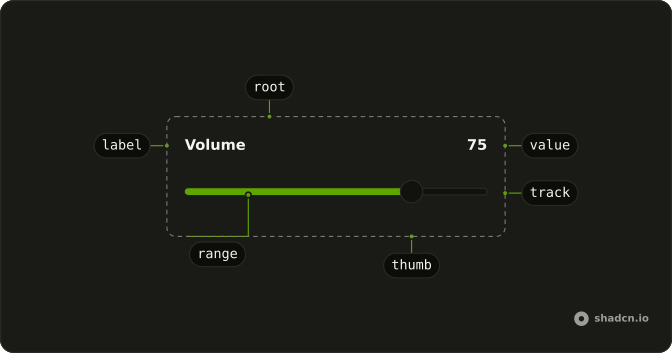
Slider
├── SliderLabel
├── SliderThumb
├── SliderValue
├── SliderTrack
├── SliderRange
├── SliderControl
├── SliderMarkerGroup
├── SliderMarker
└── SliderDraggingIndicator
Usage
import { Slider } from "@/components/ui/slider";const SliderDemo = () => (
<Slider
aria-label="Slider"
className="mx-auto w-full max-w-xs"
defaultValue={[75]}
maxValue={100}
step={1}
/>
);Accessibility
- Arrow Right
- Increments the slider based on defined step.
- Arrow Left
- Decrements the slider based on defined step.
- Arrow Up
- Increases the value by the step amount.
- Arrow Down
- Decreases the value by the step amount.
- Page Up
- Increases the value by the
largeStepamount. - Page Down
- Decreases the value by the
largeStepamount. - Shift+Arrow Up
- Increases the value by the
largeStepamount. - Shift+Arrow Down
- Decreases the value by the
largeStepamount. - Home
- Sets the value to its minimum.
- End
- Sets the value to its maximum.
Demos
Range
Two thumbs, starting at 25 and 50, stepping by 5. The filled stretch between them is the selection, a price band or a time window. Use two thumbs when both ends are the user's choice, since a single thumb plus a fixed minimum draws the wrong picture when one end is not actually fixed. The thumbs stay in order as they move.
Multiple
Three thumbs, at 10, 20, and 70, stepping by 10, and they cannot pass through each other. Use more than two when the track is cut into bands, such as low, medium, and high thresholds, rather than a single from-to span. Two thumbs already cover a minimum and a maximum. A third thumb is a third decision.
Vertical
Two tracks with orientation set to vertical, each given a height, one starting at 50 and the other at 25. Up and down move the thumb. Use a vertical slider beside a tall preview, or anywhere a horizontal track would stretch the row for a single number. Without a height, the track has no distance to travel.
Controlled
Temperature runs from 0 to 1 in steps of a tenth, with two thumbs and the value kept in state. The readout beside the label prints both numbers as they move. Control the slider when that number is shown elsewhere, plotted, or saved while the thumb is still down. If the form can read it on submit, uncontrolled is the smaller choice.
Disabled
disabled parks the thumb at 50, and dragging and the arrow keys do nothing. Use a disabled slider when a parent switch or a plan has turned the setting off and the last value is still useful to see. Remove the slider when the setting does not apply. A track that cannot move is only worth the space as an explanation.
Rtl
One thumb at 75, with dir set to rtl. The track follows the page direction, and the value is still a number from the minimum to the maximum, so a volume of 75 does not become 25 because the page is mirrored. Use this on a page that is already right-to-left. Do not set dir on a single slider in an otherwise left-to-right layout.
FAQ
How do I make a range Slider with two thumbs in React?
Give it two values instead of one, for example defaultValue set to [25, 50]: the Slider renders one thumb per value, as in the Range demo. The thumbs stay in order as they move.
How do I control the Slider value in React?
Keep the value in state and pass it back with value. The value is always an array, even with a single thumb.
With React Aria, pass value and onChange, which receives the new value.
How do I run code only when the user releases the Slider?
Use the end-of-change callback: it fires once when dragging stops, while the change callback fires on every step. That is the place to save or fetch.
On React Aria it is onChangeEnd.
How do I set the min, max and step of a Slider?
The range defaults to 0 through 100 in steps of 1. Set step for coarser or finer increments, for example 0.1 for decimals.
With React Aria, the range is minValue and maxValue.
How do I make a vertical Slider?
Set orientation="vertical" and give the Slider a height, such as h-40, as the Vertical demo does: a vertical track fills the height it is given. Arrow keys follow the orientation, so Up and Down move the thumb.
Is the Slider accessible with the keyboard?
Yes. Each thumb is focusable with Tab; the arrow keys move it by one step, Page Up and Page Down by a larger step, and Home and End jump to the ends. Label it with SliderLabel or an aria-label so screen readers announce what it sets.
API Reference
Slider
data-slot="slider"
isDisabled?boolean
Whether the whole Slider is disabled.
maxValue?number
The slider's maximum value.
- Default
100
minValue?number
The slider's minimum value.
- Default
0
onChangeEnd?(value: T) → void
Fired when the slider stops moving, due to being let go.
- Parameters
value– T- Returns
void
orientation?Orientation
The orientation of the Slider.
- Default
"horizontal"
step?number
The slider's step value.
- Default
1
className?string
Merged with the part's classes.
data-disabled?string
Present when isDisabled is set.
data-dragging?string
Present when dragging is true.
data-focus?string
Present when focused is true.
data-invalid?string
Present when invalid is true.
data-orientation?string
Mirrors orientation.
SliderLabel
data-slot="slider-label"
data-disabled?string
Present when disabled is true.
data-dragging?string
Present when dragging is true.
data-focus?string
Present when focused is true.
data-invalid?string
Present when invalid is true.
data-orientationOrientation
Mirrors the orientation prop.
SliderValue
<output> data-slot="progress-value"
className?string
Merged with the part's classes.