shadcn.io is an independent project built on shadcn/ui
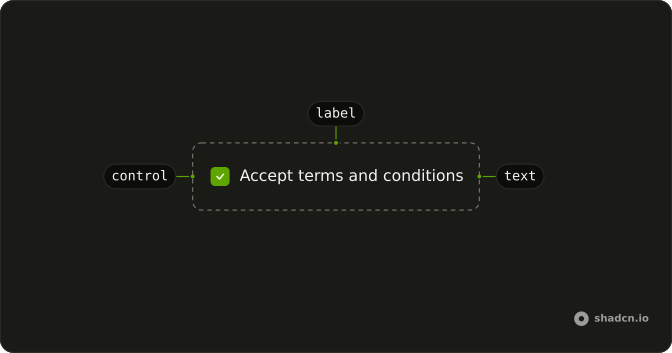
The text next to a control names it, and clicking that text activates the control too.
Use it when that one line is the whole field. Help text or an error belongs in Field, which already associates its own caption. In React, React Aria ties the text to the control by id, or by wrapping the control in the caption.
Installation
Anatomy
Usage
import { Checkbox } from "@/components/ui/checkbox";
import { Label } from "@/components/ui/label";<div className="flex items-center gap-2">
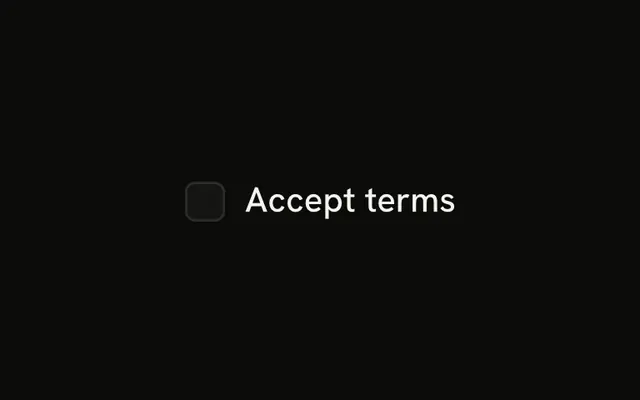
<Checkbox id="terms" />
<Label htmlFor="terms">Accept terms and conditions</Label>
</div>For form fields, prefer Field and FieldLabel.
Demos
Rtl
The row sets dir to rtl, so the checkbox and the Arabic caption trade places and stay together. The caption still points at that checkbox. Use this when one control should follow a right-to-left parent without flipping the whole document. The caption has no physical left or right margin, so set dir on the row, not on the caption alone.
FAQ
How do I associate a Label with a control in React?
Point the caption at the control, or wrap the control so a click on the text focuses or toggles it. For help text or an error, prefer Field and FieldLabel, which associate the caption for you. Set htmlFor to the control id as the usage does, or omit it inside a React Aria field so its label context applies. htmlFor without a slot clears that context and uses the id.
When should I use Field instead of a Label?
Use Label for one caption beside a control, such as a checkbox. Use Field when that control also needs a description, an error, or a stacked layout. FieldLabel already ties the caption to the control, so do not add your own id pairing inside Field. Label itself stores no form value.
Why does a disabled control not update the Label?
The cursor changes only when a preceding sibling with the peer class is disabled. Checkbox includes that class, so place it before the label, matching the usage. A parent marked data-disabled also makes the label ignore pointer events, if that parent is a group. The label does not have its own disabled prop.
Can a Label wrap its control instead of using an id?
Yes. A label that contains the control is associated by nesting, so you can skip the id. Use the id pairing when the caption and the control are siblings, which is what the usage shows. Keep the caption close to the control either way so the relationship is obvious on screen.
Does a Label follow a right-to-left page?
Yes. The label is a flex row without physical left or right margins, so it follows its parent's direction. The Rtl demo sets direction on the row and the caption stays with the checkbox. Set direction on a parent whenever this row should flip without flipping the whole document.
How do I style a Label with React Aria?
Edit the label file under components/ui. The element sets data-slot to label and uses a flex row with the peer and group disabled treatments. Add a class at the call site for one-off spacing instead of copying the component. The caption color follows the surrounding text, so set a text color there when one label should differ.
API Reference
Label
elementType?string
The element it renders, such as span.
render?DOMRenderFunction<E, T>
Overrides the default DOM element with a custom render function.
This allows rendering existing components with built-in styles and behaviors
such as router links, animation libraries, and pre-styled components.
Requirements:
- You must render the expected element type (e.g. if <button> is expected, you cannot render an
<a>).
- Only a single root DOM element can be rendered (no fragments).
- You must pass through props and ref to the underlying DOM element, merging with your own prop
as appropriate.
- Type
DOMRenderFunction<E, T>
className?string
Merged with the part's classes.