shadcn.io is an independent project built on shadcn/ui
A button opens a list of commands. One row can open a nested list when the first list would get too long.
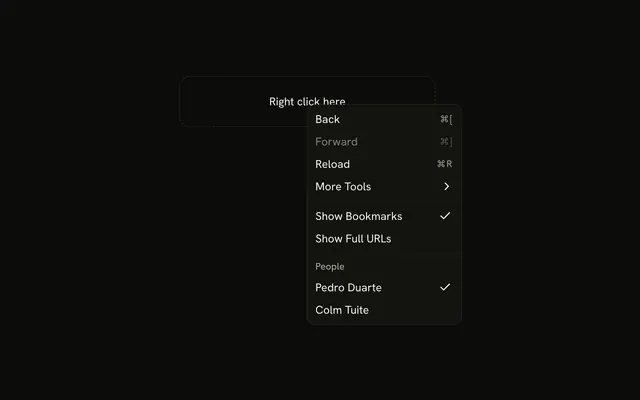
Use it when the entries are actions, not a value the form stores. A menu that opens on right-click is a Context Menu and stays on the pointer. In React, React Aria takes focus, typeahead, and Escape.
Installation
Anatomy
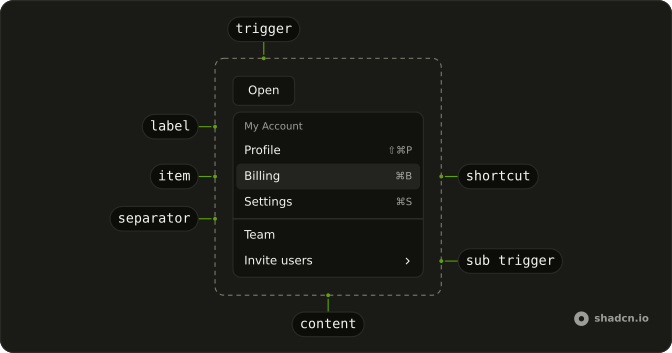
DropdownMenu
└── DropdownMenuTrigger
└── DropdownMenuContent
    └── DropdownMenuGroup
        └── DropdownMenuLabel
        └── DropdownMenuItem
        └── DropdownMenuSeparator
        └── DropdownMenuShortcut
        └── DropdownMenuSub
            └── DropdownMenuSubTrigger
            └── DropdownMenuSubContent
Usage
import { Button } from "@/components/ui/button";
import {
  DropdownMenu, DropdownMenuGroup, DropdownMenuGroupLabel,
  DropdownMenuItem, DropdownMenuSeparator, DropdownMenuShortcut,
  DropdownMenuSub, DropdownMenuSubContent, DropdownMenuSubTrigger,
  DropdownMenuTrigger,
} from "@/components/ui/dropdown-menu";
const DropdownMenuDemo = () => (
<DropdownMenuTrigger>
<Button className="mt-8 self-start" variant="outline">
Open
</Button>
<DropdownMenu className="w-40 max-w-full" placement="bottom start">
<DropdownMenuGroup>
<DropdownMenuGroupLabel>My Account</DropdownMenuGroupLabel>
<DropdownMenuItem>
Profile
<DropdownMenuShortcut>⇧⌘P</DropdownMenuShortcut>
</DropdownMenuItem>
<DropdownMenuItem>
Billing
<DropdownMenuShortcut>⌘B</DropdownMenuShortcut>
</DropdownMenuItem>
<DropdownMenuItem>
Settings
<DropdownMenuShortcut>⌘S</DropdownMenuShortcut>
</DropdownMenuItem>
</DropdownMenuGroup>
<DropdownMenuSeparator />
<DropdownMenuGroup>
<DropdownMenuItem>Team</DropdownMenuItem>
<DropdownMenuSub>
<DropdownMenuSubTrigger>Invite users</DropdownMenuSubTrigger>
<DropdownMenuSubContent>
<DropdownMenuItem>Email</DropdownMenuItem>
<DropdownMenuItem>Message</DropdownMenuItem>
<DropdownMenuSeparator />
<DropdownMenuItem>More...</DropdownMenuItem>
</DropdownMenuSubContent>
</DropdownMenuSub>
<DropdownMenuItem>
New Team
<DropdownMenuShortcut>⌘+T</DropdownMenuShortcut>
</DropdownMenuItem>
</DropdownMenuGroup>
<DropdownMenuSeparator />
<DropdownMenuGroup>
<DropdownMenuItem>GitHub</DropdownMenuItem>
<DropdownMenuItem>Support</DropdownMenuItem>
<DropdownMenuItem isDisabled>API</DropdownMenuItem>
</DropdownMenuGroup>
<DropdownMenuSeparator />
<DropdownMenuGroup>
<DropdownMenuItem>
Log out
<DropdownMenuShortcut>⇧⌘Q</DropdownMenuShortcut>
</DropdownMenuItem>
</DropdownMenuGroup>
</DropdownMenu>
</DropdownMenuTrigger>
);
Accessibility
- Space
- Activates/Selects the highlighted item.
- Enter
- Activates/Selects the highlighted item.
- Arrow Down
- Highlights the next item in the menu.
- Arrow Up
- Highlights the previous item in the menu.
- Arrow Right
- When focus is on trigger, opens or closes the submenu depending on reading direction.
- Arrow Left
- When focus is on trigger, opens or closes the submenu depending on reading direction.
- Escape
- Closes the menu and moves focus to the trigger.
- Home
- Go to the start.
- End
- Go to the end.
Demos
Basic
Profile, billing, and settings sit under a My Account label, then a separator, then GitHub, Support, and a disabled API row. Copy this when the menu is a short list of places plus one item that exists but cannot be used yet. The label is not a choice, so it stays out of the arrow-key sequence. Every other row should be a real destination or a real action.
Submenu
Invite users opens a second list, and that list opens a third for Calendly, Slack, and a webhook. Use a submenu when several actions share a parent and would make the first menu a scroll. Two levels is usually the limit. A third panel hides the item people just chose, and they have to find their way back with the arrow keys.
Shortcuts
Profile, billing, settings, and log out each end with a key hint, such as shift-command-P. DropdownMenuShortcut only prints that hint. It does not listen for the keys, so the binding has to live somewhere that still works while the menu is closed. Keep the hint short, and do not invent a shortcut you have not actually wired up.
Icons
A person, a card, and a gear sit in front of Profile, Billing, and Settings, and log out is marked destructive. The icon is a scanning aid, so hide it from assistive tech when the label already names the action. Skip the pictures if they do not add a second cue. Four familiar rows is about as many as this treatment can carry before it turns into decoration.
Checkboxes
Status bar starts checked, activity bar is disabled, and panel starts off, under an Appearance label. These are independent toggles, the sort of view preference you flip and then flip another without leaving the menu. Keep the checked values in state so the ticks survive the next open. If only one of the rows may be on, this is the wrong control and the radio group is the right one.
Checkboxes Icons
Email, SMS, and push, each with an icon, and more than one can be on at the same time. The pictures are doing real work here, because the three channels would otherwise be easy to mix up in a narrow menu. Email and push start on, SMS starts off. Same rule as the plain checkboxes: store the booleans yourself, and do not use this pattern for a single choice.
Radio Group
Panel position is top, bottom, or right, and only one of those can be selected. The tick remains the next time the menu opens, which is what you want for a setting and what a normal item will not remember. Hold the chosen string in state and pass it back in. Bottom starts selected so the menu is never a row of empty radios.
Radio Icons
Credit card, PayPal, and bank transfer, with one of them current. The icons are decorative and the words are the name, so do not rely on the picture alone. Start from a default, card here, because an empty radio group looks unfinished. A payment method is a setting the menu should remember, not an action that runs the moment it is clicked.
Destructive
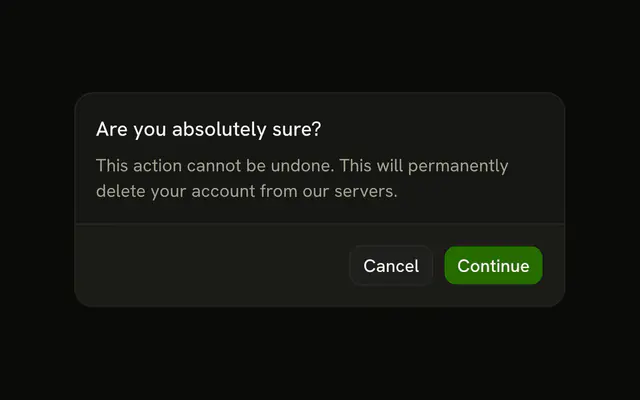
Edit and share are ordinary rows. Delete sits after a separator with variant set to destructive, so the color warns before the click. That variant does not confirm anything. If the action cannot be undone, open an alert dialog and run the delete only from its confirm button, with the dangerous row last.
Avatar
The trigger is a round avatar, not a button that says Open. Account, billing, and notifications sit above a separator, then sign out. Use this when the menu belongs to a person and the photo is already how people find their account. The image alt is the name a screen reader gets from inside the button, so a meaningful alt matters more here than on a decorative avatar.
Complex
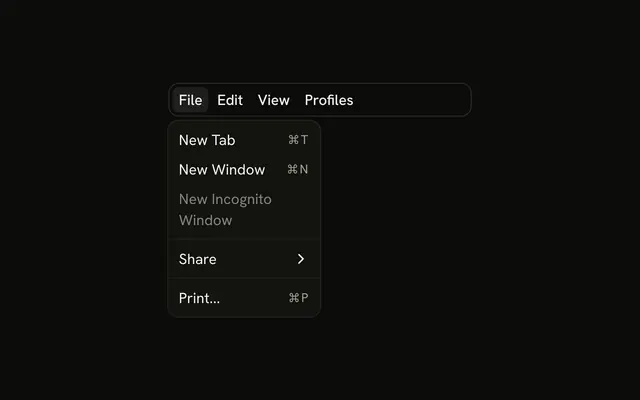
File, view, and account share one menu: shortcuts, nested recent projects, sidebar checkboxes, a theme choice, and a destructive sign out. Treat it as a stress test for groups and nested triggers, not a menu to ship. A list this long hides the item people came for. Split it, or move a stable set of menus into a Menubar when it is the app's main command surface.
Actions
An ellipsis on the Project Alpha row. Edit and Duplicate write the last action under the card, and Delete does not. It opens an alert dialog, and only the confirm button performs the delete. The line under the row is a live region, so the result is announced after the menu has closed and focus has moved on.
Rtl
Arabic labels run from the account submenu through view checkboxes, a position radio group, and logout. dir is rtl on the menu and on each nested panel, with the menu anchored to the end of the trigger. A page wrapper is not enough, because a submenu can still open the wrong way. Shortcuts stay at the end of the row, which here is the left side.
FAQ
How do I control whether a Dropdown Menu is open in React?
Keep the open flag in state and pass it back when it changes. Leave it uncontrolled when the menu should open and close on its own. Choosing an item closes it unless you opt out in the select handler.
Control DropdownMenuTrigger with isOpen and onOpenChange. The trigger wraps both the button and the menu.
How do I run code when a Dropdown Menu item is chosen?
The menu closes after a choice. Read which item it was in that handler, as the Actions demo does. A destructive action uses variant set to destructive and is still an ordinary menu item.
Set onAction on Dropdown Menu. It receives the item id. Set shouldCloseOnSelect to false on an item to keep the menu open.
How do I add a checkbox or radio choice to a Dropdown Menu?
Use a checkbox item when several options can be on together, and a radio group when only one can. Keep the checked value in state. The Checkboxes and Radio Group demos show both.
There is no checkbox item part. Set selectionMode to multiple or single on DropdownMenuGroup, with selectedKeys and onSelectionChange. Each DropdownMenuItem needs an id.
How do I place a Dropdown Menu with React Aria?
The menu moves to stay on screen, and it flips when there is not enough room. Set the preferred side, and set the width with a class on the popup. Nest a submenu with DropdownMenuSub, DropdownMenuSubTrigger, and DropdownMenuSubContent.
Set placement on Dropdown Menu, such as bottom start. The default is bottom start. The trigger wraps the button and the menu. There is no content part.
Can I use a Dropdown Menu from the keyboard?
Yes. The Accessibility section lists the keys. Arrow Up and Arrow Down move the highlight, Enter and Space activate it, and Escape closes the menu and returns focus to the trigger. Arrow Left and Arrow Right open or close a submenu, following the reading direction. Disabled items are skipped. Typeahead jumps to a matching label.
Why is my Dropdown Menu clipped or behind a dialog?
The popup is portaled and uses z-50, so a parent with hidden overflow does not clip it. A dialog that also portals can still paint over the menu. Open the menu from inside that dialog rather than from the page behind it. Give an icon-only trigger an aria-label, as the Actions demo does.
API Reference
DropdownMenu
data-slot="string"
autoFocus?boolean | FocusStrategy
Where the focus should be set.
- Type
boolean | FocusStrategy
crossOffset?number
The additional offset applied along the cross axis between the element and its anchor element.
- Default
0
offset?number
The additional offset applied along the main axis between the element and its
anchor element. Ark default: 8.
- Default
4
onAction?(key: Key, value: T) → void
Handler that is called when an item is selected.
- Parameters
key– Keyvalue– T- Returns
void
onClose?() → void
Handler that is called when the menu should close after selecting an item.
- Returns
void
placement?"bottom" | "bottom left" | "bottom right" | "bottom start" | "bottom end" | "top" | "top left" | "top right" | "top start" | "top end" | "left" | "left top" | "left bottom" | "start" | "start top" | "start bottom" | "right" | "right top" | "right bottom" | "end" | "end top" | "end bottom"
The placement of the element with respect to its anchor element. Ark default: bottom.
- Type
"bottom" | "bottom left" | "bottom right" | "bottom start" | "bottom end" | "top" | "top left" | "top right" | "top start" | "top end" | "left" | "left top" | "left bottom" | "start" | "start top" | "start bottom" | "right" | "right top" | "right bottom" | "end" | "end top" | "end bottom"- Default
"bottom start"
shouldFocusWrap?boolean
Whether keyboard navigation is circular.
className?string
Merged with the part's classes.
--trigger-anchor-pointstring--trigger-widthstringDropdownMenuTrigger
data-slot="dropdown-menu-trigger"
defaultOpen?boolean
Whether the overlay is open by default (uncontrolled).
onOpenChange?(isOpen: boolean) → void
Handler that is called when the overlay's open state changes.
- Parameters
isOpen– boolean- Returns
void
isOpen?boolean
Whether the overlay is open by default (controlled).
trigger?"press" | "longPress" | "contextMenu"
How the menu is triggered.
- Type
"press" | "longPress" | "contextMenu"- Default
"press"
DropdownMenuGroup
data-slot="dropdown-menu-group"
dependencies?ReadonlyArray<any>
Values that should invalidate the item cache when using dynamic collections.
- Type
ReadonlyArray<any>
id?Key
The unique id of the section.
shouldCloseOnSelect?boolean
Whether the menu should close when the menu item is selected.
style?CSSProperties
The inline [style](https://developer.mozilla.org/en-US/docs/Web/API/HTMLElement/style) for the element.
value?T
The object value that this section represents. When using dynamic collections, this is set automatically.
render?DOMRenderFunction<E, T>
Overrides the default DOM element with a custom render function.
This allows rendering existing components with built-in styles and behaviors
such as router links, animation libraries, and pre-styled components.
Requirements:
- You must render the expected element type (e.g. if <button> is expected, you cannot render an
<a>).
- Only a single root DOM element can be rendered (no fragments).
- You must pass through props and ref to the underlying DOM element, merging with your own prop
as appropriate.
- Type
DOMRenderFunction<E, T>
className?string
The CSS [className](https://developer.mozilla.org/en-US/docs/Web/API/Element/className) for the element.
- Default
"react-aria-MenuSection"
DropdownMenuGroupLabel
data-slot="dropdown-menu-group-label"
inset?boolean
Indents it to line up with items that have an icon or indicator.
render?DOMRenderFunction<E, T>
Overrides the default DOM element with a custom render function.
This allows rendering existing components with built-in styles and behaviors
such as router links, animation libraries, and pre-styled components.
Requirements:
- You must render the expected element type (e.g. if <button> is expected, you cannot render an
<a>).
- Only a single root DOM element can be rendered (no fragments).
- You must pass through props and ref to the underlying DOM element, merging with your own prop
as appropriate.
- Type
DOMRenderFunction<E, T>
className?string
Merged with the part's classes.
data-inset?string
Mirrors inset.
DropdownMenuItem
data-slot="dropdown-menu-item"
children?ChildrenOrFunction<T>
The children of the component. A function may be provided to alter the children based on component state.
- Type
ChildrenOrFunction<T>
id?Key
The unique id of the item.
inset?boolean
Indents it to line up with items that have an icon or indicator.
isDisabled?boolean
Whether the item is disabled.
onAction?() → void
Handler that is called when the item is selected.
- Returns
void
shouldCloseOnSelect?boolean
Whether the menu should close when the menu item is selected.
style?StyleOrFunction<T>
The inline [style](https://developer.mozilla.org/en-US/docs/Web/API/HTMLElement/style) for the element. A function may be provided to compute the style based on component state.
- Type
StyleOrFunction<T>
textValue?string
A string representation of the item's contents, used for features like typeahead.
value?T
The object value that this item represents. When using dynamic collections, this is set automatically.
variant?"default" | "destructive"
The visual style.
- Type
"default" | "destructive"- Default
"default"
render?(props: DetailedHTMLProps<LinkWithRequiredHref, HTMLAnchorElement> | React.JSX.IntrinsicElements[Fallback], renderProps: T) → ReactElement
Overrides the default DOM element with a custom render function.
This allows rendering existing components with built-in styles and behaviors
such as router links, animation libraries, and pre-styled components.
Note: You can check if 'href' in props in order to tell whether to render an <a> element.
Requirements:
- You must render the expected element type (e.g. if <a> is expected, you cannot render a
<button>).
- Only a single root DOM element can be rendered (no fragments).
- You must pass through props and ref to the underlying DOM element, merging with your own prop
as appropriate.
- Type
(props: DetailedHTMLProps<LinkWithRequiredHref, HTMLAnchorElement> | React.JSX.IntrinsicElements[Fallback], renderProps: T) → ReactElement- Parameters
props– DetailedHTMLProps<LinkWithRequiredHrefHTMLAnchorElement> | React.JSX.IntrinsicElements[Fallback]renderProps– T- Returns
ReactElement
className?string
Merged with the part's classes.
data-inset?string
Mirrors inset.
data-variant?string
Mirrors variant.
DropdownMenuSub
data-slot="dropdown-menu-sub"
triggerKeyKey
Key of the trigger item.
DropdownMenuSubTrigger
data-slot="dropdown-menu-sub-trigger"
children?ChildrenOrFunction<T>
The children of the component. A function may be provided to alter the children based on component state.
- Type
ChildrenOrFunction<T>
id?Key
The unique id of the item.
inset?boolean
Indents it to line up with items that have an icon or indicator.
isDisabled?boolean
Whether the item is disabled.
onAction?() → void
Handler that is called when the item is selected.
- Returns
void
shouldCloseOnSelect?boolean
Whether the menu should close when the menu item is selected.
style?StyleOrFunction<T>
The inline [style](https://developer.mozilla.org/en-US/docs/Web/API/HTMLElement/style) for the element. A function may be provided to compute the style based on component state.
- Type
StyleOrFunction<T>
textValue?string
A string representation of the item's contents, used for features like typeahead.
value?T
The object value that this item represents. When using dynamic collections, this is set automatically.
render?(props: DetailedHTMLProps<LinkWithRequiredHref, HTMLAnchorElement> | React.JSX.IntrinsicElements[Fallback], renderProps: T) → ReactElement
Overrides the default DOM element with a custom render function.
This allows rendering existing components with built-in styles and behaviors
such as router links, animation libraries, and pre-styled components.
Note: You can check if 'href' in props in order to tell whether to render an <a> element.
Requirements:
- You must render the expected element type (e.g. if <a> is expected, you cannot render a
<button>).
- Only a single root DOM element can be rendered (no fragments).
- You must pass through props and ref to the underlying DOM element, merging with your own prop
as appropriate.
- Type
(props: DetailedHTMLProps<LinkWithRequiredHref, HTMLAnchorElement> | React.JSX.IntrinsicElements[Fallback], renderProps: T) → ReactElement- Parameters
props– DetailedHTMLProps<LinkWithRequiredHrefHTMLAnchorElement> | React.JSX.IntrinsicElements[Fallback]renderProps– T- Returns
ReactElement
className?string
Merged with the part's classes.
data-inset?string
Mirrors inset.
DropdownMenuSubContent
data-slot="dropdown-menu-sub-content"
autoFocus?boolean | FocusStrategy
Where the focus should be set.
- Type
boolean | FocusStrategy
crossOffset?number
The additional offset applied along the cross axis between the element and its
anchor element. Ark default: 0.
- Default
-3
offset?number
The additional offset applied along the main axis between the element and its
anchor element. Ark default: 8.
- Default
0
onAction?(key: Key, value: T) → void
Handler that is called when an item is selected.
- Parameters
key– Keyvalue– T- Returns
void
onClose?() → void
Handler that is called when the menu should close after selecting an item.
- Returns
void
placement?"bottom" | "bottom left" | "bottom right" | "bottom start" | "bottom end" | "top" | "top left" | "top right" | "top start" | "top end" | "left" | "left top" | "left bottom" | "start" | "start top" | "start bottom" | "right" | "right top" | "right bottom" | "end" | "end top" | "end bottom"
The placement of the element with respect to its anchor element. Ark default: bottom.
- Type
"bottom" | "bottom left" | "bottom right" | "bottom start" | "bottom end" | "top" | "top left" | "top right" | "top start" | "top end" | "left" | "left top" | "left bottom" | "start" | "start top" | "start bottom" | "right" | "right top" | "right bottom" | "end" | "end top" | "end bottom"- Default
"end top"
shouldFocusWrap?boolean
Whether keyboard navigation is circular.
className?string
Merged with the part's classes.
DropdownMenuSeparator
data-slot="dropdown-menu-separator"
children?ReactNode
The children of the component.
elementType?string
The HTML element type that will be used to render the separator.
orientation?Orientation
The orientation of the separator.
- Default
"horizontal"
style?CSSProperties
The inline [style](https://developer.mozilla.org/en-US/docs/Web/API/HTMLElement/style) for the element.
className?string
Merged with the part's classes.
DropdownMenuShortcut
<span> data-slot="dropdown-menu-shortcut"
className?string
Merged with the part's classes.
DropdownMenuLabel
inset?boolean
Indents it to line up with items that have an icon or indicator.
render?DOMRenderFunction<E, T>
Overrides the default DOM element with a custom render function.
This allows rendering existing components with built-in styles and behaviors
such as router links, animation libraries, and pre-styled components.
Requirements:
- You must render the expected element type (e.g. if <button> is expected, you cannot render an
<a>).
- Only a single root DOM element can be rendered (no fragments).
- You must pass through props and ref to the underlying DOM element, merging with your own prop
as appropriate.
- Type
DOMRenderFunction<E, T>