shadcn.io is an independent project built on shadcn/ui
A command menu narrows its actions as you type.
Use it to run an action or jump to a place. If the list is a form value you must store, use a Combobox. In React, React Aria filters the collection you passed in.
Installation
Anatomy
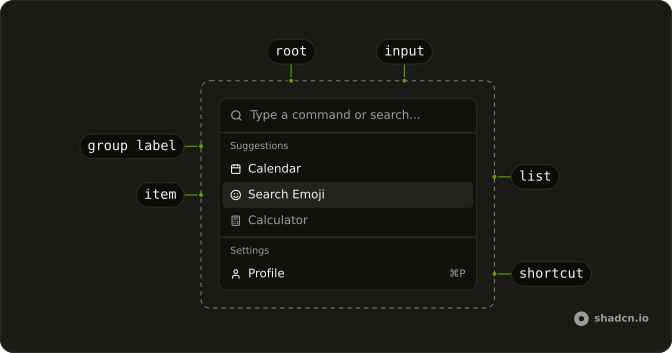
CommandRoot
├── CommandClearTrigger
├── CommandContent
├── CommandControl
├── CommandInput
├── CommandItem
│   ├── CommandGroup
│   │   └── CommandGroupLabel
│   ├── CommandItemIndicator
│   └── CommandItemText
├── CommandLabel
├── CommandList
├── CommandPositioner
└── CommandTrigger
Usage
import {
  CalculatorIcon, CalendarIcon, CreditCardIcon, SettingsIcon, SmileIcon,
  UserIcon,
} from "lucide-react";
import {
  Command, CommandEmpty, CommandGroup, CommandInput, CommandItem,
  CommandList, CommandSeparator, CommandShortcut,
} from "@/components/ui/command";
const CommandDemo = () => (
<Command className="max-w-sm rounded-lg border">
<CommandInput placeholder="Type a command or search..." />
<CommandList
renderEmptyState={() => <CommandEmpty>No results found.</CommandEmpty>}
>
<CommandGroup heading="Suggestions">
<CommandItem textValue="Calendar">
<CalendarIcon aria-hidden="true" />
<span>Calendar</span>
</CommandItem>
<CommandItem textValue="Search Emoji">
<SmileIcon aria-hidden="true" />
<span>Search Emoji</span>
</CommandItem>
<CommandItem isDisabled textValue="Calculator">
<CalculatorIcon aria-hidden="true" />
<span>Calculator</span>
</CommandItem>
</CommandGroup>
<CommandSeparator />
<CommandGroup heading="Settings">
<CommandItem textValue="Profile">
<UserIcon aria-hidden="true" />
<span>Profile</span>
<CommandShortcut>⌘P</CommandShortcut>
</CommandItem>
<CommandItem textValue="Billing">
<CreditCardIcon aria-hidden="true" />
<span>Billing</span>
<CommandShortcut>⌘B</CommandShortcut>
</CommandItem>
<CommandItem textValue="Settings">
<SettingsIcon aria-hidden="true" />
<span>Settings</span>
<CommandShortcut>⌘S</CommandShortcut>
</CommandItem>
</CommandGroup>
</CommandList>
</Command>
);
Accessibility
- Arrow Down
- Move down.
- Arrow Up
- Move up.
- Home
- Go to the start.
- End
- Go to the end.
- Enter
- Activate the focused item.
- Escape
- Dismiss.
- Space
- Activate the focused control.
- Arrow Left
- Move left.
- Arrow Right
- Move right.
Demos
Basic
Open Menu puts a short list in a dialog: Calendar, Search Emoji, and Calculator, plus a field that filters them. There are no icons and no shortcut hints. An empty state replaces the rows when nothing matches. Use the dialog when the menu should cover the page, and keep the inline list, like the one at the top of this page, when it should stay put.
Shortcuts
Profile, Billing, and Settings, each with an icon and a shortcut hint at the end of the row. The hint is only a label, and nothing here listens for those keys. Show a shortcut when the action is also bound somewhere else, and attach that binding yourself. The dialog still opens from a button, the same way the basic menu does.
Groups
Suggestions and Settings, split by a separator, with an icon on every row and shortcut hints only on the settings rows. Each item carries a group, and the collection builds the headings from that, so you are not hand-writing two lists. Use groups once commands fall into more than one kind. A single list is easier to scan only while it is short.
Scrollable
Navigation, Actions, View, Account, and Tools, enough rows that the dialog has to scroll. The list already overflows on its own, so a second scroll container would fight it. Filtering still removes what does not match, which matters more at this length. Keep the headings, because a long run of unlabeled icons is harder to scan than the field is to type into.
Palette
Command-K or Control-K toggles the dialog from anywhere on the page, and the Search button does the same for a pointer. Pages and Actions are grouped, a few rows show shortcut hints, and the footer names the arrow keys, Enter, and Escape. Picking an item writes its name under the button and closes the dialog. The value stays empty so choosing that same item again still runs.
Rtl
The inline menu from the top of the page, with dir set to rtl on the command and on the input. Headings, labels, the placeholder, and the empty state are Arabic, and the disabled calculator is still disabled. Shortcut hints sit at the inline end of the row. Use this to check the filter and the separator when the line runs right to left.
FAQ
How do I open the Command palette with Cmd+K in React?
Listen for the key yourself: on keydown, when the key is k and metaKey or ctrlKey is pressed, toggle the open state you pass to CommandDialog. The Palette demo has the whole handler, plus a "Search…" button for touch screens.
How do I run an action when a Command item is selected?
Pass onAction to CommandList: it receives the chosen item's key. Close the dialog in the same handler.
The Palette demo shows the selection on the page.
Should I use a Command or a Combobox?
Use a Command to run an action or jump somewhere, like a command palette or a searchable action menu. Use a Combobox when the choice is a value that stays in a form field.
Why doesn't pressing a Command shortcut do anything?
CommandShortcut is only a label at the end of an item: it shows the keys but doesn't bind them. Listen for those keys yourself, the same way the palette listens for Cmd+K.
How do I show a message when no Command results match?
Return a CommandEmpty from the list's renderEmptyState: it shows when the search leaves nothing.
How do I group Command items under headings?
Wrap related items in a CommandGroup with a heading, and put a CommandSeparator between groups, as in the Groups demo. Group by task, like Pages and Actions, rather than by where things live.
API Reference
Command
<div> data-slot="command"
childrenReactNode
The children wrapped by the autocomplete. Consists of at least an input element and a collection element to filter.
defaultInputValue?string
The default value of the autocomplete input (uncontrolled).
dir?React.HTMLAttributes<HTMLDivElement>["dir"]
The reading direction. Inherits the nearest DirectionProvider when unset.
- Type
React.HTMLAttributes<HTMLDivElement>["dir"]
inputValue?string
The value of the autocomplete input (controlled).
onInputChange?(value: string) → void
Handler that is called when the autocomplete input value changes.
- Parameters
value– string- Returns
void
style?React.CSSProperties
Inline styles for the root.
className?string
Merged with the part's classes.
CommandDialog
defaultOpen?boolean
Whether the overlay is open by default (uncontrolled).
onOpenChange?(isOpen: boolean) → void
Handler that is called when the overlay's open state changes.
- Parameters
isOpen– boolean- Returns
void
bottomStickOnMobile?boolean
Stick the dialog to the bottom of the screen on mobile. Ark default: true.
- Default
false
isDismissable?boolean
Whether to close the modal when the user interacts outside it.
- Default
false
isEntering?boolean
Whether the modal is currently performing an entry animation.
isExiting?boolean
Whether the modal is currently performing an exit animation.
isKeyboardDismissDisabled?boolean
Whether pressing the escape key to close the modal should be disabled.
- Default
false
isOpen?boolean
Whether the overlay is open by default (controlled).
onEnter?(element: HTMLElement) → void | Promise<void>
Callback when the modal starts entering. Return a promise to indicate when the entry animation has completed.
- Type
(element: HTMLElement) → void | Promise<void>- Parameters
element– HTMLElement- Returns
void | Promise<void>
onExit?(element: HTMLElement) → void | Promise<void>
Callback when the modal starts exiting. Return a promise to indicate when the exit animation has completed.
- Type
(element: HTMLElement) → void | Promise<void>- Parameters
element– HTMLElement- Returns
void | Promise<void>
role?"dialog" | "alertdialog"
The accessibility role for the dialog.
- Type
"dialog" | "alertdialog"- Default
"dialog"
shouldCloseOnInteractOutside?(element: Element) → boolean
When user interacts with the argument element outside of the overlay ref, return true if onClose should be called. This gives you a chance to filter out interaction with elements that should not dismiss the overlay. By default, onClose will always be called on interaction outside the overlay ref.
- Parameters
element– Element- Returns
boolean
showCloseButton?boolean
Show close button at the top right corner. Ark default: true.
- Default
false
size?"2xl" | "3xl" | "4xl" | "5xl" | "6xl" | "fullscreen" | "lg" | "md" | "sm" | "xl"
Ark default: md.
- Type
"2xl" | "3xl" | "4xl" | "5xl" | "6xl" | "fullscreen" | "lg" | "md" | "sm" | "xl"- Default
lg
slot?string | null
A slot name for the component. Slots allow the component to receive props from a parent
component. An explicit null value indicates that the local props completely override all
props received from a parent.
- Type
string | null
style?StyleOrFunction<T>
The inline [style](https://developer.mozilla.org/en-US/docs/Web/API/HTMLElement/style) for the element. A function may be provided to compute the style based on component state.
- Type
StyleOrFunction<T>
UNSTABLE_deferUntilEntered?boolean
Whether to wait until the entry animation completes before hiding content outside the modal and moving focus into it.
UNSTABLE_overrideFocus?boolean
Whether to override the focus() method so it does not scroll the page.
This is temporary and will be removed after fully testing all overlays.
UNSTABLE_portalContainer?Element
The container element in which the overlay portal will be placed. This may have unknown behavior depending on where it is portalled to. Deprecated. - Use a parent UNSAFE_PortalProvider to set your portal container instead.
- Default
document.body
render?DOMRenderFunction<E, T>
Overrides the default DOM element with a custom render function.
This allows rendering existing components with built-in styles and behaviors
such as router links, animation libraries, and pre-styled components.
Requirements:
- You must render the expected element type (e.g. if <button> is expected, you cannot render an
<a>).
- Only a single root DOM element can be rendered (no fragments).
- You must pass through props and ref to the underlying DOM element, merging with your own prop
as appropriate.
- Type
DOMRenderFunction<E, T>
className?string
Merged with the part's classes.
CommandInput
data-slot="command-input-wrapper"
children?ReactNode
The children of the component.
enterKeyHint?"enter" | "done" | "go" | "next" | "previous" | "search" | "send"
An enumerated attribute that defines what action label or icon to preset for the enter key on virtual keyboards. See [MDN](https://developer.mozilla.org/en-US/docs/Web/HTML/Global_attributes/enterkeyhint).
- Type
"enter" | "done" | "go" | "next" | "previous" | "search" | "send"
style?object
The inline [style](https://developer.mozilla.org/en-US/docs/Web/API/HTMLElement/style) for the element.
- Type
{ prop?: string]: string | number }
className?string
Merged with the part's classes.
CommandList
data-slot="command-list"
className?string
Merged with the part's classes.
CommandEmpty
<div> data-slot="command-empty"
className?string
Merged with the part's classes.
CommandGroup
data-slot="command-group"
children?ReactNode | ((item: T) → ReactElement)
Static child items or a function to render children.
- Type
ReactNode | ((item: T) → ReactElement)
dependencies?ReadonlyArray<any>
Values that should invalidate the item cache when using dynamic collections.
- Type
ReadonlyArray<any>
heading?string
A label shown above the group's items.
id?Key
The unique id of the section.
shouldCloseOnSelect?boolean
Whether the menu should close when the menu item is selected.
style?object
The inline [style](https://developer.mozilla.org/en-US/docs/Web/API/HTMLElement/style) for the element.
- Type
{ prop?: string]: string | number }
value?T
The object value that this section represents. When using dynamic collections, this is set automatically.
render?DOMRenderFunction<E, T>
Overrides the default DOM element with a custom render function.
This allows rendering existing components with built-in styles and behaviors
such as router links, animation libraries, and pre-styled components.
Requirements:
- You must render the expected element type (e.g. if <button> is expected, you cannot render an
<a>).
- Only a single root DOM element can be rendered (no fragments).
- You must pass through props and ref to the underlying DOM element, merging with your own prop
as appropriate.
- Type
DOMRenderFunction<E, T>
className?string
Merged with the part's classes.
CommandSeparator
data-slot="command-separator"
children?ReactNode
The children of the component.
elementType?string
The HTML element type that will be used to render the separator.
orientation?"horizontal" | "vertical"
The orientation of the separator.
- Type
"horizontal" | "vertical"- Default
"horizontal"
style?object
The inline [style](https://developer.mozilla.org/en-US/docs/Web/API/HTMLElement/style) for the element.
- Type
{ prop?: string]: string | number }
className?string
Merged with the part's classes.
CommandItem
data-slot="command-item"
className?string
Merged with the part's classes.
CommandShortcut
<span> data-slot="command-shortcut"
className?string
Merged with the part's classes.