shadcn.io is an independent project built on shadcn/ui
The panel sits next to the button that opened it. You can still use the page around it.
Use it for a small edit or a short explanation. A task that should block the page until it is finished is a Dialog. In React, React Aria moves focus into the panel and returns it on Escape.
Installation
Anatomy
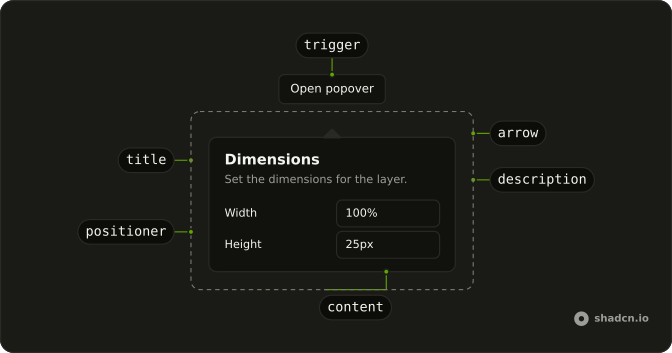
PopoverArrow
└── PopoverArrowTip
PopoverAnchor
PopoverTrigger
PopoverIndicator
PopoverPositioner
PopoverContent
PopoverTitle
PopoverDescription
PopoverClose
Usage
import { Button } from "@/components/ui/button";
import { Field, FieldGroup, FieldLabel } from "@/components/ui/field";
import { Input } from "@/components/ui/input";
import {
  Popover, PopoverDescription, PopoverHeader, PopoverTitle,
  PopoverTrigger,
} from "@/components/ui/popover";
const PopoverDemo = () => (
<PopoverTrigger>
<Button variant="outline">Open popover</Button>
<Popover className="w-64 max-w-full">
<PopoverHeader>
<PopoverTitle>Dimensions</PopoverTitle>
<PopoverDescription>
Set the dimensions for the layer.
</PopoverDescription>
</PopoverHeader>
<FieldGroup className="min-w-0 gap-3">
<Field className="min-w-0" orientation="horizontal">
<FieldLabel className="w-1/2">Width</FieldLabel>
<Input className="min-w-0" defaultValue="100%" />
</Field>
<Field className="min-w-0" orientation="horizontal">
<FieldLabel className="w-1/2">Height</FieldLabel>
<Input className="min-w-0" defaultValue="25px" />
</Field>
</FieldGroup>
</Popover>
</PopoverTrigger>
);Accessibility
- Space
- Opens/closes the popover.
- Enter
- Opens/closes the popover.
- Tab
- Moves focus to the next focusable element within the content. Note: If there are no focusable elements, focus is moved to the next focusable element after the trigger.
- Shift+Tab
- Moves focus to the previous focusable element within the content. Note: If there are no focusable elements, focus is moved to the trigger.
- Escape
- Closes the popover and moves focus to the trigger.
Demos
Basic
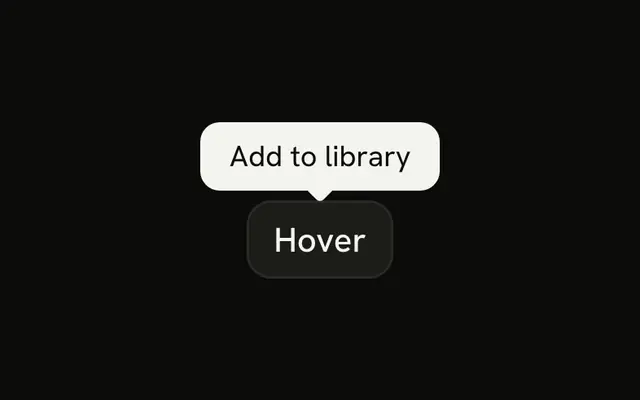
A title and one sentence, with no inputs. The panel lines up with the start of the button rather than its center, so it reads as a note attached to that control. Use this for a definition that should stay open while someone reads it. A Tooltip is the lighter choice when a single line on hover or focus is enough and does not need a dismiss.
Alignments
Three triggers place the panel at the start, the center, or the end of the button. Prefer start or end near a corner, and keep one alignment on a toolbar so the panels do not jump. Ark-based stacks use positioning.placement on Popover, Base UI and Radix use align on PopoverContent, and React Aria uses placement with a space, as in bottom start.
Form
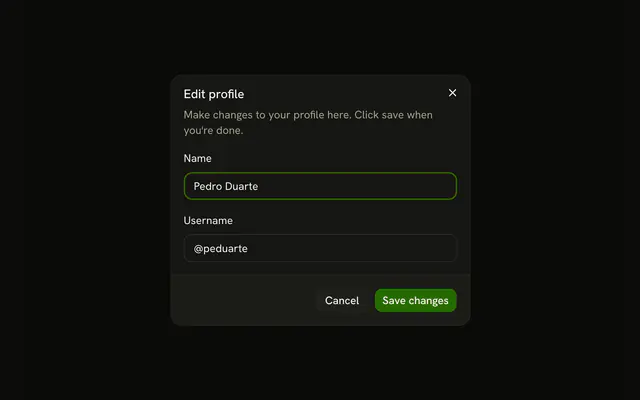
Width and height live in the panel, under a title that says what you are editing. Focus moves into the fields when it opens, and Escape or a click outside closes it. Use this for a small edit that should stay next to its button. More than a couple of fields, or a page that must wait, belongs in a Dialog.
Rtl
The row sets dir to rtl, and each button opens the panel toward a physical side: left, top, bottom, or right. Those edges do not mirror just because the language does. The trigger text is Arabic so it runs with the page. If the panel should swap sides with the writing direction, use a logical placement instead of left or right.
FAQ
How do I open the Popover from code in React?
Pass isOpen and onOpenChange on PopoverTrigger; the callback gets a boolean.
It still needs its trigger, or an anchor, to know where to sit.
How do I align the React Aria Popover to the start or end of its trigger?
Pass placement on Popover, such as bottom start, bottom or bottom end.
The Alignments demo above shows all three.
How do I position the Popover next to another element?
Pass that element's ref as triggerRef on Popover: it positions against that element instead of the trigger.
How do I make the Popover as wide as its trigger?
Give PopoverContent a width from the CSS variable the positioner sets:
w-(--trigger-width).
It updates as the trigger resizes, which suits pickers and menus under a field.
How do I put a form inside a Popover?
Put the fields in PopoverContent, as in the Form demo: focus moves into the panel when it opens, and Escape or a click outside closes it. To close it after saving, control its open state and set it to closed in your submit handler.
When should I use a Popover instead of a Dialog, a Tooltip or a Hover Card?
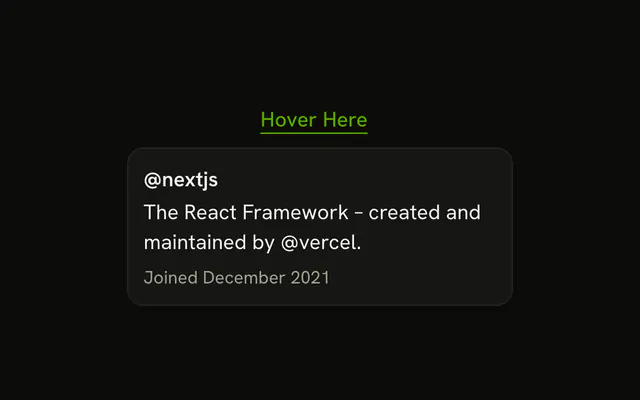
Use a Popover for a short form or extra controls next to what opened it, while the rest of the page stays usable. A Dialog blocks the page for a task that needs full attention, a Tooltip gives a one-line hint on hover or focus, and a Hover Card previews content while the pointer rests on a link.
API Reference
Popover
data-slot="popover-content"
defaultOpen?boolean
Whether the overlay is open by default (uncontrolled).
onOpenChange?(isOpen: boolean) → void
Handler that is called when the overlay's open state changes.
- Parameters
isOpen– boolean- Returns
void
arrowBoundaryOffset?number
The minimum distance the arrow's edge should be from the edge of the overlay element.
- Default
0
arrowRef?RefObject<Element | null>
A ref for the popover arrow element.
- Type
RefObject<Element | null>
boundaryElement?Element
Element that that serves as the positioning boundary.
- Default
document.body
children?ChildrenOrFunction<T>
The children of the component. A function may be provided to alter the children based on component state.
- Type
ChildrenOrFunction<T>
containerPadding?number
The placement padding that should be applied between the element and its surrounding container.
- Default
12
crossOffset?number
The additional offset applied along the cross axis between the element and its anchor element.
- Default
0
getTargetRect?(target: Element) → DOMRect | null
Overrides the target element's bounding rectangle. Useful for positioning relative to a specific point such as the mouse cursor (e.g. context menus) or text selection.
- Type
(target: Element) → DOMRect | null- Default
target.getBoundingClientRect()- Parameters
target– Element- Returns
DOMRect | null
isEntering?boolean
Whether the popover is currently performing an entry animation.
isExiting?boolean
Whether the popover is currently performing an exit animation.
isKeyboardDismissDisabled?boolean
Whether pressing the escape key to close the popover should be disabled. Most popovers should not use this option. When set to true, an alternative way to close the popover with a keyboard must be provided.
- Default
false
isNonModal?boolean
Whether the popover is non-modal, i.e. elements outside the popover may be interacted with by assistive technologies. Most popovers should not use this option as it may negatively impact the screen reader experience. Only use with components such as combobox, which are designed to handle this situation carefully.
isOpen?boolean
Whether the overlay is open by default (controlled).
maxHeight?number
The maxHeight specified for the overlay element. By default, it will take all space up to the current viewport height.
offset?number
The additional offset applied along the main axis between the element and its
anchor element. Ark default: 8.
- Default
4
onBlurWithin?(e: FocusEvent) → void
Handler that is called when the target element and all descendants lose focus.
- Parameters
e– FocusEvent- Returns
void
onFocusWithin?(e: FocusEvent) → void
Handler that is called when the target element or a descendant receives focus.
- Parameters
e– FocusEvent- Returns
void
onFocusWithinChange?(isFocusWithin: boolean) → void
Handler that is called when the the focus within state changes.
- Parameters
isFocusWithin– boolean- Returns
void
placement?"bottom" | "bottom left" | "bottom right" | "bottom start" | "bottom end" | "top" | "top left" | "top right" | "top start" | "top end" | "left" | "left top" | "left bottom" | "start" | "start top" | "start bottom" | "right" | "right top" | "right bottom" | "end" | "end top" | "end bottom"
The placement of the element with respect to its anchor element.
- Type
"bottom" | "bottom left" | "bottom right" | "bottom start" | "bottom end" | "top" | "top left" | "top right" | "top start" | "top end" | "left" | "left top" | "left bottom" | "start" | "start top" | "start bottom" | "right" | "right top" | "right bottom" | "end" | "end top" | "end bottom"- Default
"bottom"
scrollRef?RefObject<Element | null>
A ref for the scrollable region within the overlay.
- Type
RefObject<Element | null>- Default
overlayRef
shouldCloseOnInteractOutside?(element: Element) → boolean
When user interacts with the argument element outside of the popover ref, return true if onClose should be called. This gives you a chance to filter out interaction with elements that should not dismiss the popover. By default, onClose will always be called on interaction outside the popover ref.
- Parameters
element– Element- Returns
boolean
shouldFlip?boolean
Whether the element should flip its orientation (e.g. top to bottom or left to right) when there is insufficient room for it to render completely.
- Default
true
shouldSkipAnimation?boolean
Whether the popover should appear and disappear without an entry or exit animation. This is used by components such as PreviewTrigger to skip animations when quickly swapping between overlays.
shouldUpdatePosition?boolean
Whether the overlay should update its position automatically.
- Default
true
slot?string | null
A slot name for the component. Slots allow the component to receive props from a parent
component. An explicit null value indicates that the local props completely override all
props received from a parent.
- Type
string | null
style?StyleOrFunction<T>
The inline [style](https://developer.mozilla.org/en-US/docs/Web/API/HTMLElement/style) for the element. A function may be provided to compute the style based on component state.
- Type
StyleOrFunction<T>
trigger?string
The name of the component that triggered the popover. This is reflected on the element
as the data-trigger attribute, and can be used to provide specific
styles for the popover depending on which element triggered it.
triggerRef?RefObject<Element | null>
The ref for the element which the popover positions itself with respect to. When used within a trigger component such as DialogTrigger, MenuTrigger, Select, etc., this is set automatically. It is only required when used standalone.
- Type
RefObject<Element | null>
UNSTABLE_portalContainer?Element
The container element in which the overlay portal will be placed. This may have unknown behavior depending on where it is portalled to. Deprecated. - Use a parent UNSAFE_PortalProvider to set your portal container instead.
- Default
document.body
render?DOMRenderFunction<E, T>
Overrides the default DOM element with a custom render function.
This allows rendering existing components with built-in styles and behaviors
such as router links, animation libraries, and pre-styled components.
Requirements:
- You must render the expected element type (e.g. if <button> is expected, you cannot render an
<a>).
- Only a single root DOM element can be rendered (no fragments).
- You must pass through props and ref to the underlying DOM element, merging with your own prop
as appropriate.
- Type
DOMRenderFunction<E, T>
className?string
Merged with the part's classes.
--trigger-anchor-pointstringPopoverTrigger
data-slot="popover-trigger"
defaultOpen?boolean
Whether the overlay is open by default (uncontrolled).
onOpenChange?(isOpen: boolean) → void
Handler that is called when the overlay's open state changes.
- Parameters
isOpen– boolean- Returns
void
isOpen?boolean
Whether the overlay is open by default (controlled).
PopoverHeader
<div> data-slot="popover-header"
className?string
Merged with the part's classes.
PopoverTitle
data-slot="popover-title"
level?number
The heading level.
- Default
3
render?DOMRenderFunction<E, T>
Overrides the default DOM element with a custom render function.
This allows rendering existing components with built-in styles and behaviors
such as router links, animation libraries, and pre-styled components.
Requirements:
- You must render the expected element type (e.g. if <button> is expected, you cannot render an
<a>).
- Only a single root DOM element can be rendered (no fragments).
- You must pass through props and ref to the underlying DOM element, merging with your own prop
as appropriate.
- Type
DOMRenderFunction<E, T>
className?string
Merged with the part's classes.
PopoverDescription
<p> data-slot="popover-description"
className?string
Merged with the part's classes.